> ## Documentation Index
> Fetch the complete documentation index at: https://docs.2501.ai/llms.txt
> Use this file to discover all available pages before exploring further.
# Job Schedules
> Recurring and one-time schedules that create jobs when due
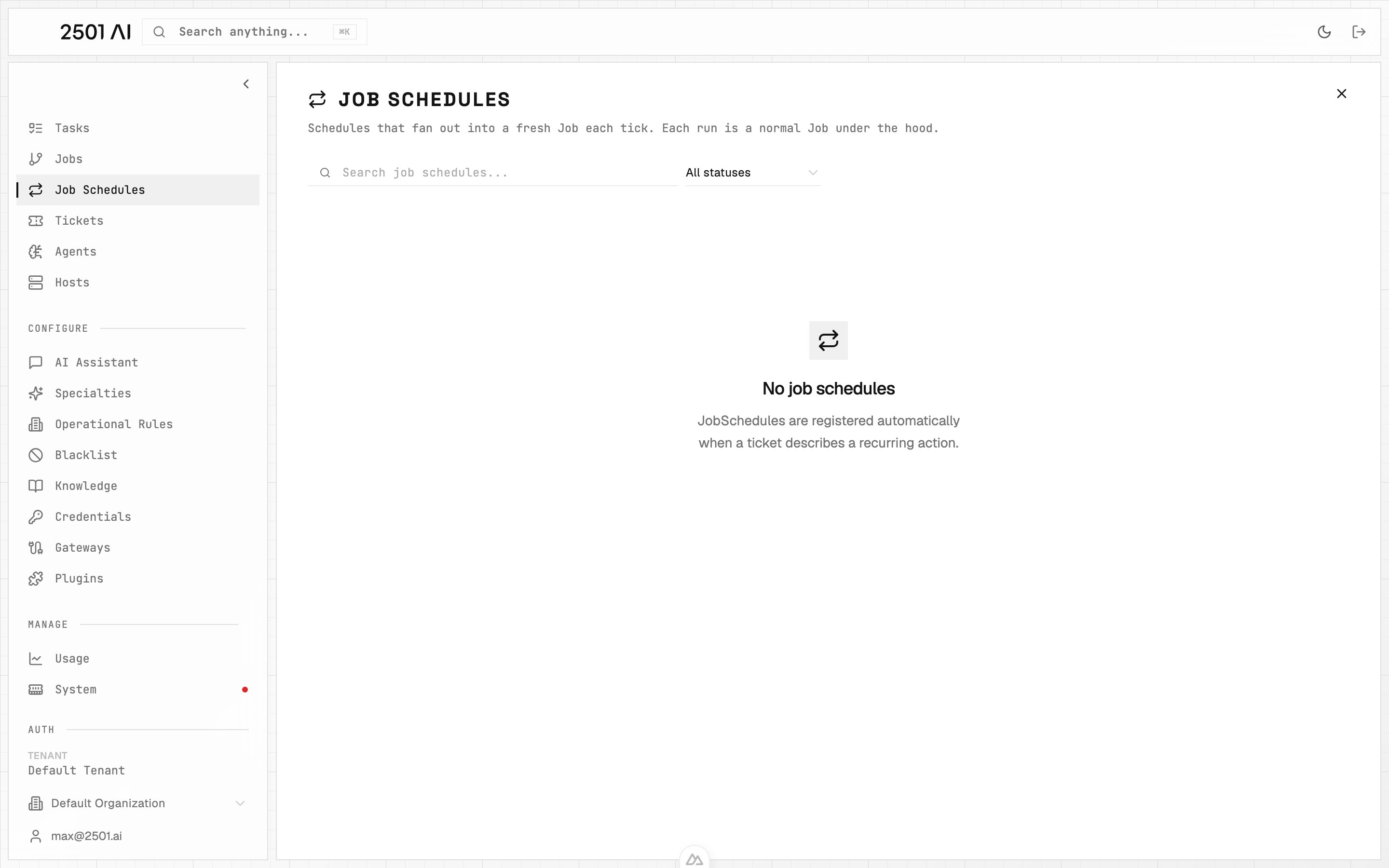
A **Job Schedule** registers a recurring cadence or a one-time future action. When a ticket asks for work on a repeating schedule - *"check disk space every Monday at 09:00"*, *"restart the worker every weekday at 07:30"*, *"every 15 minutes"* - 2501 doesn't run the job once; it registers a schedule. Each tick spawns a fresh [Job](/0.16/core-concepts/jobs) that follows the normal lifecycle.
Schedules are managed under **Job Schedules** in Command Center.
 ## How a schedule is created
Schedules are **registered automatically** when an incoming ticket describes a recurring action. The gateway detects the cadence in the ticket text and creates the schedule instead of a one-off job.
You can also create a schedule yourself: on the **Jobs** page, click **New Job**, describe the work and switch on **Schedule**. Choose to run it once at a set time, or on a repeat - every few minutes or hours, daily, weekly, monthly, or with a cron expression - with an optional start, end and run limit. Times are in your tenant's timezone, which the form shows. The same timing rules apply as for a schedule detected on a ticket. Writing "every Monday" in the description alone does not schedule anything; the job runs once, now.
A single cadence can also name a **set of days**, such as *"every weekday at 07:30"*, *"every Monday and Wednesday at 10:00"*, or *"every weekend at 11:00"*. It registers as one schedule that runs on each of those days, not one schedule per day. The phrase still needs a recurring word like *"every"*: naming days alone (*"on Monday and Wednesday at 10:00"*) counts as one-off work, not a schedule.
## One-time future work
A request such as "restart nginx tomorrow at 15:00" creates a one-time schedule. At that time, the schedule creates a new [Job](/0.16/core-concepts/jobs), which plans and creates the [Tasks](/0.16/core-concepts/tasks) needed to perform the request. Work requested immediately can proceed separately.
A completed one-time schedule has no next run. Cancelling it before its start time prevents that job from being created.
## What you see for each schedule
| Field | What it shows |
| - | - |
| **Cadence** | The interpreted schedule (e.g. *"weekly, Mondays at 09:00 UTC"*) |
| **Source ticket** | The original ITSM record that introduced the schedule |
| **Next run** | When the next Job will spawn |
| **Run history** | The Jobs that have fired from this schedule so far, each with its own status |
| **Status** | `active` or `cancelled` |
## Managing a schedule
* **Pause / stop** a schedule from its detail page. Stopping it cancels future ticks but does not affect Jobs already in flight.
* **Re-activate** is not currently surfaced - to "restart" a schedule, comment on the source ticket and let the gateway re-register.
* **Edit cadence** is also driven from the source ticket; comment on the ticket to change the schedule and the gateway will reinterpret.
## Supported timing and refusals
Schedules can include hour windows, weekday filters, and the Nth weekday of a month. The request must fit one recurring cron expression.
Intervals below 5 minutes in production are refused. The ticket receives an explanation so you can choose a supported timing. The same applies to other timing the platform cannot represent. Scheduling requests are all-or-nothing: if any item is invalid or unsupported, none of the requested schedules are registered. The ticket receives one explanation so you can correct and resubmit the complete request. No part of a rejected scheduling request is installed on the host; unrelated immediate work can still proceed.
## Start, end, and run limits
You can specify when a recurring schedule starts, when it ends, or how many times it runs. For example, "check RAM every 5 minutes for the next 30 minutes" creates a schedule that stops at the requested end.
Relative times use your tenant's timezone unless the request names another timezone. A calendar end date without a time includes that entire date. Invalid or already-expired bounds are refused rather than ignored.
A run count must be a whole number from 1 to 2,147,483,647. Zero, negative, fractional, and larger counts are refused, not rounded or replaced.
## License interaction
Scheduled jobs count against the **same task cap** as ad-hoc jobs. The cap is a lifetime tenant total - see [Licensing](/0.16/configure/licensing).
If the tenant has reached its cap when a tick fires, that tick **skips** rather than queues. The schedule itself stays active; the next tick will try again once headroom exists.
This documentation is built and hosted on [Mintlify](https://mintlify.com), a developer documentation platform.
## How a schedule is created
Schedules are **registered automatically** when an incoming ticket describes a recurring action. The gateway detects the cadence in the ticket text and creates the schedule instead of a one-off job.
You can also create a schedule yourself: on the **Jobs** page, click **New Job**, describe the work and switch on **Schedule**. Choose to run it once at a set time, or on a repeat - every few minutes or hours, daily, weekly, monthly, or with a cron expression - with an optional start, end and run limit. Times are in your tenant's timezone, which the form shows. The same timing rules apply as for a schedule detected on a ticket. Writing "every Monday" in the description alone does not schedule anything; the job runs once, now.
A single cadence can also name a **set of days**, such as *"every weekday at 07:30"*, *"every Monday and Wednesday at 10:00"*, or *"every weekend at 11:00"*. It registers as one schedule that runs on each of those days, not one schedule per day. The phrase still needs a recurring word like *"every"*: naming days alone (*"on Monday and Wednesday at 10:00"*) counts as one-off work, not a schedule.
## One-time future work
A request such as "restart nginx tomorrow at 15:00" creates a one-time schedule. At that time, the schedule creates a new [Job](/0.16/core-concepts/jobs), which plans and creates the [Tasks](/0.16/core-concepts/tasks) needed to perform the request. Work requested immediately can proceed separately.
A completed one-time schedule has no next run. Cancelling it before its start time prevents that job from being created.
## What you see for each schedule
| Field | What it shows |
| - | - |
| **Cadence** | The interpreted schedule (e.g. *"weekly, Mondays at 09:00 UTC"*) |
| **Source ticket** | The original ITSM record that introduced the schedule |
| **Next run** | When the next Job will spawn |
| **Run history** | The Jobs that have fired from this schedule so far, each with its own status |
| **Status** | `active` or `cancelled` |
## Managing a schedule
* **Pause / stop** a schedule from its detail page. Stopping it cancels future ticks but does not affect Jobs already in flight.
* **Re-activate** is not currently surfaced - to "restart" a schedule, comment on the source ticket and let the gateway re-register.
* **Edit cadence** is also driven from the source ticket; comment on the ticket to change the schedule and the gateway will reinterpret.
## Supported timing and refusals
Schedules can include hour windows, weekday filters, and the Nth weekday of a month. The request must fit one recurring cron expression.
Intervals below 5 minutes in production are refused. The ticket receives an explanation so you can choose a supported timing. The same applies to other timing the platform cannot represent. Scheduling requests are all-or-nothing: if any item is invalid or unsupported, none of the requested schedules are registered. The ticket receives one explanation so you can correct and resubmit the complete request. No part of a rejected scheduling request is installed on the host; unrelated immediate work can still proceed.
## Start, end, and run limits
You can specify when a recurring schedule starts, when it ends, or how many times it runs. For example, "check RAM every 5 minutes for the next 30 minutes" creates a schedule that stops at the requested end.
Relative times use your tenant's timezone unless the request names another timezone. A calendar end date without a time includes that entire date. Invalid or already-expired bounds are refused rather than ignored.
A run count must be a whole number from 1 to 2,147,483,647. Zero, negative, fractional, and larger counts are refused, not rounded or replaced.
## License interaction
Scheduled jobs count against the **same task cap** as ad-hoc jobs. The cap is a lifetime tenant total - see [Licensing](/0.16/configure/licensing).
If the tenant has reached its cap when a tick fires, that tick **skips** rather than queues. The schedule itself stays active; the next tick will try again once headroom exists.
This documentation is built and hosted on [Mintlify](https://mintlify.com), a developer documentation platform.