> ## Documentation Index
> Fetch the complete documentation index at: https://docs.2501.ai/llms.txt
> Use this file to discover all available pages before exploring further.
# Specialties
> Configure your agent for specific task domains
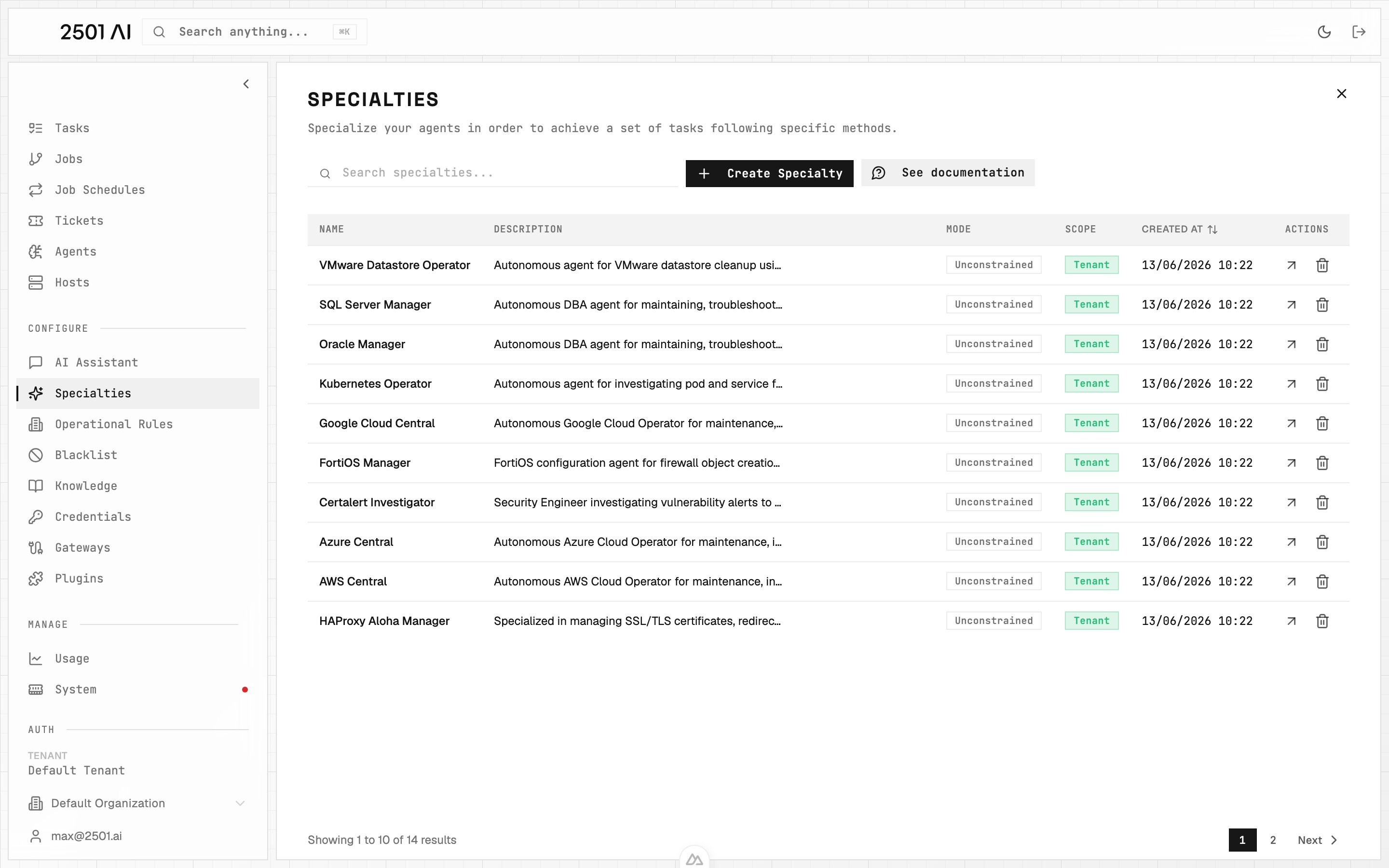
Specialties let you specialize agents for specific tasks. Every agent needs a specialty to run. If you don't select one during initialization, it defaults to `SYSOPS`.
## Purpose of Specialties
While 2501 agents are built for autonomous system operations, specialization improves execution accuracy and reliability. Instead of operating generically, specialized agents follow domain-specific guidelines tailored to your infrastructure.
**Example:** An agent with an AWS CLI specialty can manage EC2 instances with specific guidance on CLI usage patterns, error handling, and decision-making logic (like determining appropriate CPU upgrades when asked to "upgrade my sandbox machine").
Specialties work well for:
* Providing context for proprietary or lesser-known tools
* Establishing workflows without full MCP integrations
* Documenting internal conventions and procedures
 ## Separation of Concerns
To maximize accuracy, use different tools for different purposes:
* **Specialties**: Define workflows, provide context, establish best practices
* **[Operational Rules](/0.17/configure/operational-rules)**: Enforce specific tool usage or behavioral requirements
* **[Blacklist](/0.17/configure/blacklist)**: Prevent execution of prohibited commands
## Managing Specialties
Go to **Command Center** → **Specialties** and click **Create Specialty** to add a new one.
### Name
The display name for your specialty. Use naming conventions that reflect the service domain or agent role.
Example: `TERRAFORM_SPECIALIST`
### Key
A read-only identifier automatically generated from the name. Use this key in CLI commands to assign specialties during agent initialization.
### Description
Context about the specialty's purpose and scope. Agents read the full description - not just the name - when deciding how to plan and assign tasks, so a clear description improves routing accuracy for specialties where the name alone is ambiguous.
Example: `Handles Terraform infrastructure files for sandbox environments`
### Scope
A specialty is scoped to either a single organization or the whole tenant. By default it is **Scoped to Organization**, so only that org's agents can use it. Pick **Scoped to Tenant** in the **Scope** selector to make it available to all organizations. Selecting the tenant scope requires tenant-level access; without it the selector stays on **Scoped to Organization**.
### MCP servers
**MCP servers** on the specialty's page lists the plugins the specialty hands to every agent of it, including agents created later, one switch each, and searches for another one it can take: an organization's specialty takes that organization's plugins and the tenant-wide ones, and a tenant-wide specialty only tenant-wide ones. Each change saves on its own. See [Plugins](/0.17/configure/plugins) for how an inherited plugin and an agent's own assignment combine.
### Investigate-Only Mode
A specialty can be set to **investigate-only**, making its agents read-only by default. A winning `@2501:remediate` ticket tag overrides this constraint for that job. Untagged jobs still honor the specialty setting, and a later `@2501:investigate` forces investigation for new tasks. The tag affects all new tasks in that job. A running task keeps its original mode.
This is useful for safely deploying large fleets of agents (e.g., 1000 Oracle DB agents) where you want read-only analysis by default. You can then selectively enable remediation for specific groups by changing this single setting on the specialty.
When investigate-only specialties kept an untagged job from remediating, the job resolution is flagged as **partial** rather than a failure. See [Agents: Investigate vs Remediate](/0.17/core-concepts/agents#execution-modes-investigate-vs-remediate) for the full priority chain.
### Prompt
The specialty definition itself. Use structured formats like Markdown or XML for clarity.
**Important:** Changes to a specialty immediately affect all agents using it. To test modifications safely, create a new specialty for testing, assign it to a test agent, validate the behavior, then update the production specialty.
For guidance on effective agent prompting, refer to our [Prompting Guide](/0.17/configure/prompting).
## Best Practices
Keep specialty prompts focused and domain-specific. Document expected behaviors and decision criteria with clear examples for complex workflows.
Test specialty changes on isolated agents before rolling them out to production. For critical systems, consider version-controlling your specialty definitions.
This documentation is built and hosted on [Mintlify](https://mintlify.com), a developer documentation platform.
## Separation of Concerns
To maximize accuracy, use different tools for different purposes:
* **Specialties**: Define workflows, provide context, establish best practices
* **[Operational Rules](/0.17/configure/operational-rules)**: Enforce specific tool usage or behavioral requirements
* **[Blacklist](/0.17/configure/blacklist)**: Prevent execution of prohibited commands
## Managing Specialties
Go to **Command Center** → **Specialties** and click **Create Specialty** to add a new one.
### Name
The display name for your specialty. Use naming conventions that reflect the service domain or agent role.
Example: `TERRAFORM_SPECIALIST`
### Key
A read-only identifier automatically generated from the name. Use this key in CLI commands to assign specialties during agent initialization.
### Description
Context about the specialty's purpose and scope. Agents read the full description - not just the name - when deciding how to plan and assign tasks, so a clear description improves routing accuracy for specialties where the name alone is ambiguous.
Example: `Handles Terraform infrastructure files for sandbox environments`
### Scope
A specialty is scoped to either a single organization or the whole tenant. By default it is **Scoped to Organization**, so only that org's agents can use it. Pick **Scoped to Tenant** in the **Scope** selector to make it available to all organizations. Selecting the tenant scope requires tenant-level access; without it the selector stays on **Scoped to Organization**.
### MCP servers
**MCP servers** on the specialty's page lists the plugins the specialty hands to every agent of it, including agents created later, one switch each, and searches for another one it can take: an organization's specialty takes that organization's plugins and the tenant-wide ones, and a tenant-wide specialty only tenant-wide ones. Each change saves on its own. See [Plugins](/0.17/configure/plugins) for how an inherited plugin and an agent's own assignment combine.
### Investigate-Only Mode
A specialty can be set to **investigate-only**, making its agents read-only by default. A winning `@2501:remediate` ticket tag overrides this constraint for that job. Untagged jobs still honor the specialty setting, and a later `@2501:investigate` forces investigation for new tasks. The tag affects all new tasks in that job. A running task keeps its original mode.
This is useful for safely deploying large fleets of agents (e.g., 1000 Oracle DB agents) where you want read-only analysis by default. You can then selectively enable remediation for specific groups by changing this single setting on the specialty.
When investigate-only specialties kept an untagged job from remediating, the job resolution is flagged as **partial** rather than a failure. See [Agents: Investigate vs Remediate](/0.17/core-concepts/agents#execution-modes-investigate-vs-remediate) for the full priority chain.
### Prompt
The specialty definition itself. Use structured formats like Markdown or XML for clarity.
**Important:** Changes to a specialty immediately affect all agents using it. To test modifications safely, create a new specialty for testing, assign it to a test agent, validate the behavior, then update the production specialty.
For guidance on effective agent prompting, refer to our [Prompting Guide](/0.17/configure/prompting).
## Best Practices
Keep specialty prompts focused and domain-specific. Document expected behaviors and decision criteria with clear examples for complex workflows.
Test specialty changes on isolated agents before rolling them out to production. For critical systems, consider version-controlling your specialty definitions.
This documentation is built and hosted on [Mintlify](https://mintlify.com), a developer documentation platform.