> ## Documentation Index
> Fetch the complete documentation index at: https://docs.2501.ai/llms.txt
> Use this file to discover all available pages before exploring further.
# Agents
> The LLMs autonomously browsing your systems
Agents are the core execution units of 2501: autonomous AI systems that perform operational tasks on your infrastructure. Each agent combines LLM-powered intelligence with programmatic access to your systems, enabling complex workflows, issue diagnosis, and infrastructure management through natural language instructions.
## What is an Agent?
A 2501 agent is an AI-powered operator capable of understanding context by analyzing tasks and interpreting system states, planning execution by breaking down complex operations into logical steps, taking action through commands and file modifications, adapting dynamically based on outputs and errors, and operating autonomously to complete multi-step tasks without constant intervention.
Unlike traditional automation scripts, agents reason about their environment and make informed decisions rather than following rigid procedural logic.
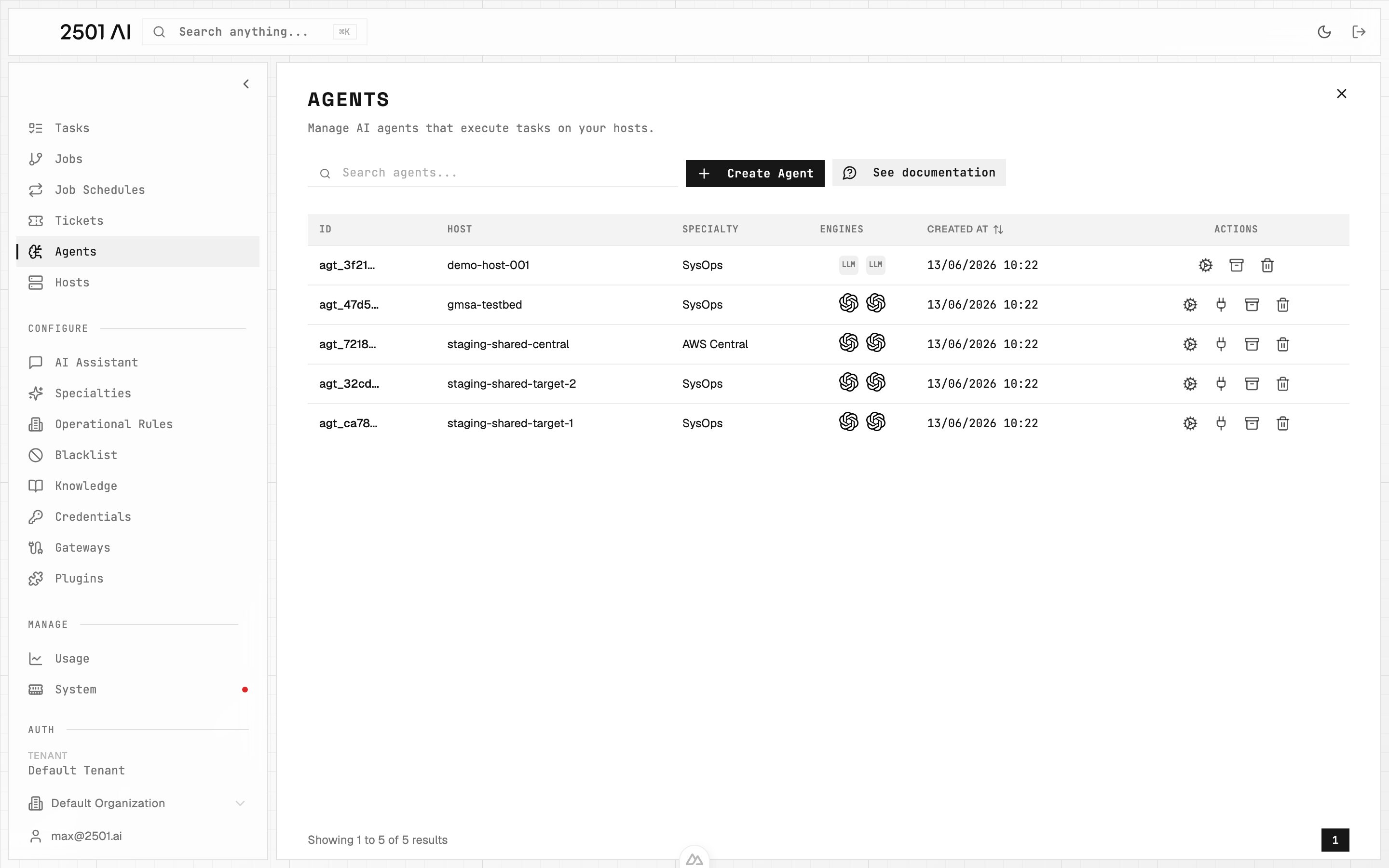 ## Agent Architecture
### Engine Pair
Every agent uses two LLMs in tandem:
* **Main Engine**: Handles direct task execution, file manipulation, and command execution
* **Secondary Engine**: Checks the work - validating each proposed action against the host's rules and the incident, and reviewing interactive commands
This dual-engine architecture separates doing from checking, improving accuracy and safety. The agent that acts is not the one that decides whether the action is allowed. Learn more in [Engines](/0.17/understand/engine-agents).
### Specialty Configuration
Agents are assigned a [Specialty](/0.17/configure/specialties) that provides domain-specific guidance and workflows, ranging from general-purpose (`SYSOPS`) to highly specialized configurations like `TERRAFORM_SPECIALIST` or `AWS_CLI_EXPERT`.
### Operational Constraints
Agents operate within boundaries defined by [Operational Rules](/0.17/configure/operational-rules) (organization-wide mandatory procedures), [Blacklists](/0.17/configure/blacklist) (prohibited commands), and [Credentials](/0.17/configure/credentials) (secure access to systems).
### Credential Access Control
Each agent has an explicit **credential allowlist** - a list of credentials it may reference by name during task execution. Configure the list from the agent create or edit form. Only credentials on the allowlist are advertised to the agent; secret values are never exposed. Named credential placeholders in commands (e.g. `{{secret:my-api-key}}`) resolve only when the referenced credential appears on the agent's allowlist. An empty allowlist means no named credentials are available to the agent.
### Memory and Context
Agents maintain task history within their context window, allowing them to reference previous operations, build on prior work, and maintain continuity across related tasks. When context limits are approached, tasks can be archived to clear memory while preserving agent configuration.
## Execution Modes: Investigate vs Unconstrained
Each task runs in one of two execution modes that control what actions its agent can take:
* **Unconstrained**: The agent may diagnose issues and apply fixes: commands, file changes, service restarts, etc. Operational rules and access restrictions still apply.
* **Investigate**: Read-only analysis. The agent diagnoses and reports findings without making any changes to the target system.
Unconstrained is the default. In the v1 API, an unconstrained task's `execution_mode` is `null`.
The mode is determined at two levels:
| Level | How | Scope |
| - | - | - |
| **Ticket** | Tag with `@2501:investigate` or `@2501:remediate` in the ticket body or comments | Single ticket/job: unconstrained if no tag is present |
| **Specialty** | Set to investigate-only in the [specialty](/0.17/configure/specialties) settings | All agents using that specialty: read-only unless the job mode is remediate |
The ticket tag sets the job mode, which propagates to individual tasks. If multiple tags appear (in the description and comments), the last one wins. An ordinary later comment does not clear an earlier mode tag. Aliases like `@2501:investigation` and `@2501:remediation` also work.
An investigate-only specialty keeps untagged jobs read-only. A winning `@2501:remediate` tag overrides that constraint for the job without changing the specialty. A later `@2501:investigate` makes every new task investigate. Changes take effect at the next task boundary. The running task keeps its original mode, including after recovery; pending tasks from the old plan are canceled and replanned. Other operational rules and access restrictions still apply. Permission to remediate does not authorize repeating completed changes or doing work outside the current request. Schedules support only Investigate and Unconstrained. Each run uses the schedule's mode. A schedule requested from a Remediate job is Unconstrained, so future runs still respect investigate-only specialties.
A job has three execution modes; each of its tasks still runs in one of the two above:
| Job mode | Mode of new tasks |
| - | - |
| Investigate | Investigate, regardless of specialty |
| Unconstrained (default) | Investigate for an investigate-only specialty; otherwise Unconstrained |
| Remediate | Unconstrained, even with an investigate-only specialty |
In the Command Center, investigate and remediate jobs show an **Investigate** or **Remediate** badge; an unconstrained job has none.
## Agent Lifecycle
### Creation
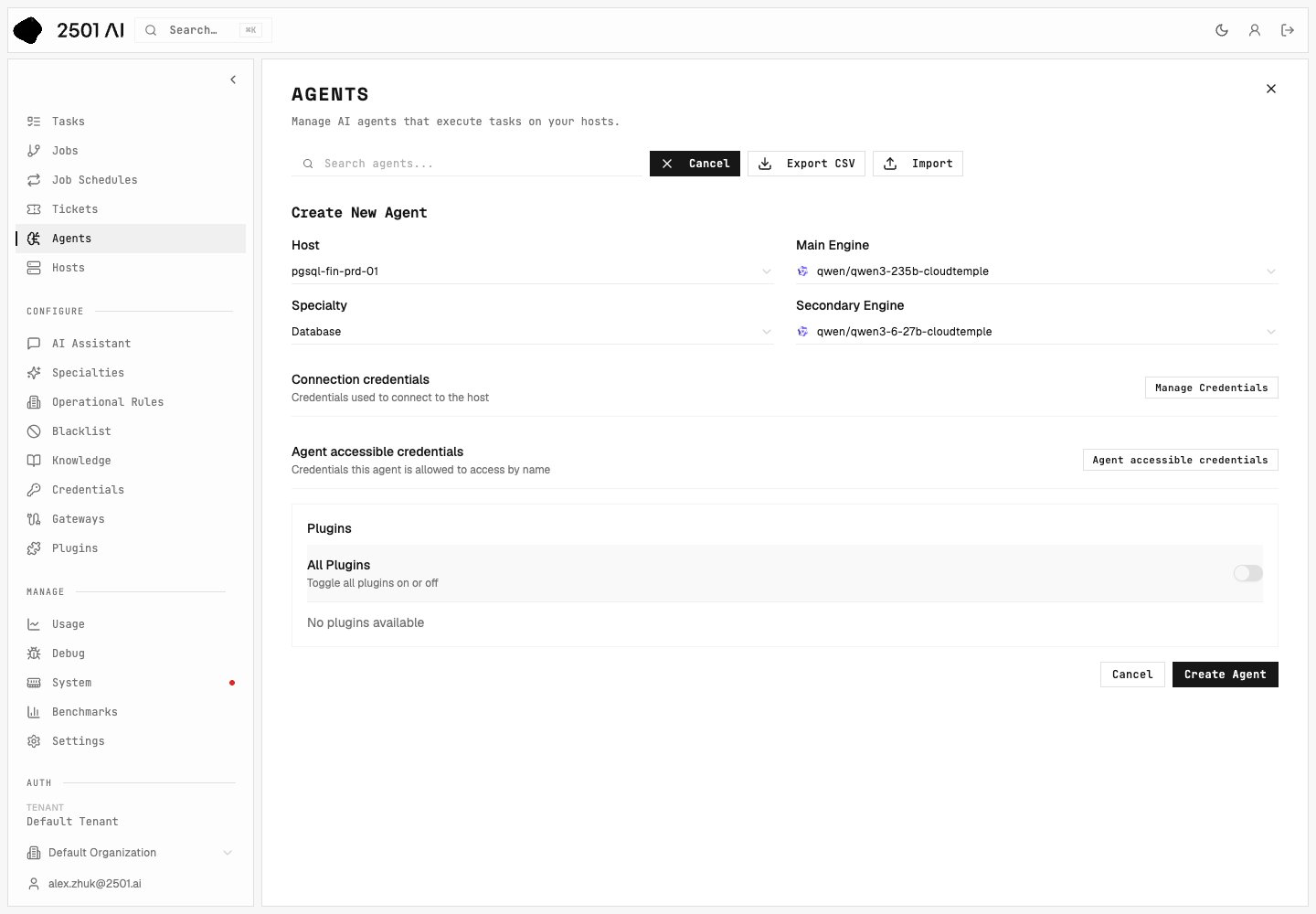
Agents are created through the Command Center UI (full-featured) or CLI (streamlined for quick deployment). In the Command Center, **Agents > Create Agent** opens a dedicated creation page. Assign a [host](/0.17/core-concepts/hosts), select main and secondary engines, choose a specialty, assign plugins, and configure connection credentials.
## Agent Architecture
### Engine Pair
Every agent uses two LLMs in tandem:
* **Main Engine**: Handles direct task execution, file manipulation, and command execution
* **Secondary Engine**: Checks the work - validating each proposed action against the host's rules and the incident, and reviewing interactive commands
This dual-engine architecture separates doing from checking, improving accuracy and safety. The agent that acts is not the one that decides whether the action is allowed. Learn more in [Engines](/0.17/understand/engine-agents).
### Specialty Configuration
Agents are assigned a [Specialty](/0.17/configure/specialties) that provides domain-specific guidance and workflows, ranging from general-purpose (`SYSOPS`) to highly specialized configurations like `TERRAFORM_SPECIALIST` or `AWS_CLI_EXPERT`.
### Operational Constraints
Agents operate within boundaries defined by [Operational Rules](/0.17/configure/operational-rules) (organization-wide mandatory procedures), [Blacklists](/0.17/configure/blacklist) (prohibited commands), and [Credentials](/0.17/configure/credentials) (secure access to systems).
### Credential Access Control
Each agent has an explicit **credential allowlist** - a list of credentials it may reference by name during task execution. Configure the list from the agent create or edit form. Only credentials on the allowlist are advertised to the agent; secret values are never exposed. Named credential placeholders in commands (e.g. `{{secret:my-api-key}}`) resolve only when the referenced credential appears on the agent's allowlist. An empty allowlist means no named credentials are available to the agent.
### Memory and Context
Agents maintain task history within their context window, allowing them to reference previous operations, build on prior work, and maintain continuity across related tasks. When context limits are approached, tasks can be archived to clear memory while preserving agent configuration.
## Execution Modes: Investigate vs Unconstrained
Each task runs in one of two execution modes that control what actions its agent can take:
* **Unconstrained**: The agent may diagnose issues and apply fixes: commands, file changes, service restarts, etc. Operational rules and access restrictions still apply.
* **Investigate**: Read-only analysis. The agent diagnoses and reports findings without making any changes to the target system.
Unconstrained is the default. In the v1 API, an unconstrained task's `execution_mode` is `null`.
The mode is determined at two levels:
| Level | How | Scope |
| - | - | - |
| **Ticket** | Tag with `@2501:investigate` or `@2501:remediate` in the ticket body or comments | Single ticket/job: unconstrained if no tag is present |
| **Specialty** | Set to investigate-only in the [specialty](/0.17/configure/specialties) settings | All agents using that specialty: read-only unless the job mode is remediate |
The ticket tag sets the job mode, which propagates to individual tasks. If multiple tags appear (in the description and comments), the last one wins. An ordinary later comment does not clear an earlier mode tag. Aliases like `@2501:investigation` and `@2501:remediation` also work.
An investigate-only specialty keeps untagged jobs read-only. A winning `@2501:remediate` tag overrides that constraint for the job without changing the specialty. A later `@2501:investigate` makes every new task investigate. Changes take effect at the next task boundary. The running task keeps its original mode, including after recovery; pending tasks from the old plan are canceled and replanned. Other operational rules and access restrictions still apply. Permission to remediate does not authorize repeating completed changes or doing work outside the current request. Schedules support only Investigate and Unconstrained. Each run uses the schedule's mode. A schedule requested from a Remediate job is Unconstrained, so future runs still respect investigate-only specialties.
A job has three execution modes; each of its tasks still runs in one of the two above:
| Job mode | Mode of new tasks |
| - | - |
| Investigate | Investigate, regardless of specialty |
| Unconstrained (default) | Investigate for an investigate-only specialty; otherwise Unconstrained |
| Remediate | Unconstrained, even with an investigate-only specialty |
In the Command Center, investigate and remediate jobs show an **Investigate** or **Remediate** badge; an unconstrained job has none.
## Agent Lifecycle
### Creation
Agents are created through the Command Center UI (full-featured) or CLI (streamlined for quick deployment). In the Command Center, **Agents > Create Agent** opens a dedicated creation page. Assign a [host](/0.17/core-concepts/hosts), select main and secondary engines, choose a specialty, assign plugins, and configure connection credentials.
 ### Configuration
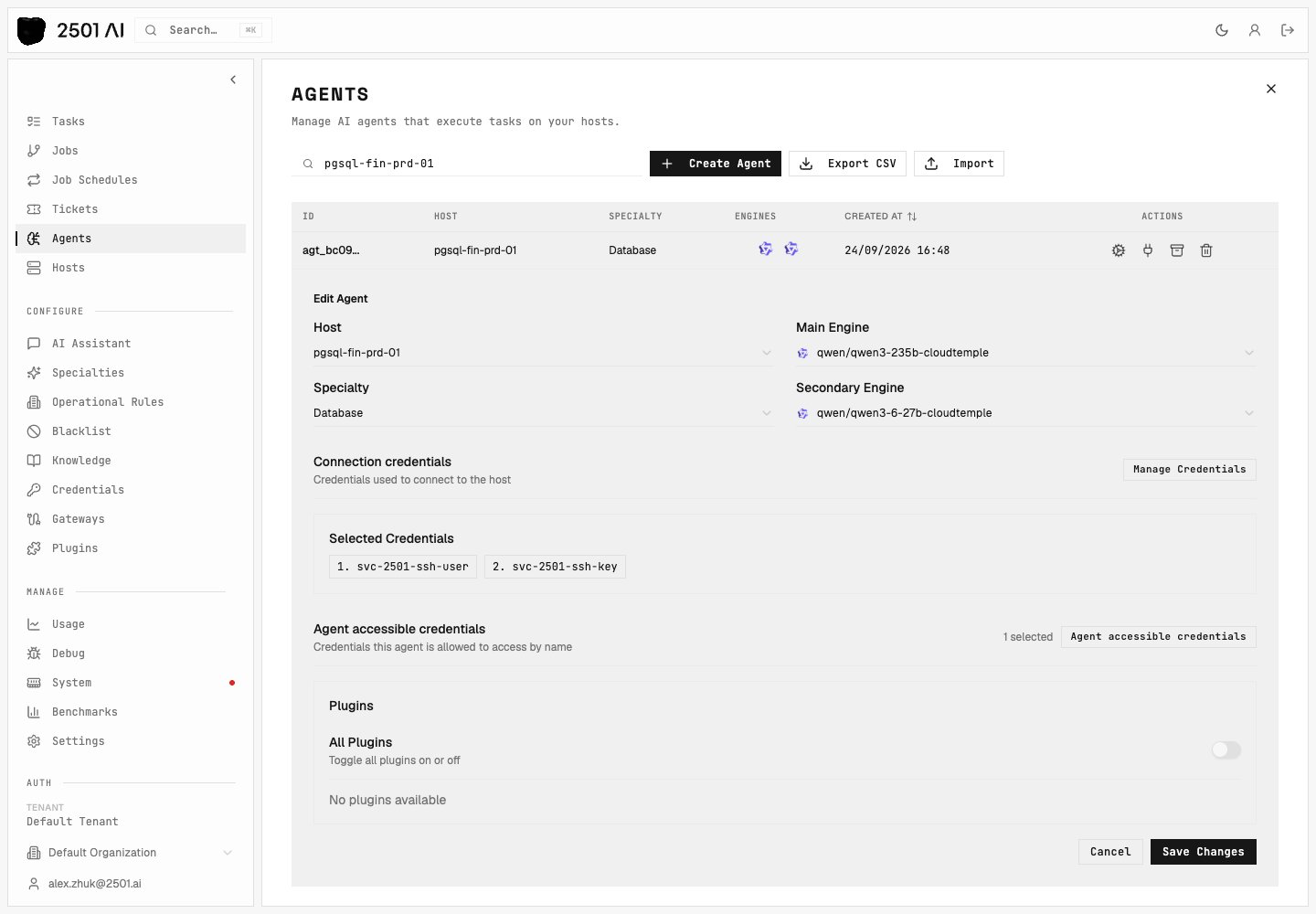
After creation, select an agent from the inventory to open its detail page. From there you can change its identity and engine assignments, configure host authentication, control the credentials available during tasks, and assign plugins. The same page shows recent tasks with live statuses and provides task creation and archival actions.
### Task Execution
Agents receive tasks through natural language instructions. The main engine gathers context, plans the approach, and works through it one action at a time; the secondary engine checks each proposed action before it runs. The agent adapts as it learns from output, verifies its own change before reporting it done, and reports completion or escalates issues.
### Memory Management
As agents work, their context window fills with task history. Manage memory by archiving completed tasks individually or using **Archive Tasks** from the agent inventory or detail page to clear the agent's task memory.
### Modification and Deletion
Agents can be edited or removed through the Command Center UI (full management) or CLI (limited management for active agents).
### Configuration
After creation, select an agent from the inventory to open its detail page. From there you can change its identity and engine assignments, configure host authentication, control the credentials available during tasks, and assign plugins. The same page shows recent tasks with live statuses and provides task creation and archival actions.
### Task Execution
Agents receive tasks through natural language instructions. The main engine gathers context, plans the approach, and works through it one action at a time; the secondary engine checks each proposed action before it runs. The agent adapts as it learns from output, verifies its own change before reporting it done, and reports completion or escalates issues.
### Memory Management
As agents work, their context window fills with task history. Manage memory by archiving completed tasks individually or using **Archive Tasks** from the agent inventory or detail page to clear the agent's task memory.
### Modification and Deletion
Agents can be edited or removed through the Command Center UI (full management) or CLI (limited management for active agents).
 ## Agent Organization
### Organization Scoping
Agents belong to specific [organizations](/0.17/core-concepts/organizations), with available specialties, operational rules, blacklisted commands, and accessible credentials. This scoping enables different teams or environments to maintain separate operational standards while sharing infrastructure.
### Agent Naming
Choose agent names that indicate purpose or responsibility (e.g., `aws-prod-manager`, `db-backup-agent`), target environment (e.g., `staging-deployer`, `prod-monitor`), or specialty domain (e.g., `terraform-provisioner`, `k8s-operator`).
## Testing Connectivity
For agents configured for remote execution, you can verify connectivity to the assigned host directly from the Command Center. Open the agent and use **Test connection** in the **Host authentication** section. This checks that the agent can reach its host using the configured protocol (SSH or WinRM) and credentials.
## Troubleshooting
**Agent Not Completing Tasks:** Check context window usage and archive tasks if near limits. Verify credentials are correctly assigned and accessible. Review operational rules for conflicts. Ensure specialty provides adequate guidance. Consider upgrading engines for complex tasks.
**Execution Errors:** Validate remote-access credentials - use the **Test connection** action to quickly verify connectivity. Check the blacklist for inadvertently blocked commands. Review task history for failure patterns. Verify target system accessibility and permissions.
**Unexpected Behavior:** Review the agent's specialty for conflicting guidance. Check for overly strict operational rules. Examine task history to understand decision-making. Test with simplified tasks to isolate the issue. Consider adjusting engine assignments.
For additional support, refer to the Prompting Guide for techniques to improve agent task understanding and execution.
This documentation is built and hosted on [Mintlify](https://mintlify.com), a developer documentation platform.
## Agent Organization
### Organization Scoping
Agents belong to specific [organizations](/0.17/core-concepts/organizations), with available specialties, operational rules, blacklisted commands, and accessible credentials. This scoping enables different teams or environments to maintain separate operational standards while sharing infrastructure.
### Agent Naming
Choose agent names that indicate purpose or responsibility (e.g., `aws-prod-manager`, `db-backup-agent`), target environment (e.g., `staging-deployer`, `prod-monitor`), or specialty domain (e.g., `terraform-provisioner`, `k8s-operator`).
## Testing Connectivity
For agents configured for remote execution, you can verify connectivity to the assigned host directly from the Command Center. Open the agent and use **Test connection** in the **Host authentication** section. This checks that the agent can reach its host using the configured protocol (SSH or WinRM) and credentials.
## Troubleshooting
**Agent Not Completing Tasks:** Check context window usage and archive tasks if near limits. Verify credentials are correctly assigned and accessible. Review operational rules for conflicts. Ensure specialty provides adequate guidance. Consider upgrading engines for complex tasks.
**Execution Errors:** Validate remote-access credentials - use the **Test connection** action to quickly verify connectivity. Check the blacklist for inadvertently blocked commands. Review task history for failure patterns. Verify target system accessibility and permissions.
**Unexpected Behavior:** Review the agent's specialty for conflicting guidance. Check for overly strict operational rules. Examine task history to understand decision-making. Test with simplified tasks to isolate the issue. Consider adjusting engine assignments.
For additional support, refer to the Prompting Guide for techniques to improve agent task understanding and execution.
This documentation is built and hosted on [Mintlify](https://mintlify.com), a developer documentation platform.