> ## Documentation Index
> Fetch the complete documentation index at: https://docs.2501.ai/llms.txt
> Use this file to discover all available pages before exploring further.
# Licensing & Usage
> Apply your 2501 license, understand entitlement caps, and track usage from Command Center
A **license** is a signed token (JWT) issued by 2501 that sets your tenant's caps on **hosts**, **gateways**, and **tasks**. Without one, the tenant runs on a limited free tier so you can evaluate the product. The Usage page lets administrators track consumption against the caps and explore LLM usage over time.
The Usage page, plan data, analytics, and the license banner are visible to **administrators only**.
Licenses can be contract or trial, and have a validity window. A license with no end date is shown as **Perpetual**.
## Free tier (no license)
If no license has been applied, the tenant runs on a built-in free tier with capped resources:
| Dimension | Free-tier cap |
| --------------------------------------------- | ------------- |
| Tasks (lifetime, across ad-hoc and recurring) | 50 |
| Hosts | 10 |
| Gateways | unlimited |
The free tier applies only when there is **no active license**. Once you reach the cap on a dimension, creation in that dimension is rejected until a license is applied. An **expired** license is a hard block, not a free-tier fallback — apply a fresh license to keep going.
## Applying a license
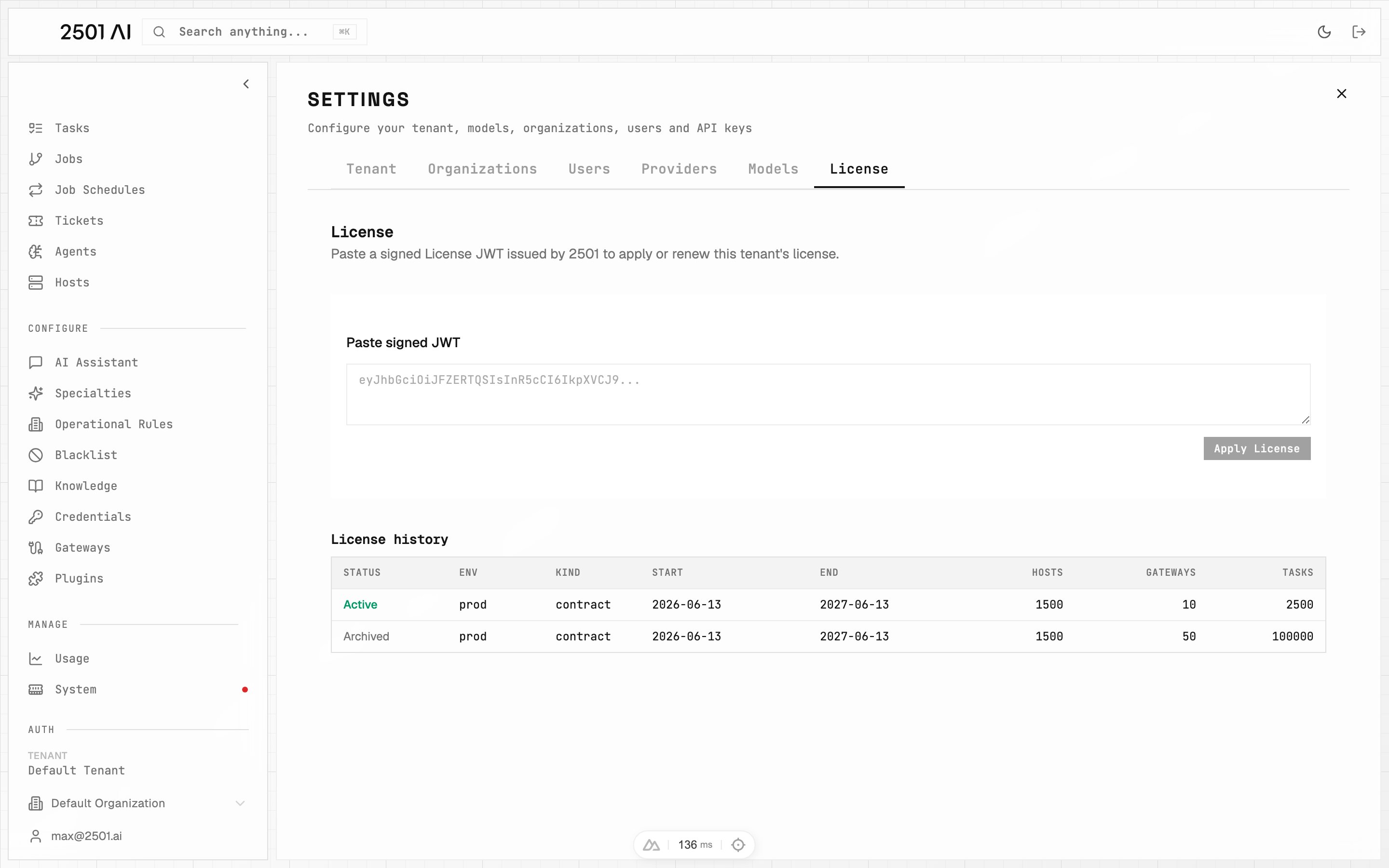
In **Command Center**, go to **Settings** > **License**.
Paste the signed token (a JWT) issued by 2501 into the license field.
Click **Apply License**. The new license becomes active immediately, and the previously active license is archived.
Only **one license is active at a time**. The License screen also shows a **License history** of every license you have applied; applying a new one archives the previous one.
 ## How the task cap is enforced
The **tasks** cap is a tenant-wide **lifetime count** of every task ever created (ad-hoc and recurring combined). It is **not** reset per month, and it is enforced everywhere tasks are created: in Command Center (UI and API) and when the engine turns incoming [gateway](/0.7/core-concepts/gateways) tickets into work.
Once the lifetime task cap is reached (on a license, or on the free tier), **task creation is rejected** until a license is applied or its cap is raised. An expired license also blocks task creation. See [Tasks](/0.7/core-concepts/tasks#task-limits) for how this surfaces during normal use.
## The Usage page
The **Usage** page (administrators only) is where you watch consumption and dig into LLM activity.
## How the task cap is enforced
The **tasks** cap is a tenant-wide **lifetime count** of every task ever created (ad-hoc and recurring combined). It is **not** reset per month, and it is enforced everywhere tasks are created: in Command Center (UI and API) and when the engine turns incoming [gateway](/0.7/core-concepts/gateways) tickets into work.
Once the lifetime task cap is reached (on a license, or on the free tier), **task creation is rejected** until a license is applied or its cap is raised. An expired license also blocks task creation. See [Tasks](/0.7/core-concepts/tasks#task-limits) for how this surfaces during normal use.
## The Usage page
The **Usage** page (administrators only) is where you watch consumption and dig into LLM activity.
 ### Plan usage
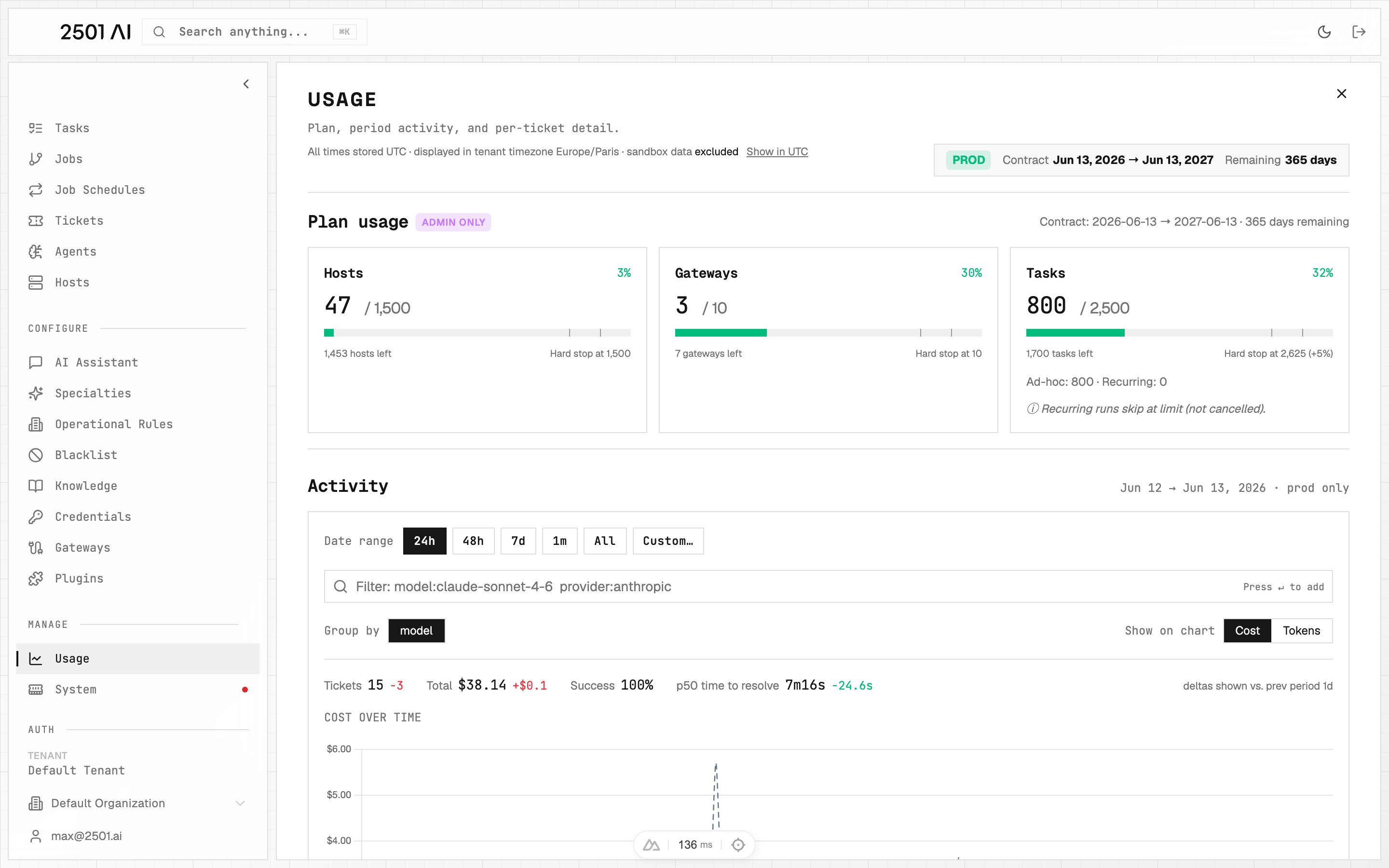
The **Plan-usage** card shows a used-vs-cap bar for each entitlement (hosts, gateways, and tasks), plus the contract start and end dates and days remaining.
### Usage banner
A tenant-wide banner appears across Command Center when **hosts** or **tasks** usage reaches **90% or more** of its cap. The banner links straight to the Usage page.
### Activity and LLM usage
The Usage page **Activity** section explores LLM usage over a date range, with a toggle between **Cost** and **Tokens**.
* **Tokens mode** counts all token usage in the range: input, output, and cached tokens.
* **Cost mode** stays anchored to tickets and [pricing plans](/0.7/configure/models#models). Define pricing plans on your models so Cost mode can attribute spend.
### Plan usage
The **Plan-usage** card shows a used-vs-cap bar for each entitlement (hosts, gateways, and tasks), plus the contract start and end dates and days remaining.
### Usage banner
A tenant-wide banner appears across Command Center when **hosts** or **tasks** usage reaches **90% or more** of its cap. The banner links straight to the Usage page.
### Activity and LLM usage
The Usage page **Activity** section explores LLM usage over a date range, with a toggle between **Cost** and **Tokens**.
* **Tokens mode** counts all token usage in the range: input, output, and cached tokens.
* **Cost mode** stays anchored to tickets and [pricing plans](/0.7/configure/models#models). Define pricing plans on your models so Cost mode can attribute spend.