> ## Documentation Index
> Fetch the complete documentation index at: https://docs.2501.ai/llms.txt
> Use this file to discover all available pages before exploring further.
# Gateways
> Connect agents to external services
Gateways route tickets from your ticketing system to the right AI agents. They are the primary way to create jobs automatically from the tools your teams already use.
**ServiceNow is the main, default gateway** and what most deployments run. 2501 can also be integrated with **custom-built gateways** for ticketing systems that are not in the catalog — contact your Account Executive if you need one. A separate `runner` gateway exists for [benchmarking in a sandbox environment](#runner-gateway) so scenario runs do not pollute ServiceNow or require a development account; it is not used in normal production.
A gateway is itself agentic. It uses an LLM (your tenant's text LLM model) to read each incoming ticket, understand the problem, and decide which agents and hosts should handle it, and it uses your tenant's multimodal model to read any attachments on the ticket. Both come from your tenant defaults in the [model catalog](/0.7/configure/models), and you shape how the gateway routes with the [Routing Prompt](#routing-prompt). Because routing is lighter work than executing a task, a smaller model is usually enough here.
 When a ticket is created in your ticketing system, 2501 parses and handles it through the jobs system. Gateways can parse tickets in two ways:
* **Automatic**: tickets are parsed as soon as they are created in the ticketing system
* **Semi-Automatic**: tickets are parsed only when @2501 is mentioned
After the gateway parses your ticket and any attachments, it determines how many tasks are required to resolve the issue.
For each task, it identifies the best agents based on:
* Host information in the ticket (e.g., "target\_machine: UNIX\_PROD\_442")
* Nature of the incident (e.g., "A service has timed out")
* Available agents with explicit specialties (e.g., "AWS Manager")
* Other ticket details that indicate where and how the incident should be resolved
Once all tasks are mapped to agents, a job is created containing these tasks.
The gateway may schedule tasks for execution at a specific date and time, or set up a [recurring schedule](/0.7/core-concepts/jobs#recurring-jobs) when the ticket describes a repeating cadence.
After a job is created, you can interact with it by commenting @2501 in the ticket. See [Working with Active Jobs](#working-with-active-jobs) to learn how to add follow-up work or update jobs mid-execution.
Gateways handle two kinds of ServiceNow records: **incidents** and **change requests**. Incidents are the default reactive flow described above. Change requests follow a stricter, plan-driven flow described in [Change Requests](#change-requests).
## Organization Scoping
Gateways are scoped to a specific [organization](/0.7/core-concepts/organizations). A gateway only routes tickets to agents within its organization and creates jobs within that organization's context.
## Managing Gateways
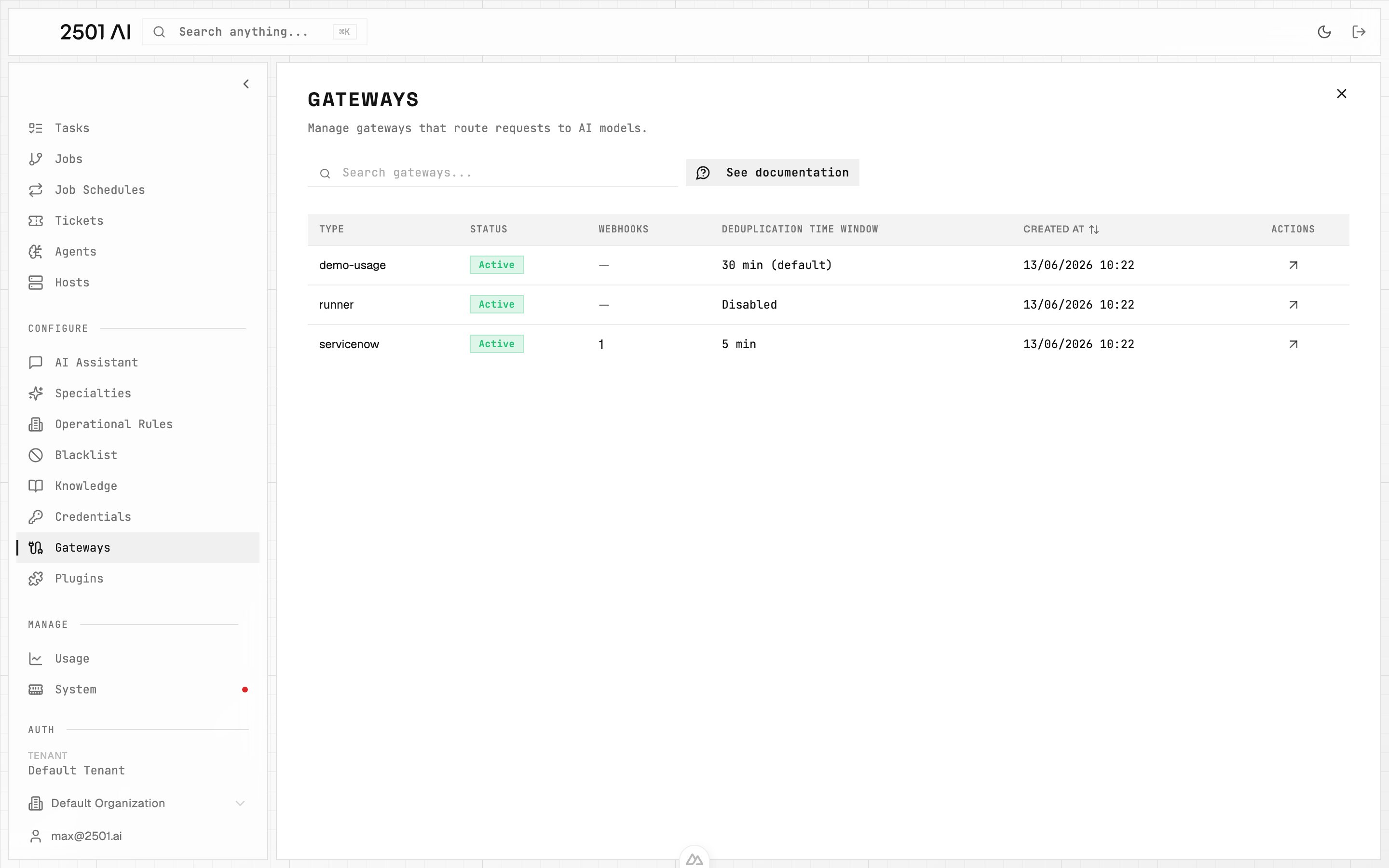
Go to **Command Center** → **Gateways** to create, view, edit, activate/deactivate, and delete gateways.
To **create** a gateway, click **New Gateway**, choose the type (ServiceNow or Runner), configure the routing prompt, deduplication window, and any metadata fields, then save. To **pause** a gateway without losing its configuration, open its detail page and toggle **Active** off — an inactive gateway stops processing tickets but keeps its settings. **Delete** removes a gateway entirely.
Existing gateways also expose an editable **Metadata** field for non-standard configuration keys that are not surfaced as dedicated form inputs.
### Type
Indicates what type of gateway it is, usually a service where IT tickets are created.
Example: `servicenow`
### Active Status
Turns the gateway on or off. Useful if you want to temporarily prevent agents from automatically picking up tickets or creating jobs when 2501 is mentioned in a ticket.
### Webhooks
Tickets are processed in near real-time via webhooks. Each gateway gets a unique webhook URL and secret that you configure once in your ticketing system (for example, a ServiceNow Business Rule). No standing access to your ticketing instance is required after setup.
A polling reconciliation loop is retained as a safety net, running every \~2 minutes to catch any missed webhooks.
The gateway detail page shows active webhooks (name, event type, and masked secret) and lets you delete individual webhooks. You can re-create them via the CLI.
For setup instructions, see [Webhooks](/0.7/configure/webhooks).
### Models
Gateways do not have their own model settings. Routing uses your tenant's **Text LLM model** (the LLM in charge of understanding the ticket and routing tasks to the appropriate agent(s)), and attachments are parsed with your tenant's **Multimodal model**. Both are tenant defaults set in **Settings** > **Tenant** from the [model catalog](/0.7/configure/models).
You can allow a smaller weight for these defaults, as gateway routing requires less compute than the agents that actually perform tasks. A model between 70b and 300b performs well enough for most routing tasks.
### Routing Prompt
This prompt specifies how to route tickets to the appropriate agent.
It extends the gateway's system prompt to allow routing of specific ticket types that require special handling or particular agents.
Best practice: include something like `If there is no exact agent for the specified task on the current host - take the closest. But ensure exact matching for hosts`. This emphasizes using the ticket's information to identify the correct agent while providing a fallback when an exact match is not available.
The routing prompt also acts as a **scope gate**. If it defines which kinds of requests the gateway should or should not handle, tickets whose request type falls outside that scope are dropped (see [Routing and Scope](#routing-and-scope)).
## Routing and Scope
Before any task is generated, the gateway checks whether the ticket is in scope for this gateway, based on the request-type rules in your routing prompt.
* **Out-of-scope tickets are dropped silently.** If a ticket's request type is excluded by the routing prompt, the gateway does nothing: no comment is posted, and the ticket's status and assignment are left untouched. Scope is about the *type* of request, not which machines exist, so a ticket that names a host you have not registered is not skipped for that reason alone.
* **Take-over happens only when work starts.** A ticket's status is flipped to in-progress only once a task is actually created. Tickets that are filtered out or that produce no match keep their original status and owner.
* **Strict host matching.** The @2501 mention is treated as the bot being addressed, never as a host name, and a host whose name merely contains "2501" is not matched because of it. If a ticket names a target machine and no registered host matches that name, the gateway returns no match rather than substituting a plausible host.
* **Genuine no-match.** When a ticket is in scope but no task can be created, the ticket receives a public comment explaining why and is returned to the queue (for ServiceNow incidents, status is reset to open) so a human can pick it up.
### Comment visibility
Only outcomes that a requester should see are posted as public comments: the final success summary, a partial-result summary, and any "we are investigating" notice. Intermediate execution plans, per-task progress, and failure details are kept as private internal notes, so the requester sees the result rather than the play-by-play.
## Change Requests
In addition to incidents, a ServiceNow gateway can execute **change requests**. Register a separate webhook with event type `change_request` for the change\_request table; a gateway that handles both incidents and changes uses two webhooks, one per table.
**Eligibility.** 2501 acts on a change request only once it reaches the **Implement** state and is **Approved**. Changes in any other state, or not yet approved, are ignored. There is no restriction on change type: standard, normal, emergency, and custom change models are all handled the same way once approved and in Implement. The same assignment-group and environment filters that apply to incidents also apply to changes.
**Execution follows the plan.** When 2501 picks up a change it adds a comment but does not move the change state (it is already in Implement). It treats the change's **Implementation Plan** as the authoritative, pre-approved action list and executes it faithfully, without re-diagnosing, substituting alternative approaches, or expanding scope. The **Backout Plan** is used only to roll back if a step fails, and the **Test Plan** defines the verification steps run after implementation.
**Completion.**
* On full success, 2501 moves the change from Implement to **Review** with close code `successful`, recording the technical actions performed in the close notes.
* On partial success, it moves the change to **Review** with close code `successful_issues`, with the actions in the close notes.
* On failure (or if no action could be taken), it leaves the change in **Implement** and posts a work note describing the outcome. It does not assign a close code or move the change, so a human can review and retry within the change window.
Humans retain ownership of the final Review to Closed transition. Commenting @2501 on a change request posts a comment but does not reopen or change the change's state. Change requests are exempt from [deduplication](#ticket-deduplication): because change records are created intentionally, each is always processed and is never linked as a duplicate.
## Escalation Groups
When a ServiceNow ticket finishes in a state that needs human follow-up, 2501 can hand it off to a designated **escalation group** so it doesn't sit orphaned. Escalation is opt-in per gateway. Set `servicenow_escalation_group_id` in the gateway metadata to the `sys_user_group` sys\_id you want unresolved tickets reassigned to. Without it, the gateway never escalates.
With an escalation group configured, the resolution determines the handoff:
| Resolution | Incidents | Change Requests |
| ------------------------ | ------------- | -------------------------------------------------------------------- |
| Success | No escalation | No escalation |
| Partial | **Escalate** | No escalation (handed to Review with close code `successful_issues`) |
| Agentic failure | **Escalate** | **Escalate** |
| Hard failure | **Escalate** | **Escalate** |
| No action | **Escalate** | **Escalate** |
| Unknown / stuck workflow | **Escalate** | **Escalate** |
A change request that ends partial is a deliberate Review hand-off, not a failure, so it is not escalated. Incidents that end partial still need a human and are escalated.
## Runner Gateway
A separate **runner** gateway exists for benchmarking and scenario runs. It accepts tickets directly from the `2501 runner` CLI and dispatches them as jobs through the same pipeline, but it does not talk to any ticketing system. Use it so scenario runs never touch your ServiceNow instance and so you don't need a ServiceNow developer account just to exercise agents end-to-end. The runner gateway is not used in normal production.
## Ticket Deduplication
It is common for the same issue to generate multiple tickets. Several people may report the same problem independently, or a monitoring system may fire multiple alerts for the same incident. Without deduplication, each ticket would spawn its own job, wasting agent time on work that is already in progress.
When a new **incident** arrives, 2501 uses an LLM (not an embedding or keyword search) to compare it against recent tickets and decide whether it describes the same problem on the same target. If a duplicate is found, no job is created: the duplicate ticket is linked to the original and automatically resolved when the original's job completes. Deduplication applies to incidents only; change requests are always processed.
Two tickets are considered duplicates when they concern the **same issue on the same target** (e.g., two disk-space alerts for `/var/log` on the same host) or share a **provable root cause** (e.g., two services failing due to the same dependency). Same host but different resources (e.g., `/var/log` vs `/tmp`) are not duplicates.
If a duplicate ticket contains new details, those details are not merged into the running job and no follow-up job is created: the original job runs on the original ticket's content. To act on the new details, comment `@2501 unlink-ticket` on the duplicate. This detaches it from the original and allows a new job to be created for it.
### Configuration
Set `dedup_window_minutes` in the gateway metadata to control how far back the engine looks when comparing tickets. It defaults to `30` minutes and applies to both still-open tickets and recently completed ones considered for comparison. Set it to `-1` to disable deduplication.
## Working with Active Jobs
After a gateway creates a job from a ticket, you can interact with it by commenting @2501 in the ticket. The system responds differently based on the job's current state:
| Job Status | @2501 Comment Action | What Happens |
| --------------- | -------------------------------------- | --------------------------------------------------------------------------- |
| **IN PROGRESS** | Restarts the job with new instructions | Cancels incomplete tasks, keeps completed tasks, generates a new plan |
| **COMPLETED** | Reopens the job | Resets the job to pending and re-runs it; completed tasks remain as context |
| **FAILED** | Reopens the job | Resets the job to pending and re-runs it; earlier tasks remain as context |
**Key concept:** The comment always acts on the same job. While the job is running it restarts with the new requirements; once the job is finished (completed or failed), the comment reopens it and re-runs it, with the earlier tasks kept as context.
### Reopening Finished Jobs
**When to use:** After a job completes or fails, you need additional work that builds on what was done.
**What happens:**
1. **Same job reopened** - Your @2501 comment reopens the existing job and resets it to pending so it runs again
2. **Plan and resolution cleared** - The previous plan and resolution are cleared, and a fresh plan is generated from the ticket plus your new comment
3. **Earlier tasks kept as context** - Tasks from earlier runs remain in the database and are visible to the new plan, so completed work is not redone
4. **Re-runs with context** - Agents start the new work but can reference the earlier actions and outcomes
### Updating Active Jobs
**When to use:** A job is currently running and you need to add requirements or change direction mid-execution.
**What happens:**
1. **Incomplete tasks cancelled** - Any tasks that have not finished are stopped
2. **Completed tasks remain** - Already-finished work stays as context and is not redone
3. **New plan generated** - The system creates a fresh execution plan incorporating your @2501 comment
4. **Job resumes** - Agents continue with the updated requirements, building on completed work
**Important note:** Use this when you genuinely need to change direction or add requirements. For simple clarifications or questions, waiting for the agent to ask may be more efficient than restarting the entire job.
**Common scenarios:**
* Investigation reveals additional areas to check
* Requirements expanded during execution
* Different approach needed mid-task
* Priority shifted to a different aspect of the problem
**Quick rule:** Is the job still running? Your comment restarts the job with the new requirements. Is the job done (completed or failed)? Your comment reopens the same job and re-runs it.
When a ticket is created in your ticketing system, 2501 parses and handles it through the jobs system. Gateways can parse tickets in two ways:
* **Automatic**: tickets are parsed as soon as they are created in the ticketing system
* **Semi-Automatic**: tickets are parsed only when @2501 is mentioned
After the gateway parses your ticket and any attachments, it determines how many tasks are required to resolve the issue.
For each task, it identifies the best agents based on:
* Host information in the ticket (e.g., "target\_machine: UNIX\_PROD\_442")
* Nature of the incident (e.g., "A service has timed out")
* Available agents with explicit specialties (e.g., "AWS Manager")
* Other ticket details that indicate where and how the incident should be resolved
Once all tasks are mapped to agents, a job is created containing these tasks.
The gateway may schedule tasks for execution at a specific date and time, or set up a [recurring schedule](/0.7/core-concepts/jobs#recurring-jobs) when the ticket describes a repeating cadence.
After a job is created, you can interact with it by commenting @2501 in the ticket. See [Working with Active Jobs](#working-with-active-jobs) to learn how to add follow-up work or update jobs mid-execution.
Gateways handle two kinds of ServiceNow records: **incidents** and **change requests**. Incidents are the default reactive flow described above. Change requests follow a stricter, plan-driven flow described in [Change Requests](#change-requests).
## Organization Scoping
Gateways are scoped to a specific [organization](/0.7/core-concepts/organizations). A gateway only routes tickets to agents within its organization and creates jobs within that organization's context.
## Managing Gateways
Go to **Command Center** → **Gateways** to create, view, edit, activate/deactivate, and delete gateways.
To **create** a gateway, click **New Gateway**, choose the type (ServiceNow or Runner), configure the routing prompt, deduplication window, and any metadata fields, then save. To **pause** a gateway without losing its configuration, open its detail page and toggle **Active** off — an inactive gateway stops processing tickets but keeps its settings. **Delete** removes a gateway entirely.
Existing gateways also expose an editable **Metadata** field for non-standard configuration keys that are not surfaced as dedicated form inputs.
### Type
Indicates what type of gateway it is, usually a service where IT tickets are created.
Example: `servicenow`
### Active Status
Turns the gateway on or off. Useful if you want to temporarily prevent agents from automatically picking up tickets or creating jobs when 2501 is mentioned in a ticket.
### Webhooks
Tickets are processed in near real-time via webhooks. Each gateway gets a unique webhook URL and secret that you configure once in your ticketing system (for example, a ServiceNow Business Rule). No standing access to your ticketing instance is required after setup.
A polling reconciliation loop is retained as a safety net, running every \~2 minutes to catch any missed webhooks.
The gateway detail page shows active webhooks (name, event type, and masked secret) and lets you delete individual webhooks. You can re-create them via the CLI.
For setup instructions, see [Webhooks](/0.7/configure/webhooks).
### Models
Gateways do not have their own model settings. Routing uses your tenant's **Text LLM model** (the LLM in charge of understanding the ticket and routing tasks to the appropriate agent(s)), and attachments are parsed with your tenant's **Multimodal model**. Both are tenant defaults set in **Settings** > **Tenant** from the [model catalog](/0.7/configure/models).
You can allow a smaller weight for these defaults, as gateway routing requires less compute than the agents that actually perform tasks. A model between 70b and 300b performs well enough for most routing tasks.
### Routing Prompt
This prompt specifies how to route tickets to the appropriate agent.
It extends the gateway's system prompt to allow routing of specific ticket types that require special handling or particular agents.
Best practice: include something like `If there is no exact agent for the specified task on the current host - take the closest. But ensure exact matching for hosts`. This emphasizes using the ticket's information to identify the correct agent while providing a fallback when an exact match is not available.
The routing prompt also acts as a **scope gate**. If it defines which kinds of requests the gateway should or should not handle, tickets whose request type falls outside that scope are dropped (see [Routing and Scope](#routing-and-scope)).
## Routing and Scope
Before any task is generated, the gateway checks whether the ticket is in scope for this gateway, based on the request-type rules in your routing prompt.
* **Out-of-scope tickets are dropped silently.** If a ticket's request type is excluded by the routing prompt, the gateway does nothing: no comment is posted, and the ticket's status and assignment are left untouched. Scope is about the *type* of request, not which machines exist, so a ticket that names a host you have not registered is not skipped for that reason alone.
* **Take-over happens only when work starts.** A ticket's status is flipped to in-progress only once a task is actually created. Tickets that are filtered out or that produce no match keep their original status and owner.
* **Strict host matching.** The @2501 mention is treated as the bot being addressed, never as a host name, and a host whose name merely contains "2501" is not matched because of it. If a ticket names a target machine and no registered host matches that name, the gateway returns no match rather than substituting a plausible host.
* **Genuine no-match.** When a ticket is in scope but no task can be created, the ticket receives a public comment explaining why and is returned to the queue (for ServiceNow incidents, status is reset to open) so a human can pick it up.
### Comment visibility
Only outcomes that a requester should see are posted as public comments: the final success summary, a partial-result summary, and any "we are investigating" notice. Intermediate execution plans, per-task progress, and failure details are kept as private internal notes, so the requester sees the result rather than the play-by-play.
## Change Requests
In addition to incidents, a ServiceNow gateway can execute **change requests**. Register a separate webhook with event type `change_request` for the change\_request table; a gateway that handles both incidents and changes uses two webhooks, one per table.
**Eligibility.** 2501 acts on a change request only once it reaches the **Implement** state and is **Approved**. Changes in any other state, or not yet approved, are ignored. There is no restriction on change type: standard, normal, emergency, and custom change models are all handled the same way once approved and in Implement. The same assignment-group and environment filters that apply to incidents also apply to changes.
**Execution follows the plan.** When 2501 picks up a change it adds a comment but does not move the change state (it is already in Implement). It treats the change's **Implementation Plan** as the authoritative, pre-approved action list and executes it faithfully, without re-diagnosing, substituting alternative approaches, or expanding scope. The **Backout Plan** is used only to roll back if a step fails, and the **Test Plan** defines the verification steps run after implementation.
**Completion.**
* On full success, 2501 moves the change from Implement to **Review** with close code `successful`, recording the technical actions performed in the close notes.
* On partial success, it moves the change to **Review** with close code `successful_issues`, with the actions in the close notes.
* On failure (or if no action could be taken), it leaves the change in **Implement** and posts a work note describing the outcome. It does not assign a close code or move the change, so a human can review and retry within the change window.
Humans retain ownership of the final Review to Closed transition. Commenting @2501 on a change request posts a comment but does not reopen or change the change's state. Change requests are exempt from [deduplication](#ticket-deduplication): because change records are created intentionally, each is always processed and is never linked as a duplicate.
## Escalation Groups
When a ServiceNow ticket finishes in a state that needs human follow-up, 2501 can hand it off to a designated **escalation group** so it doesn't sit orphaned. Escalation is opt-in per gateway. Set `servicenow_escalation_group_id` in the gateway metadata to the `sys_user_group` sys\_id you want unresolved tickets reassigned to. Without it, the gateway never escalates.
With an escalation group configured, the resolution determines the handoff:
| Resolution | Incidents | Change Requests |
| ------------------------ | ------------- | -------------------------------------------------------------------- |
| Success | No escalation | No escalation |
| Partial | **Escalate** | No escalation (handed to Review with close code `successful_issues`) |
| Agentic failure | **Escalate** | **Escalate** |
| Hard failure | **Escalate** | **Escalate** |
| No action | **Escalate** | **Escalate** |
| Unknown / stuck workflow | **Escalate** | **Escalate** |
A change request that ends partial is a deliberate Review hand-off, not a failure, so it is not escalated. Incidents that end partial still need a human and are escalated.
## Runner Gateway
A separate **runner** gateway exists for benchmarking and scenario runs. It accepts tickets directly from the `2501 runner` CLI and dispatches them as jobs through the same pipeline, but it does not talk to any ticketing system. Use it so scenario runs never touch your ServiceNow instance and so you don't need a ServiceNow developer account just to exercise agents end-to-end. The runner gateway is not used in normal production.
## Ticket Deduplication
It is common for the same issue to generate multiple tickets. Several people may report the same problem independently, or a monitoring system may fire multiple alerts for the same incident. Without deduplication, each ticket would spawn its own job, wasting agent time on work that is already in progress.
When a new **incident** arrives, 2501 uses an LLM (not an embedding or keyword search) to compare it against recent tickets and decide whether it describes the same problem on the same target. If a duplicate is found, no job is created: the duplicate ticket is linked to the original and automatically resolved when the original's job completes. Deduplication applies to incidents only; change requests are always processed.
Two tickets are considered duplicates when they concern the **same issue on the same target** (e.g., two disk-space alerts for `/var/log` on the same host) or share a **provable root cause** (e.g., two services failing due to the same dependency). Same host but different resources (e.g., `/var/log` vs `/tmp`) are not duplicates.
If a duplicate ticket contains new details, those details are not merged into the running job and no follow-up job is created: the original job runs on the original ticket's content. To act on the new details, comment `@2501 unlink-ticket` on the duplicate. This detaches it from the original and allows a new job to be created for it.
### Configuration
Set `dedup_window_minutes` in the gateway metadata to control how far back the engine looks when comparing tickets. It defaults to `30` minutes and applies to both still-open tickets and recently completed ones considered for comparison. Set it to `-1` to disable deduplication.
## Working with Active Jobs
After a gateway creates a job from a ticket, you can interact with it by commenting @2501 in the ticket. The system responds differently based on the job's current state:
| Job Status | @2501 Comment Action | What Happens |
| --------------- | -------------------------------------- | --------------------------------------------------------------------------- |
| **IN PROGRESS** | Restarts the job with new instructions | Cancels incomplete tasks, keeps completed tasks, generates a new plan |
| **COMPLETED** | Reopens the job | Resets the job to pending and re-runs it; completed tasks remain as context |
| **FAILED** | Reopens the job | Resets the job to pending and re-runs it; earlier tasks remain as context |
**Key concept:** The comment always acts on the same job. While the job is running it restarts with the new requirements; once the job is finished (completed or failed), the comment reopens it and re-runs it, with the earlier tasks kept as context.
### Reopening Finished Jobs
**When to use:** After a job completes or fails, you need additional work that builds on what was done.
**What happens:**
1. **Same job reopened** - Your @2501 comment reopens the existing job and resets it to pending so it runs again
2. **Plan and resolution cleared** - The previous plan and resolution are cleared, and a fresh plan is generated from the ticket plus your new comment
3. **Earlier tasks kept as context** - Tasks from earlier runs remain in the database and are visible to the new plan, so completed work is not redone
4. **Re-runs with context** - Agents start the new work but can reference the earlier actions and outcomes
### Updating Active Jobs
**When to use:** A job is currently running and you need to add requirements or change direction mid-execution.
**What happens:**
1. **Incomplete tasks cancelled** - Any tasks that have not finished are stopped
2. **Completed tasks remain** - Already-finished work stays as context and is not redone
3. **New plan generated** - The system creates a fresh execution plan incorporating your @2501 comment
4. **Job resumes** - Agents continue with the updated requirements, building on completed work
**Important note:** Use this when you genuinely need to change direction or add requirements. For simple clarifications or questions, waiting for the agent to ask may be more efficient than restarting the entire job.
**Common scenarios:**
* Investigation reveals additional areas to check
* Requirements expanded during execution
* Different approach needed mid-task
* Priority shifted to a different aspect of the problem
**Quick rule:** Is the job still running? Your comment restarts the job with the new requirements. Is the job done (completed or failed)? Your comment reopens the same job and re-runs it.