> ## Documentation Index
> Fetch the complete documentation index at: https://docs.2501.ai/llms.txt
> Use this file to discover all available pages before exploring further.
# Hosts
> Your machines where agents act autonomously
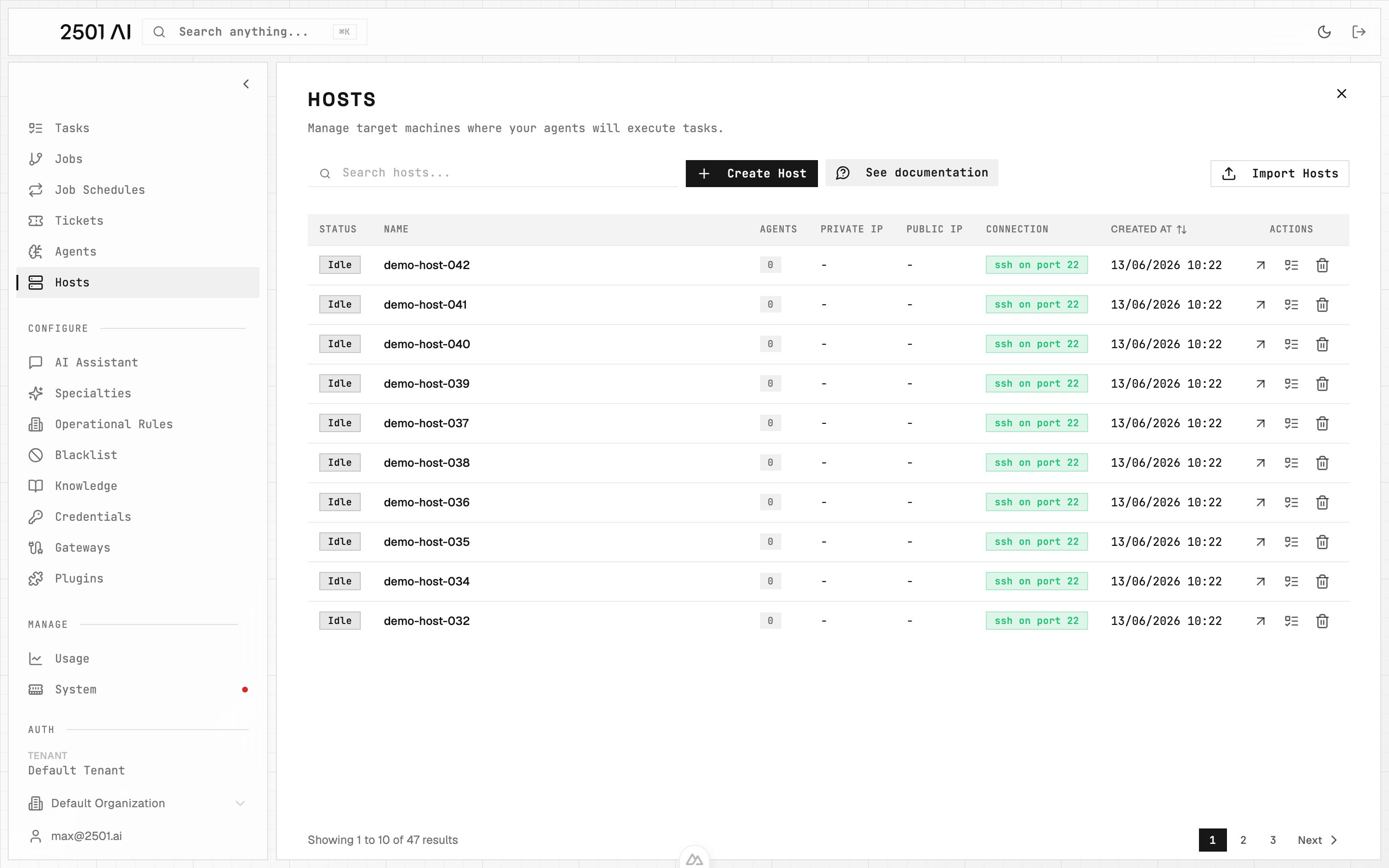
Hosts represent the target systems where agents execute tasks. Each host defines the network location and connection details for a machine in your infrastructure.
## What is a Host?
A host is a registered target system that agents can operate on. Hosts provide network addressing through IP addresses, connection methods via SSH or WinRM protocols, organizational context for grouping and management, and discovery metadata for filtering and targeting.
 ## Host Configuration
 ### Network Addressing
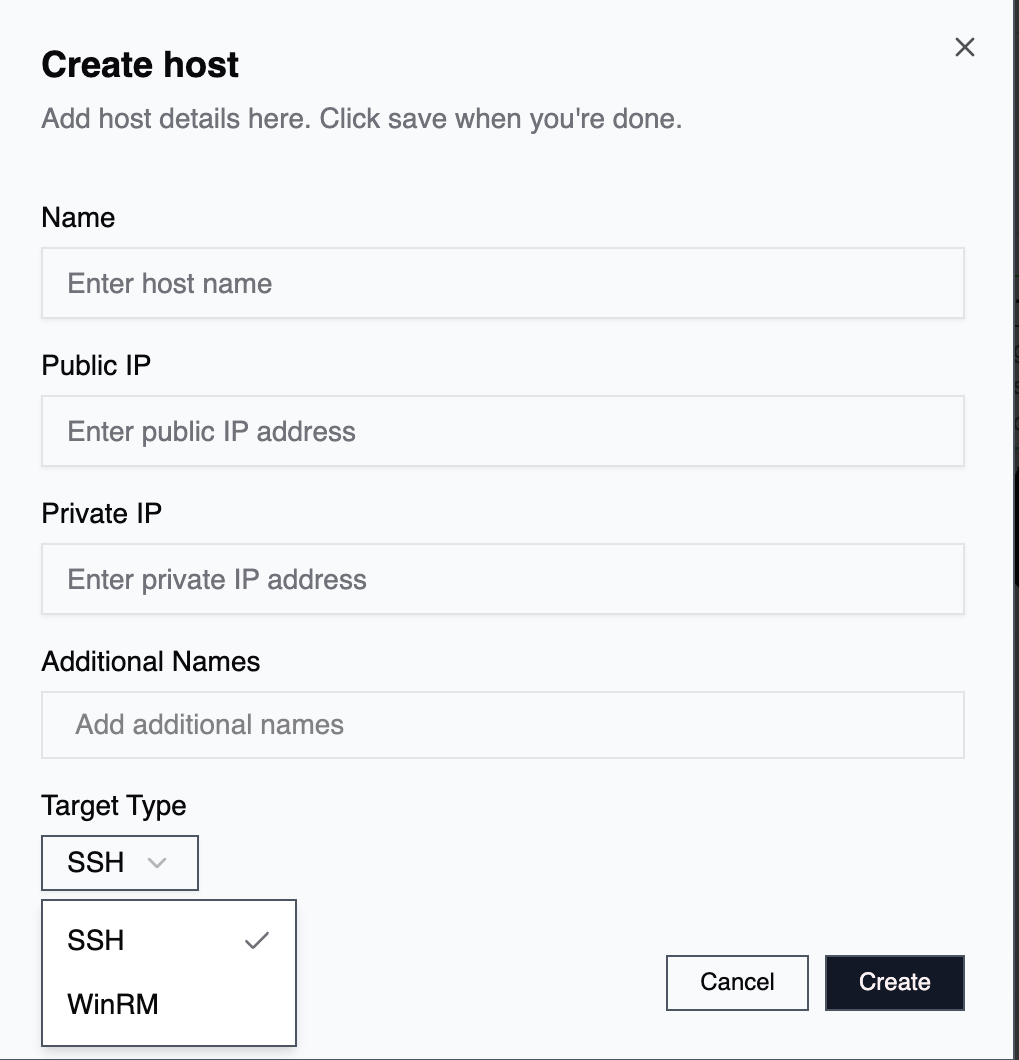
Each host requires at least one IP address:
**Public IP:** The externally accessible IP address. Used when the agent reaches cloud instances, accesses systems across different networks, or operates on internet-facing infrastructure.
**Private IP:** The internal network IP address. Used when operating within the same network or VPC, accessing systems behind firewalls or NAT, or connecting through VPN or private network tunnels.
At least one IP address is mandatory. Providing both creates a fallback strategy if one isn't valid when an agent attempts to execute a task.
### Connection Protocols
**SSH (Linux/Unix):** Standard protocol for Linux, Unix, and macOS systems. Requires SSH credentials (username plus password or key-based authentication), uses default port 22, and is used for most infrastructure operations.
**WinRM (Windows):** Windows Remote Management protocol for Windows systems. Requires Windows credentials, supports both HTTP and HTTPS connections, and enables PowerShell remote execution. Windows hosts can authenticate with static Windows credentials or with a gMSA over Kerberos (see [Credentials](/0.7/configure/credentials#windows-authentication-with-gmsa)).
### Connection Options
The create and edit forms expose a few transport settings:
**Port:** Each protocol has a sensible default (22 for SSH, 5985 for WinRM). Override it only when your target listens on a non-standard port, for example set 5986 (or 443/8443) when WinRM is served over HTTPS.
**Skip TLS verification (WinRM over HTTPS):** Accepts self-signed certificates on the target. Leave this off for CA-signed targets so the certificate chain is validated. Turn it on only when you knowingly connect to a host presenting a self-signed certificate.
### Jump host (SSH bastion)
For targets reachable only through a bastion, register the **bastion as its own host** with **Is jump host** enabled, then point each target host at it via **Jump host**. Single-hop only — a jump host itself cannot route through another jump host.
| Field on the target host | What it does |
| ------------------------ | ------------------------------------------------------------------ |
| **Jump host** | Which registered host to relay through. Empty = direct connection. |
| Field on the bastion host | What it does |
| ------------------------------- | -------------------------------------------------------------------------------------------------------------------------------------------------------------- |
| **Is jump host** | Marks the host as a relay. Requires `target_type=ssh`. |
| **Jump host user** | Credential holding the SSH **username** used to log in to the bastion. |
| **Jump host credential** | Credential holding the **password or PEM private key** for that login. |
| **Eligible subnets** (optional) | IPv4 CIDRs whose hosts are reasonable to route through this bastion. UX-only — used to suggest default routing in Command Center; the executor never reads it. |
The engine refuses to dial a target whose jump host is missing or no longer flagged `is_jump_host`, so the constraint is enforced end-to-end.
### Central agents (orchestration hosts)
Some agents don't operate on a single machine — they operate on **many machines from one machine**. The typical pattern: a single host with `kubectl` configured against the cluster, the AWS CLI authenticated to your account, the `govc` VMware client, or similar fleet-wide tooling. The agent logs into that one machine and drives the others through those CLIs.
Register the orchestration machine as a normal host (SSH usually), attach an agent to it with the relevant specialty (`Kubernetes Operator`, `AWS Central`, `VMware Operator`), and route tickets affecting the fleet to it via the gateway. The agent reaches the actual targets through the tools installed there — you don't need to register every cluster node, every EC2 instance, or every ESXi VM as a 2501 host.
Common shapes:
* A **management host** with `kubectl` + a kubeconfig — handles every Kubernetes ticket for the cluster
* A **CLI bastion** with AWS / GCP / Azure CLIs authenticated to the account — handles cloud-resource tickets
* A **vSphere control node** with `govc` or the [VMware MCP](/0.7/configure/plugins) — handles hypervisor and snapshot tickets
The host count stays small (one per orchestration surface), and the agent's specialty + operational rules carry all the context about *which* downstream resources are in scope.
### Naming and Identification
Hosts have two separate labeling concepts. **Additional Names** are free-form aliases. **Tags** are a structured, closed vocabulary that scopes which operational rules an agent receives. They are described in detail below.
**Host Name:** The primary identifier for the host, typically matching the machine's hostname or a descriptive name.
Examples: `prod-web-01`, `staging-db-primary`, `dev-workstation`
**Additional Names:** Optional free-form aliases that help you identify or match a host (for example `web-01`, `app-server-01`). They are purely for recognition and search. They do not influence which operational rules an agent receives.
## Host Tags
Tags are a structured, closed vocabulary you assign to a host. Unlike Additional Names, they are not free text: you pick from a fixed set of axes, and each tag carries a recognizable icon. Tags scope which [Operational Rules](/0.7/configure/operational-rules) an agent receives when it works on the host.
The host tag picker is organized into axes:
| Axis | Selection | Examples |
| ------------------------------- | ----------- | ------------------------- |
| **OS** | Pick one | Linux, Windows, ESXi |
| **Shell** | Pick one | POSIX, non-POSIX |
| **Type** (what the host is for) | One or more | database, web, hypervisor |
| **Technologies** (what it runs) | One or more | postgres, nginx, tomcat |
OS and Shell are single-select. Type and Technologies accept multiple values.
Technologies are unversioned. Record specific versions (for example the exact PostgreSQL or Tomcat version) in the host's **Description** field instead.
### Setting Tags
Tags are assigned from a dedicated axis-based picker in the **TAGGING** section of a host's detail page. The quick create and edit dialogs do not include the tag picker, so open the host's detail page to set or change tags.
In **Command Center** select the host to open its detail page.
Find the **TAGGING** section and use the picker to choose values along each axis.
Select one OS and one Shell, then add any Type and Technologies values that apply.
### How Tags Scope Operational Rules
Host tags drive operational-rule matching. A rule reaches a host only when the host's tags satisfy **every** scope tag the rule carries. Adding more scope tags to a rule narrows where it applies; a rule with no scope tags applies broadly.
For example, a rule scoped to `postgres` reaches only hosts tagged with the `postgres` technology. A rule scoped to both `linux` and `database` reaches only hosts that carry both tags.
Procedure and verb intent (what the agent should do) is matched from the ticket, not from host tags. Procedure tags cannot be set on a host. See [Operational Rules](/0.7/configure/operational-rules) for how scoping works end to end.
## Host Knowledge
Two parts of a host feed agents context about that machine before they start working.
**Knowledge:** The host detail page has a read-only **KNOWLEDGE** section. It shows facts automatically extracted from documents you upload, resolved to this host and grouped by source document. These facts are surfaced to agents as context when they work on the host. See [Knowledge](/0.7/configure/knowledge) for how documents are ingested and turned into facts.
**Description:** The free-text Description field is your place for operator notes (installed tools, quirks, where credentials live, exact software versions). Its content is also surfaced to agents as context, so keep it accurate and current.
## Host Management
### Creating and Editing Hosts
1. Go to **Command Center** → **Hosts** (sidebar)
2. Click **Create Host** to open the create form (click an existing host to open its detail page and edit it)
3. Configure host name, public and/or private IP, connection protocol, port, and additional names
Set structured tags from the **TAGGING** section of the host's detail page after the host exists. Hosts are always scoped to your current organization.
For bulk onboarding, see [Import Hosts CSV](/0.7/configure/import-hosts-csv) or manage hosts declaratively with [Configuration as Code](/0.7/configure/configuration-as-code).
### Network Addressing
Each host requires at least one IP address:
**Public IP:** The externally accessible IP address. Used when the agent reaches cloud instances, accesses systems across different networks, or operates on internet-facing infrastructure.
**Private IP:** The internal network IP address. Used when operating within the same network or VPC, accessing systems behind firewalls or NAT, or connecting through VPN or private network tunnels.
At least one IP address is mandatory. Providing both creates a fallback strategy if one isn't valid when an agent attempts to execute a task.
### Connection Protocols
**SSH (Linux/Unix):** Standard protocol for Linux, Unix, and macOS systems. Requires SSH credentials (username plus password or key-based authentication), uses default port 22, and is used for most infrastructure operations.
**WinRM (Windows):** Windows Remote Management protocol for Windows systems. Requires Windows credentials, supports both HTTP and HTTPS connections, and enables PowerShell remote execution. Windows hosts can authenticate with static Windows credentials or with a gMSA over Kerberos (see [Credentials](/0.7/configure/credentials#windows-authentication-with-gmsa)).
### Connection Options
The create and edit forms expose a few transport settings:
**Port:** Each protocol has a sensible default (22 for SSH, 5985 for WinRM). Override it only when your target listens on a non-standard port, for example set 5986 (or 443/8443) when WinRM is served over HTTPS.
**Skip TLS verification (WinRM over HTTPS):** Accepts self-signed certificates on the target. Leave this off for CA-signed targets so the certificate chain is validated. Turn it on only when you knowingly connect to a host presenting a self-signed certificate.
### Jump host (SSH bastion)
For targets reachable only through a bastion, register the **bastion as its own host** with **Is jump host** enabled, then point each target host at it via **Jump host**. Single-hop only — a jump host itself cannot route through another jump host.
| Field on the target host | What it does |
| ------------------------ | ------------------------------------------------------------------ |
| **Jump host** | Which registered host to relay through. Empty = direct connection. |
| Field on the bastion host | What it does |
| ------------------------------- | -------------------------------------------------------------------------------------------------------------------------------------------------------------- |
| **Is jump host** | Marks the host as a relay. Requires `target_type=ssh`. |
| **Jump host user** | Credential holding the SSH **username** used to log in to the bastion. |
| **Jump host credential** | Credential holding the **password or PEM private key** for that login. |
| **Eligible subnets** (optional) | IPv4 CIDRs whose hosts are reasonable to route through this bastion. UX-only — used to suggest default routing in Command Center; the executor never reads it. |
The engine refuses to dial a target whose jump host is missing or no longer flagged `is_jump_host`, so the constraint is enforced end-to-end.
### Central agents (orchestration hosts)
Some agents don't operate on a single machine — they operate on **many machines from one machine**. The typical pattern: a single host with `kubectl` configured against the cluster, the AWS CLI authenticated to your account, the `govc` VMware client, or similar fleet-wide tooling. The agent logs into that one machine and drives the others through those CLIs.
Register the orchestration machine as a normal host (SSH usually), attach an agent to it with the relevant specialty (`Kubernetes Operator`, `AWS Central`, `VMware Operator`), and route tickets affecting the fleet to it via the gateway. The agent reaches the actual targets through the tools installed there — you don't need to register every cluster node, every EC2 instance, or every ESXi VM as a 2501 host.
Common shapes:
* A **management host** with `kubectl` + a kubeconfig — handles every Kubernetes ticket for the cluster
* A **CLI bastion** with AWS / GCP / Azure CLIs authenticated to the account — handles cloud-resource tickets
* A **vSphere control node** with `govc` or the [VMware MCP](/0.7/configure/plugins) — handles hypervisor and snapshot tickets
The host count stays small (one per orchestration surface), and the agent's specialty + operational rules carry all the context about *which* downstream resources are in scope.
### Naming and Identification
Hosts have two separate labeling concepts. **Additional Names** are free-form aliases. **Tags** are a structured, closed vocabulary that scopes which operational rules an agent receives. They are described in detail below.
**Host Name:** The primary identifier for the host, typically matching the machine's hostname or a descriptive name.
Examples: `prod-web-01`, `staging-db-primary`, `dev-workstation`
**Additional Names:** Optional free-form aliases that help you identify or match a host (for example `web-01`, `app-server-01`). They are purely for recognition and search. They do not influence which operational rules an agent receives.
## Host Tags
Tags are a structured, closed vocabulary you assign to a host. Unlike Additional Names, they are not free text: you pick from a fixed set of axes, and each tag carries a recognizable icon. Tags scope which [Operational Rules](/0.7/configure/operational-rules) an agent receives when it works on the host.
The host tag picker is organized into axes:
| Axis | Selection | Examples |
| ------------------------------- | ----------- | ------------------------- |
| **OS** | Pick one | Linux, Windows, ESXi |
| **Shell** | Pick one | POSIX, non-POSIX |
| **Type** (what the host is for) | One or more | database, web, hypervisor |
| **Technologies** (what it runs) | One or more | postgres, nginx, tomcat |
OS and Shell are single-select. Type and Technologies accept multiple values.
Technologies are unversioned. Record specific versions (for example the exact PostgreSQL or Tomcat version) in the host's **Description** field instead.
### Setting Tags
Tags are assigned from a dedicated axis-based picker in the **TAGGING** section of a host's detail page. The quick create and edit dialogs do not include the tag picker, so open the host's detail page to set or change tags.
In **Command Center** select the host to open its detail page.
Find the **TAGGING** section and use the picker to choose values along each axis.
Select one OS and one Shell, then add any Type and Technologies values that apply.
### How Tags Scope Operational Rules
Host tags drive operational-rule matching. A rule reaches a host only when the host's tags satisfy **every** scope tag the rule carries. Adding more scope tags to a rule narrows where it applies; a rule with no scope tags applies broadly.
For example, a rule scoped to `postgres` reaches only hosts tagged with the `postgres` technology. A rule scoped to both `linux` and `database` reaches only hosts that carry both tags.
Procedure and verb intent (what the agent should do) is matched from the ticket, not from host tags. Procedure tags cannot be set on a host. See [Operational Rules](/0.7/configure/operational-rules) for how scoping works end to end.
## Host Knowledge
Two parts of a host feed agents context about that machine before they start working.
**Knowledge:** The host detail page has a read-only **KNOWLEDGE** section. It shows facts automatically extracted from documents you upload, resolved to this host and grouped by source document. These facts are surfaced to agents as context when they work on the host. See [Knowledge](/0.7/configure/knowledge) for how documents are ingested and turned into facts.
**Description:** The free-text Description field is your place for operator notes (installed tools, quirks, where credentials live, exact software versions). Its content is also surfaced to agents as context, so keep it accurate and current.
## Host Management
### Creating and Editing Hosts
1. Go to **Command Center** → **Hosts** (sidebar)
2. Click **Create Host** to open the create form (click an existing host to open its detail page and edit it)
3. Configure host name, public and/or private IP, connection protocol, port, and additional names
Set structured tags from the **TAGGING** section of the host's detail page after the host exists. Hosts are always scoped to your current organization.
For bulk onboarding, see [Import Hosts CSV](/0.7/configure/import-hosts-csv) or manage hosts declaratively with [Configuration as Code](/0.7/configure/configuration-as-code).
 ### Subnet Grouping
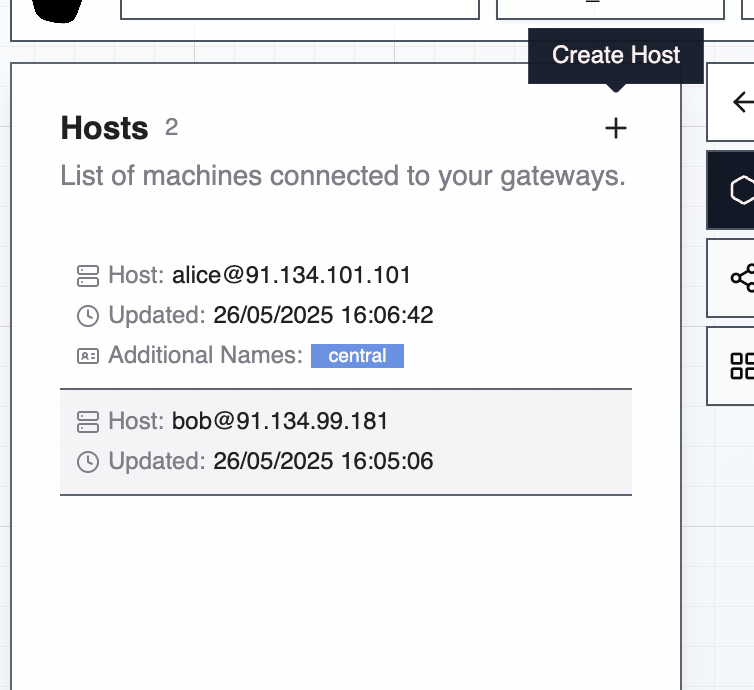
The Command Center interface organizes hosts by subnet for better visibility and management. Hosts are automatically grouped using the first three octets of their private IP address (e.g., `192.168.1.x`).
This enables quick identification of hosts within the same network segment, visual topology understanding, easier management of network-scoped operations, and identification of network configuration issues.
### Deleting Hosts
Deleting a host permanently removes the host and archives all of its agents and their tasks. A confirmation dialog in the Command Center shows how many agents will be affected before you proceed. Use this to clean up decommissioned machines without leaving orphaned agents behind.
### Task Queuing
Tasks targeting the same host run one at a time. Additional tasks queue automatically and start when the current one finishes, preventing conflicts from concurrent changes on the same system.
## Connection Priority
When both public and private IPs are configured, the agent picks the right one based on network accessibility, performance (private IPs often have lower latency), and security (private networks are preferred for sensitive operations).
The agent automatically selects the appropriate IP address without manual intervention.
## Credential Assignment
[Agents](/0.7/core-concepts/agents) must have appropriate [credentials](/0.7/configure/credentials) assigned to reach their host: SSH username + password or key for Linux/Unix, WinRM credentials for Windows, plus the host addresses.
## Troubleshooting
**Connection Failures:** Verify IP address accessibility from where the agent runs. Check firewall rules allow SSH (port 22) or WinRM (ports 5985/5986). Validate credentials are correctly assigned. Use the **Test Connection** button on the agent's row to diagnose connectivity (see [Agents: Testing Connectivity](/0.7/core-concepts/agents#testing-connectivity)).
**Host Not Appearing in Command Center:** Confirm the import or creation succeeded, and that you're viewing the right [organization](/0.7/core-concepts/organizations) in the picker.
**Incorrect Subnet Grouping:** Verify IP address format and accuracy. Update host details if IP addresses have changed. Check for VPN or proxy interference in IP detection.
**Agent Can't Reach Host:** Confirm both public and private IPs if operating across networks. Verify routing between agent execution environment and target host. Test connectivity using ping or direct SSH/WinRM attempts. Review network security groups or firewall rules.
For detailed credential configuration, see [Credentials](/0.7/configure/credentials). For agent execution modes, see [Agents](/0.7/core-concepts/agents).
### Subnet Grouping
The Command Center interface organizes hosts by subnet for better visibility and management. Hosts are automatically grouped using the first three octets of their private IP address (e.g., `192.168.1.x`).
This enables quick identification of hosts within the same network segment, visual topology understanding, easier management of network-scoped operations, and identification of network configuration issues.
### Deleting Hosts
Deleting a host permanently removes the host and archives all of its agents and their tasks. A confirmation dialog in the Command Center shows how many agents will be affected before you proceed. Use this to clean up decommissioned machines without leaving orphaned agents behind.
### Task Queuing
Tasks targeting the same host run one at a time. Additional tasks queue automatically and start when the current one finishes, preventing conflicts from concurrent changes on the same system.
## Connection Priority
When both public and private IPs are configured, the agent picks the right one based on network accessibility, performance (private IPs often have lower latency), and security (private networks are preferred for sensitive operations).
The agent automatically selects the appropriate IP address without manual intervention.
## Credential Assignment
[Agents](/0.7/core-concepts/agents) must have appropriate [credentials](/0.7/configure/credentials) assigned to reach their host: SSH username + password or key for Linux/Unix, WinRM credentials for Windows, plus the host addresses.
## Troubleshooting
**Connection Failures:** Verify IP address accessibility from where the agent runs. Check firewall rules allow SSH (port 22) or WinRM (ports 5985/5986). Validate credentials are correctly assigned. Use the **Test Connection** button on the agent's row to diagnose connectivity (see [Agents: Testing Connectivity](/0.7/core-concepts/agents#testing-connectivity)).
**Host Not Appearing in Command Center:** Confirm the import or creation succeeded, and that you're viewing the right [organization](/0.7/core-concepts/organizations) in the picker.
**Incorrect Subnet Grouping:** Verify IP address format and accuracy. Update host details if IP addresses have changed. Check for VPN or proxy interference in IP detection.
**Agent Can't Reach Host:** Confirm both public and private IPs if operating across networks. Verify routing between agent execution environment and target host. Test connectivity using ping or direct SSH/WinRM attempts. Review network security groups or firewall rules.
For detailed credential configuration, see [Credentials](/0.7/configure/credentials). For agent execution modes, see [Agents](/0.7/core-concepts/agents).