

Managing users
In your Command Center, Administrator users will be able to see a “Users” tab on the Settings page. From this tab, you are able to create, update, or modify users able to access your 2501 interface.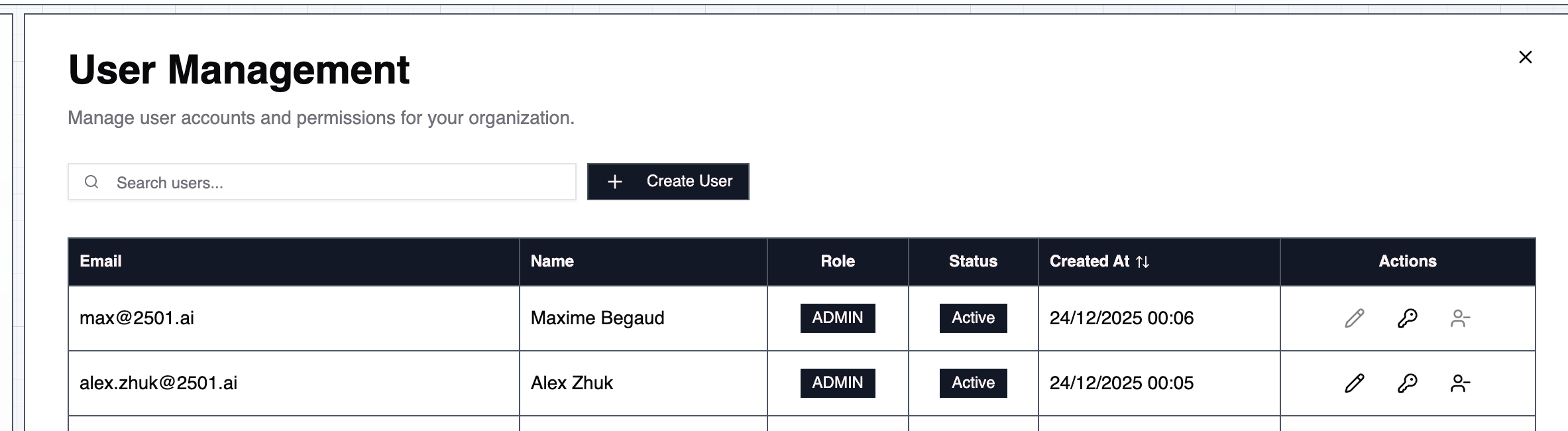
Roles
2501 supports three roles: Administrator, User, and Auditor. Each role has different levels of access to resources and operations.Administrator
The administrator user has access to all pages of the Command Center and can modify every resource 2501 manages. Administrators can create new users with the button “Create User” and assign them a role. To revoke a user’s access to Command Center, deactivate the user from the table. Their sessions end and they cannot sign in, while their related records are preserved. Reactivating the account requires a fresh sign-in; old sessions do not become valid again. You may also want to reset a user’s password (including administrators), using the reset-password action. Note on passwords: a password must contain at least 8 characters, including at least one uppercase letter, one lowercase letter, one number, and one special character. Permissions:- Full read and write access to all resources across all organizations
- Can create, modify, and delete users
- Can manage organizations and tenant settings
User
Regular users can read and write resources within their assigned organizations, but have read-only access to shared (tenant-wide) resources such as specialties, operational rules, credentials, and blacklists that are not scoped to a specific organization. Regular users do not have access to the “Users” page and cannot manage other users or organizations. Permissions:- Read and write access to org-scoped resources (agents, hosts, tasks, jobs, etc.) in assigned organizations
- Read-only access to shared resources (specialties, operational rules, credentials, blacklists with no organization scope)
- Read-only access to organization and tenant information
- No access to user management
Auditor
Auditors have read-only access across all managed resources they can see. They share the same visibility as the User role but cannot create, modify, or delete those resources. They can change their own password. Permissions:- Read-only access to org-scoped resources in assigned organizations
- Read-only access to shared resources
- Read-only access to organization and tenant information
- No write access to managed resources or tenant settings
- No access to user management
Sessions
A Command Center session ends after a period without activity (30 minutes by default), and a fixed time after sign-in even while it is being used (12 hours by default). A tenant-level Administrator can open Settings > Security, then choose Edit in the User sessions section. Enter each duration in minutes, hours or days, or select Never sign out for inactivity to turn off idle sign-out. Neither limit can be below 5 minutes or above a year, and the idle limit cannot exceed the maximum session length. Save session limits applies the changes; Cancel discards the edits. The maximum session length cannot be turned off. Only what a person does counts as activity: saving a change, or pointer and keyboard input reported by the browser. A tab left open on a screen that refreshes itself does not keep the session alive. The first action after a limit passes lands on the sign-in page; signing in again opens a fresh session. A page left open does not wait for that action: it stops updating and returns to the sign-in page when the session ends. Each request uses the current limits. Lowering either limit can end an open session on its next request. A raised idle limit applies to sessions that have not yet been refused or signed out. Every session also keeps the maximum deadline it received at sign-in: increasing the maximum session length cannot extend that original deadline. Sign in again to start a new session under the current limits.Organization Access
Regardless of their role, any user can be granted access at two levels:- Organization-level access: The user can only see and interact with resources in their explicitly assigned organizations.
- Tenant-level access: The user can see and interact with resources across all organizations in the tenant, including any organizations created in the future.