

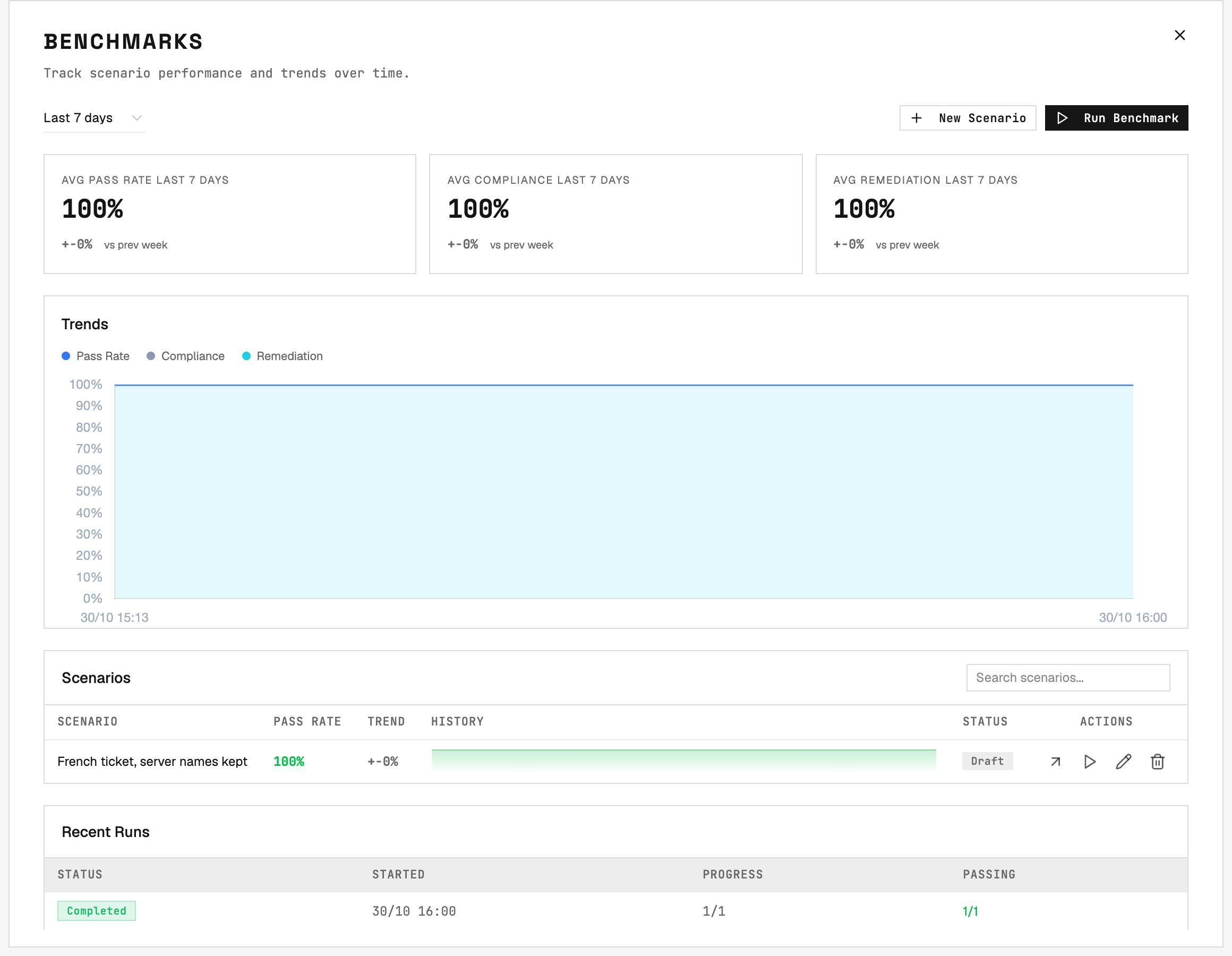
Benchmarks: every scenario's pass rate and trend over time.
The pages
The scenario form
New Scenario and Edit scenario open the same form, with six sections:
Target Setup, Validation, and Target Restore each have a Form / JSON toggle. The JSON is the scenario format: switch to it to paste an example or edit many steps at once.
While editing, each setup and restore block has a Run it button that saves the block and runs it on its host, so you can build a phase step by step. The status selector sets
draft, published, or disabled, and History lists every saved version.
Only an Admin can create, edit, or delete scenarios.
Testing setup and restore
On a scenario’s page, Target Setup and Target Restore run just that phase, with each step’s status and output. Nothing is sent to an agent and nothing is graded, so these runs never appear in the results. These buttons run the steps of the scenario’s first host. For a multi-host scenario, run each host’s block with Run it in the form, or run the whole phase on every host through the API. Use them to:- check new commands before a graded run,
- leave a host broken on purpose to look at it (Target Setup alone),
- clean up a host an interrupted run left dirty (Target Restore alone).
Running a benchmark
- Run now on a scenario’s page runs that scenario as a one-scenario benchmark.
- Run Benchmark on the Benchmarks page picks several scenarios - draft and published - for one benchmark.
Leave an engine on Leave unchanged to use the current configuration. Whatever you choose is frozen at launch, along with each scenario’s current version.
Without Run sequentially, each scenario holds every host it targets until it has restored them: scenarios sharing a host run one at a time, scenarios on different hosts run together.
A benchmark holds up to 50 scenarios.
Running through ServiceNow
With the ServiceNow gateway, each run creates a real incident on your instance and waits up to 10 minutes for your ServiceNow gateway to pick it up. This tests the whole path a customer ticket takes, including ingestion. The organization’s ServiceNow gateway needs three extra metadata keys:
Point benchmarks at an assignment group that real incidents do not use.
Stopping a run
Stop on a benchmark cancels every scenario in it; Stop on a scenario run cancels that run. A stopped run still runs Target Restore, so the host is put back.When restore fails
If Target Restore fails, the run says Restore failed and the benchmark page flags the scenario host left dirty. Later runs on that host would score against a broken machine. Fix the restore, then run Target Restore from the scenario’s page to clean the host - see Keeping scenarios healthy.If the engine restarts
A run caught mid-way by an engine restart is not resumed. It ends as Error (or Cancelled if you had already clicked Stop), and a restore-only run is queued for it so its host is put back. The other scenarios in the benchmark keep running.Deleting
- Delete benchmark on a benchmark’s page permanently deletes it with its runs and the jobs, tasks, and tickets they created. It cannot be undone.
- Delete on a scenario removes the scenario. Its past runs stay in the results.
- To retire a scenario without losing it, set it to
disabledinstead: it stays visible and editable, but cannot be launched.