

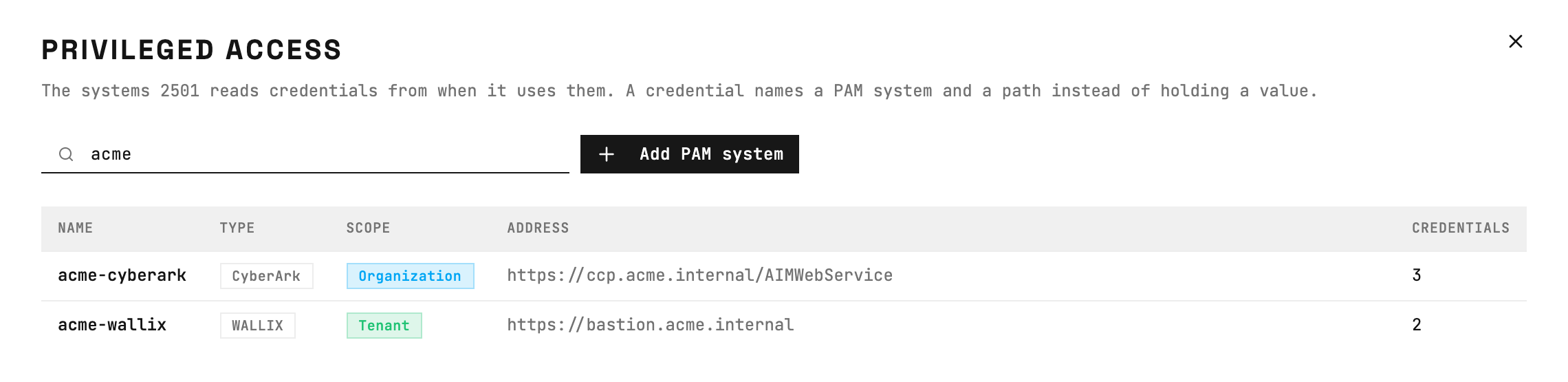
Privileged access: each row is a PAM system with its type and address.
Before you start
- The
enablePrivilegedAccessfeature toggle must be on. When it is off, Command Center does not show Privileged access or the PAM account type. - You must be an administrator. Other roles do not see Privileged access.
- The engine must reach the PAM system over HTTPS. When you set an outbound proxy, the engine goes through it. To reach the PAM system directly, add its host to
proxy.noProxy. - For CyberArk, you need an application ID that signs in to the CCP with a client certificate. The application must have access to the safes that 2501 reads.
- For WALLIX, you need an API user and its API key. The API user must have password retrieval on the accounts that 2501 checks out.
Add a PAM system
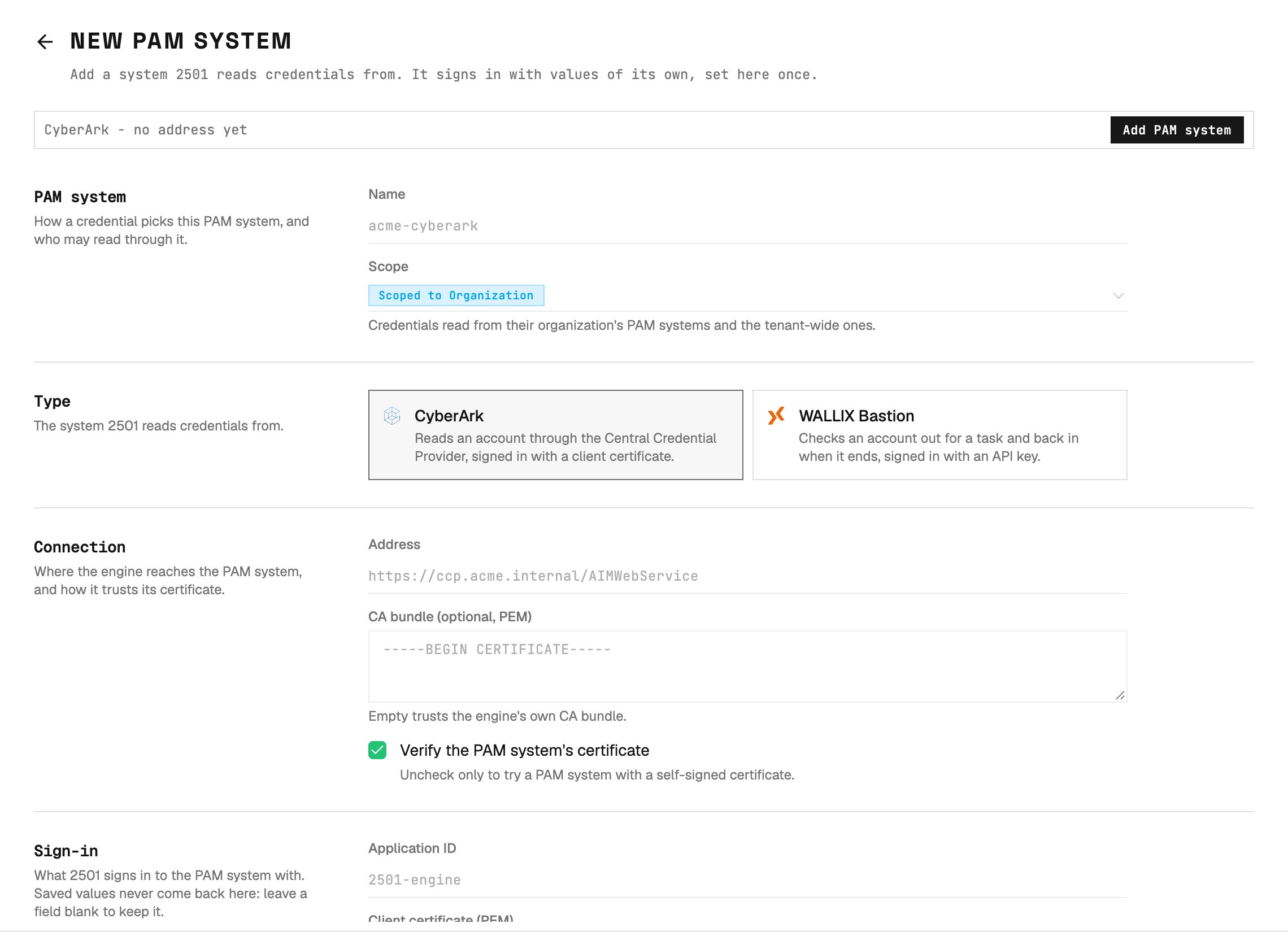
New PAM system: the sign-in fields change with the type.
1
Open the form
In Command Center, click Privileged access, then click Add PAM system.
2
Enter the name and the scope
Enter a name that tells the PAM system apart, for example
acme-cyberark. Select the scope. An organization PAM system is available only to the credentials of that organization. A tenant-wide PAM system is available to all organizations. The tenant scope requires tenant-level access.3
Select the type
Select CyberArk or WALLIX.
4
Enter the connection
Enter the Address of the PAM system, for example
https://ccp.acme.internal/AIMWebService or https://bastion.acme.internal. For CyberArk, if you enter only the host, 2501 adds /AIMWebService. If the PAM system uses a private certificate authority, paste its CA bundle in PEM format. Keep Verify the PAM system’s certificate selected.5
Enter the sign-in values
Enter the values that 2501 signs in with. The sign-in fields table lists them for each type.
6
Save and test
Click Add PAM system. On the page of the PAM system, click Sign in in the Test panel. The engine signs in as a task does and shows the answer of the PAM system.
Create a PAM account credential
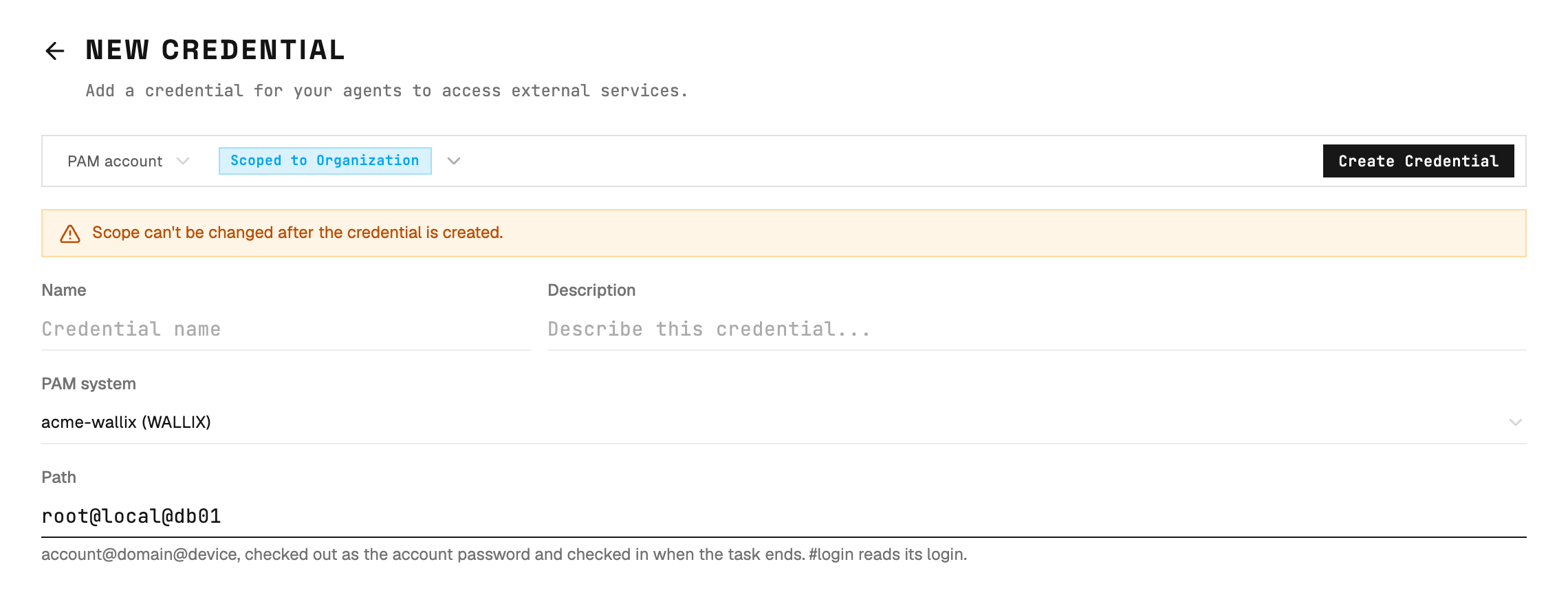
New credential of the PAM account type: a PAM system and a path.
1
Open the form
Click Credentials, then click Create Credential.
2
Select the type
Enter the name and the scope of the credential. Then select PAM account as the type.
3
Select the PAM system
Select the PAM system that keeps the account. The list shows only the PAM systems that the scope of the credential can use.
4
Enter the path
Enter the path of the account in the PAM system. The path format section gives the format for each type. 2501 refuses a path that does not have the format of the PAM system.
5
Save
Click Create Credential.
Reference
Sign-in fields
2501 keeps the sign-in values on the PAM system, not in a credential. The client certificate, the client key, the API key and the CA bundle are write-only. When you edit a PAM system, leave one of these fields empty to keep its saved value.Path format
Scope
Changes and deletion
- You cannot change the type or the scope of a PAM system. To change them, add a new PAM system.
- You can change the name, the address, the CA bundle and the sign-in values. Save the changes before you test.
- You cannot delete a PAM system while credentials use it. The Used by panel shows these credentials.