

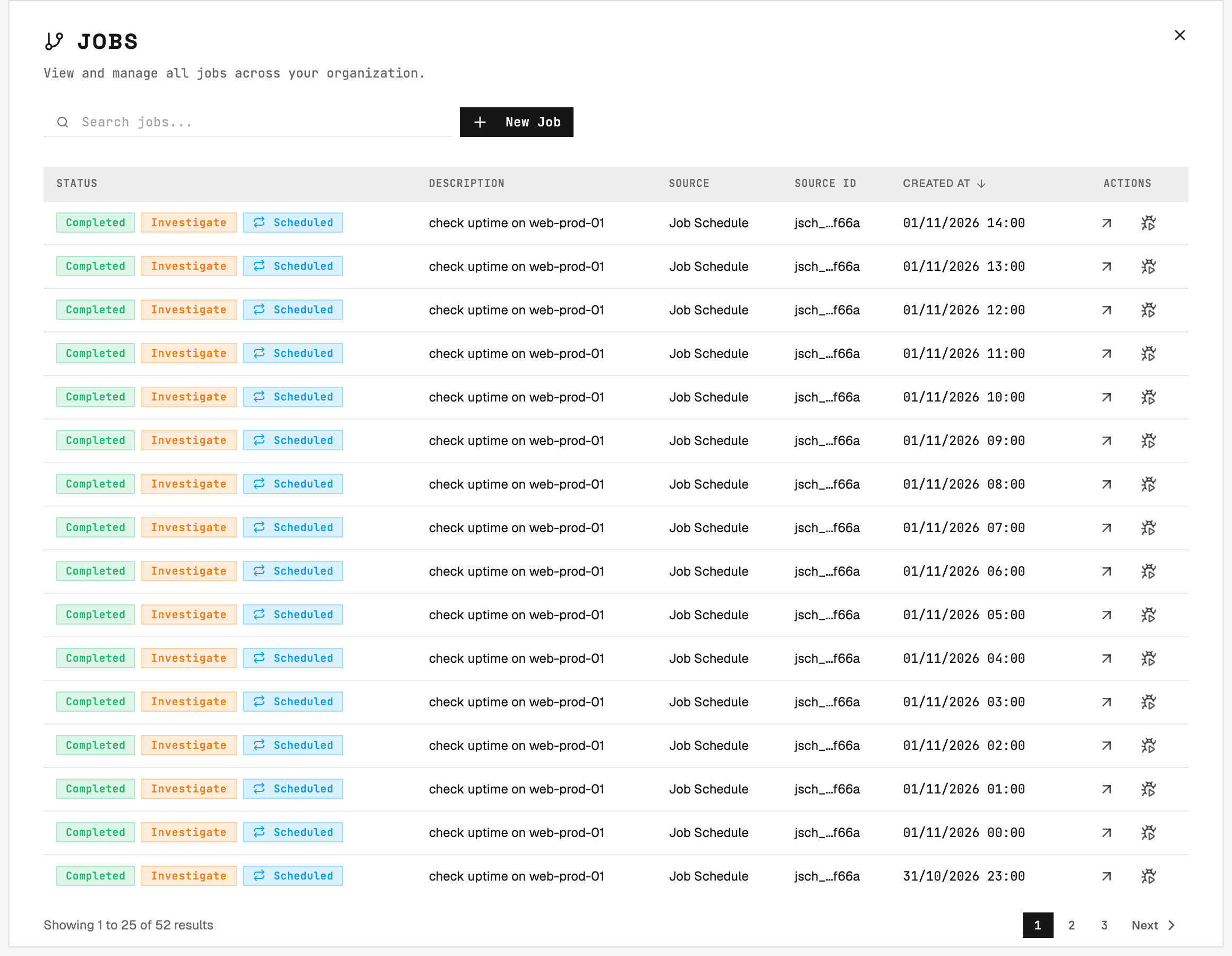
Jobs list: every job carries a status, a source (gateway type), and the source ID (ticket number).
Organization Scoping
Jobs are scoped to a specific organization. All tasks within a job belong to the same organization, and only agents within that organization can be assigned to the job’s tasks.Job Creation
Jobs are created by Gateways when integrated systems generate work requiring multi-agent coordination (e.g., one agent provisions infrastructure, another deploys applications), host fleet operations (e.g., rolling updates across multiple servers), or dependency chains (e.g., database migration must complete before application restart). You can also create a job yourself: on the Jobs page, click New Job, describe what you want done and choose the execution mode (unconstrained by default). 2501 plans the work, picks the hosts and agents, and runs it like any other job. A job created this way has no ticket, so its plan, tasks and result are shown on the job page, and once it finishes you create a new job rather than reopening it. Auditors cannot create jobs. Recurring schedules also create jobs: each scheduled run spawns a fresh job that follows the normal lifecycle. See Job Schedules for how schedules are registered, paused, and managed.Job Orchestration
When a gateway creates a job, it decomposes the task by splitting complex work into individual tasks. Each task is assigned to the appropriate agent based on specialty alignment, host accessibility and credentials, and agent availability and workload. Tasks execute according to dependencies, where sequential tasks wait for predecessors to complete while parallel tasks execute simultaneously where possible. Job status reflects aggregate task states.Multiple Hosts, One Job
A job works several hosts at once instead of one at a time. It runs its tasks in turns: every task that is ready to start runs together, one per host, and the next turn starts once they have all ended. A patch across 20 hosts fits in a single turn. While the job runs, the gateway posts one ticket comment per turn - not one per host. See Agentic Flow - The 20-task ceiling for how turns and the task limit work together. A host that fails, times out, or is stopped no longer fails the whole job - the other hosts keep going. When the job ends, each host is judged on its own last task: work the ticket needed that failed on that host fails the job, while a host no task reached yet makes the job partial rather than failed.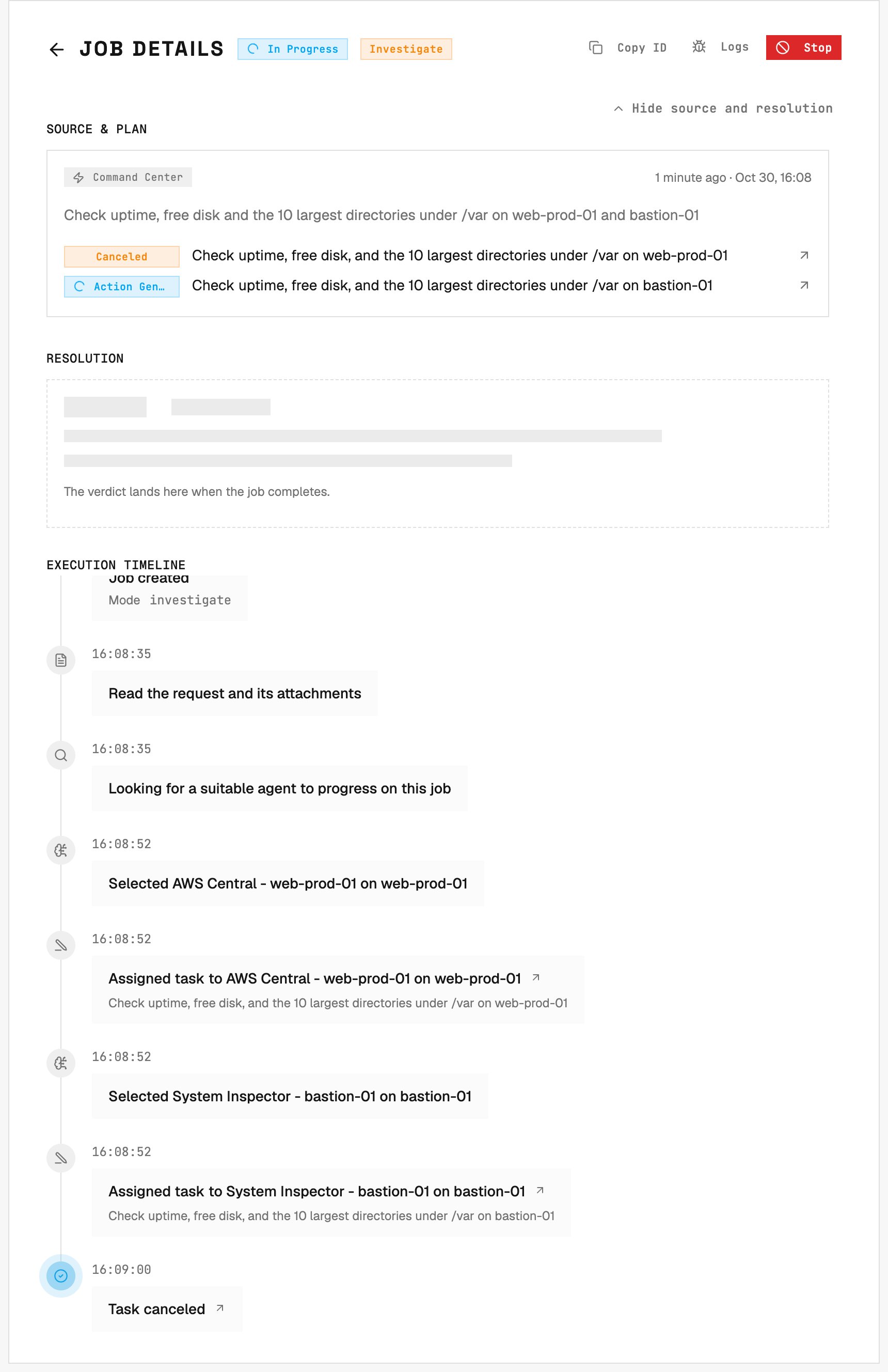
One task is canceled while another continues and the job remains in progress.
Investigate vs Remediate
A job has one of three execution modes, set by the ticket tags:
A job you create in Command Center uses the mode you pick. In a remediate job, the 20-task ceiling counts only remediation tasks that were not canceled. See Agents, Investigate vs Remediate for the full priority chain.
When investigate-only specialties kept an unconstrained job from remediating, the job resolution is flagged as partial rather than a failure.