

SYSOPS.
Purpose of Specialties
While 2501 agents are built for autonomous system operations, specialization improves execution accuracy and reliability. Instead of operating generically, specialized agents follow domain-specific guidelines tailored to your infrastructure. Example: An agent with an AWS CLI specialty can manage EC2 instances with specific guidance on CLI usage patterns, error handling, and decision-making logic (like determining appropriate CPU upgrades when asked to “upgrade my sandbox machine”). Specialties work well for:- Providing context for proprietary or lesser-known tools
- Establishing workflows without full MCP integrations
- Documenting internal conventions and procedures
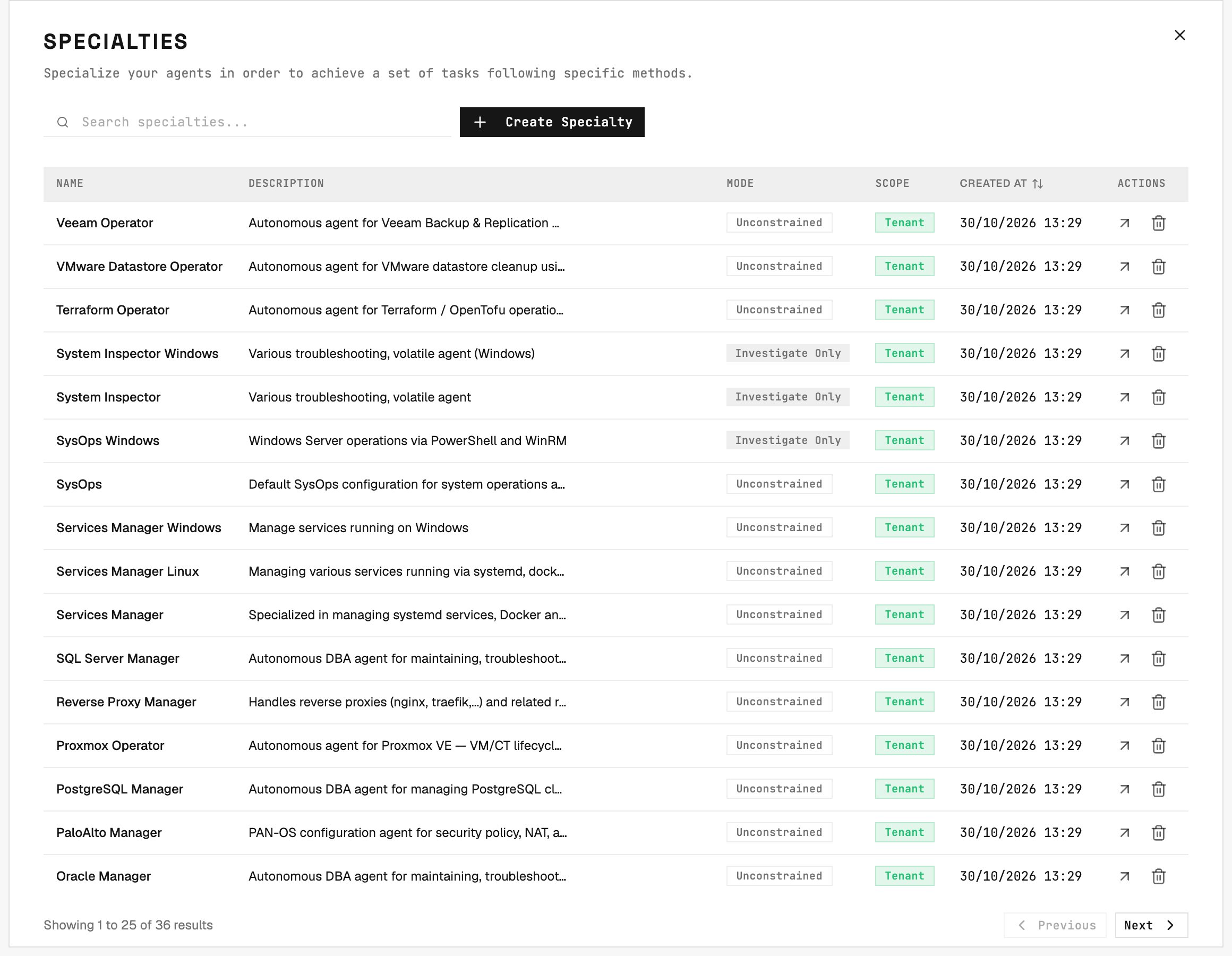
Specialties list: each row shows a specialty's name, its description, how many agents use it, its mode, its scope, and when it was created, with when it was last updated under the date. Click a row to open the specialty.
Separation of Concerns
To maximize accuracy, use different tools for different purposes:- Specialties: Define workflows, provide context, establish best practices
- Operational Rules: Enforce specific tool usage or behavioral requirements
- Blacklist: Prevent execution of prohibited commands
Managing Specialties
Go to Command Center → Specialties and click Create Specialty to add a new one.Name
The display name for your specialty. Use naming conventions that reflect the service domain or agent role. Example:TERRAFORM_SPECIALIST
Key
A read-only identifier automatically generated from the name.Description
Context about the specialty’s purpose and scope. Agents read the full description - not just the name - when deciding how to plan and assign tasks, so a clear description improves routing accuracy for specialties where the name alone is ambiguous. Example:Handles Terraform infrastructure files for sandbox environments
Scope
A specialty is scoped to either a single organization or the whole tenant. By default it is Scoped to Organization, so only that org’s agents can use it. Pick Scoped to Tenant in the Scope selector to make it available to all organizations. Selecting the tenant scope requires tenant-level access; without it the selector stays on Scoped to Organization.Execution Mode
A specialty follows the execution mode of its organization. To give its agents their own mode, an Admin selects Plan or Auto instead of Inherit organization. A specialty in Plan or Auto keeps its mode when the organization changes mode. An agent in Plan only reads, and each change it needs waits in a plan until a person approves it. This is useful for safely deploying large fleets of agents (e.g., 1000 Oracle DB agents) where you want read-only analysis by default, and a person’s approval before any change. A specialty overridden with Plan keeps it when the mode of the organization changes. Only an Admin changes the mode: a User who can edit the specialty sees its mode but cannot change it. A ticket can still force Auto on all the agents of one job with@2501:auto, when an Admin allows it for the organization. In the v1 API, the override Plan is investigate_only, the override Auto is auto, and null follows the organization.