

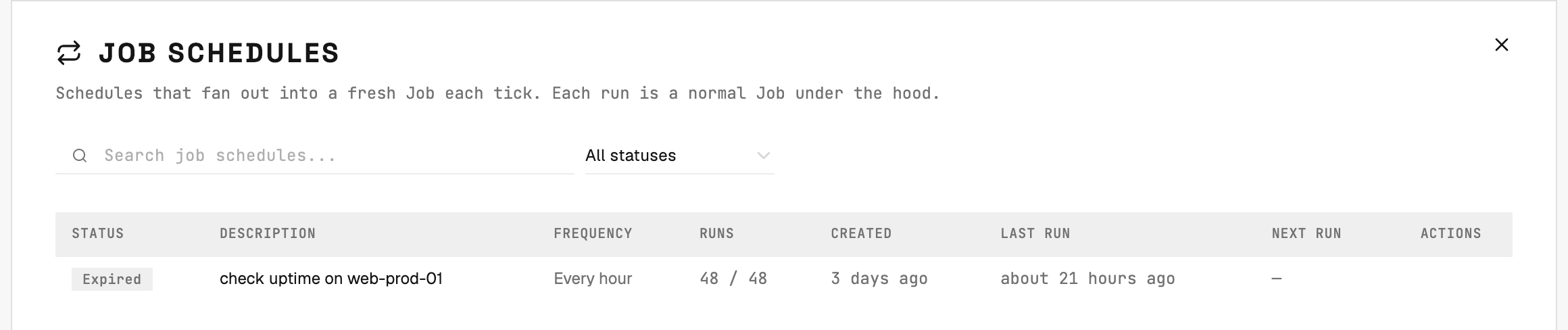
Job Schedules: each row is a cadence. Each tick fans out into a normal Job with all the usual orchestration and reporting.
Execution mode
By default, each agent of a run uses its own execution mode. A schedule can also force Plan or Auto on all the agents of its runs, as the New Job form can. Auto needs an Admin to allow@2501:auto for the
organization. Every run creates a job with the schedule’s mode.
A schedule detected from a ticket takes the mode of that ticket’s job. A later
command on the source ticket does not change an existing schedule’s mode.
A run with an agent in Plan can post a
plan that waits for approval. Approve
the plan of a run on its job page: a command in the source ticket goes to the
ticket’s own job, not to the run.
How a schedule is created
Schedules are registered automatically when an incoming ticket describes a recurring action. The gateway detects the cadence in the ticket text and creates the schedule instead of a one-off job. You can also create a schedule yourself: on the Jobs page, click New Job, describe the work and select Schedule. Choose to run it once at a set time, or on a repeat - every few minutes or hours, daily, weekly, monthly, or with a cron expression - with an optional start, end and run limit. Times are in your tenant’s timezone, which the form shows. The same timing rules apply as for a schedule detected on a ticket. Writing “every Monday” in the description alone does not schedule anything; the job runs once, now. A single cadence can also name a set of days, such as “every weekday at 07:30”, “every Monday and Wednesday at 10:00”, or “every weekend at 11:00”. It registers as one schedule that runs on each of those days, not one schedule per day. The phrase still needs a recurring word like “every”: naming days alone (“on Monday and Wednesday at 10:00”) counts as one-off work, not a schedule.One-time future work
A request such as “restart nginx tomorrow at 15:00” creates a one-time schedule. At that time, the schedule creates a new Job, which plans and creates the Tasks needed to perform the request. Work requested immediately can proceed separately. A completed one-time schedule has no next run. Cancelling it before its start time prevents that job from being created.What you see for each schedule
Managing a schedule
- Pause / stop a schedule from its detail page. Stopping it cancels future ticks but does not affect Jobs already in flight.
- Re-activate is not currently surfaced - to “restart” a schedule, comment on the source ticket and let the gateway re-register.
- Edit cadence is also driven from the source ticket; comment on the ticket to change the schedule and the gateway will reinterpret.