

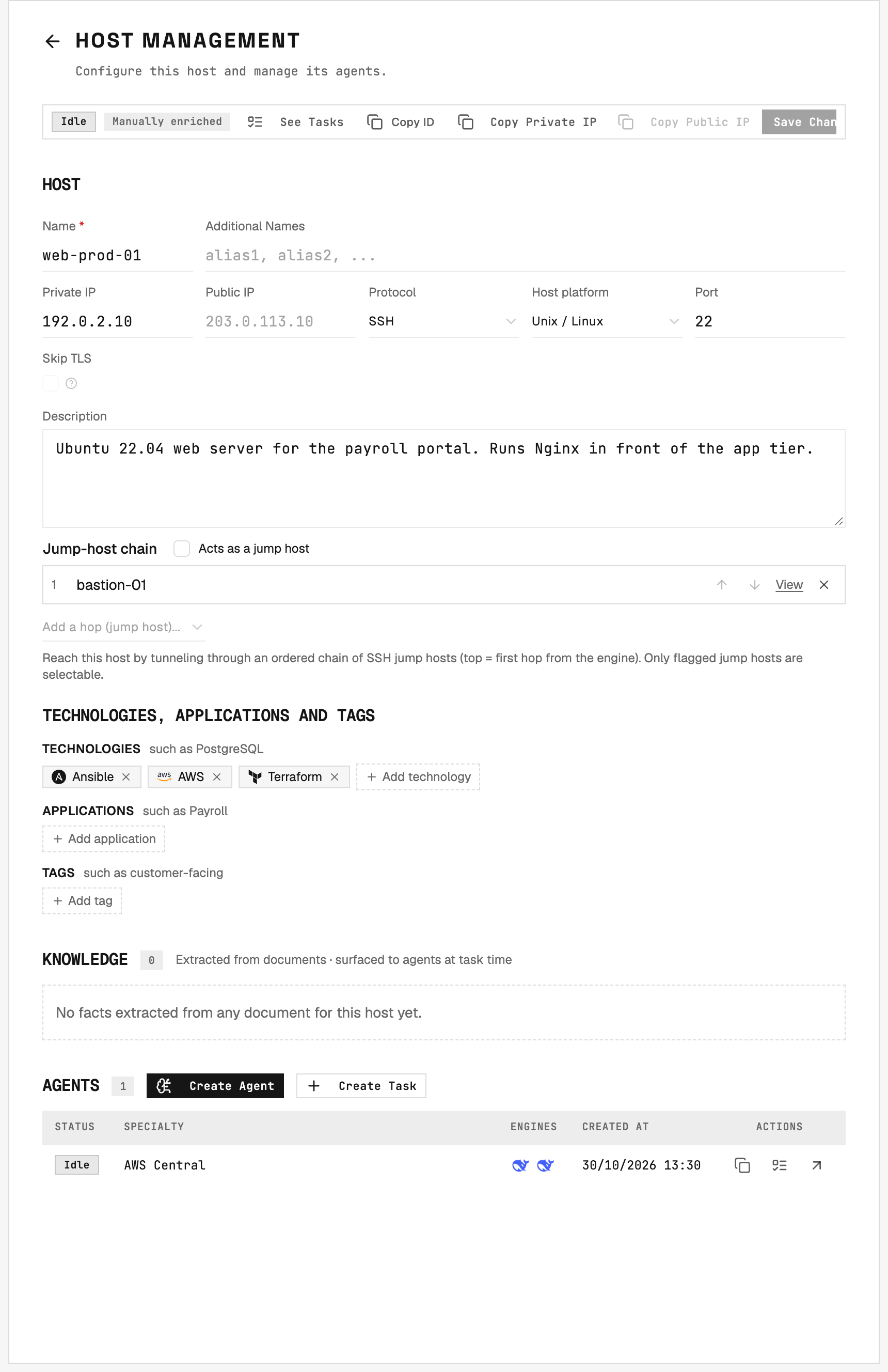
Host connection settings, an ordered jump-host chain, and separate lists for technologies, applications and tags.
Create a Host
1
Choose the organization
Open Hosts in the organization that owns the machine.
2
Enter the connection
Choose Create Host and enter its name, address and protocol using the fields below.
3
Save the machine
Add its technologies, applications and tags in the create form, then save the Host. You can also change these lists on its detail page.
4
Assign an agent
Create an agent for the Host and assign its credentials.
5
Test access
Open the saved agent and choose Test connection beside its connection credentials before running work.
The default ports are 22 for SSH and 5985 for WinRM over HTTP. For WinRM over HTTPS, enter 5986. Use another port if the target requires it. Leave certificate verification enabled unless your administrator has approved a target’s self-signed certificate.
Only one task runs on a Host at a time, even when several agents use that Host. Additional tasks wait in the queue.
Reach a private network
For SSH bastions, register each relay as a Host with Acts as a jump host enabled. On the target, build the Jump-host chain in connection order, starting with the first reachable relay. A chain supports at most five jump hosts. Configure the relay credentials before testing the target. The engine requires every relay to exist and have Acts as a jump host enabled before it connects to the target. When the target must be reached from inside another cluster, configure an Executor cluster instead. See Clusters for supported connections and their dry run. A cluster check tests connectivity to the cluster. Test the target Host’s credentials separately. For Active Directory credential retrieval or gMSA authentication, use direct execution through Docker Swarm. A CSV import preserves an existing Executor cluster assignment. A management machine with authenticated cloud tools can also be a normal Host. Use Centrals when you want a separate container for those tools.PAM session proxy
Your PAM system can open and record each session on an SSH host. For this, 2501 connects to the host through the session proxy of the PAM system. Select the PAM system in Reach through on the page of the host. The agent then needs only a username. See Privileged access.Technologies, applications and tags
Type in a list to select an existing entry or create one. Known technology aliases resolve to the proper name and logo;
postgres becomes PostgreSQL. Record exact software versions in Description. Removing an entry from one Host leaves it on other Hosts.
Entries belong to the current organization. They label inventory and support filters; they do not decide which operational rules a task receives. Document uploads provide Host knowledge separately.
Technology, application, tag and category names must contain 1-50 characters, without commas or invisible or control characters. Matching ignores case and normalizes whitespace. Use a concise, descriptive name rather than creating variations of the same label.
Tag categories
In Hosts > Tags, administrators can group tags into categories such as Environment or Team. A tag belongs to at most one category. Its name remains unique across the organization: creatingprod in another category reuses the existing prod.
Deleting a category keeps its tags on their Hosts, without the category.
Filter Hosts and Agents
Choose filters in the Hosts or Agents list. An agent matches through its Host; an agent without a Host does not match a selected inventory filter.
Filters apply to the whole list, including its count. A saved filtered link follows renames. A deleted entry remains marked as deleted and matches no Hosts, so the link does not silently show everything.
Manage the inventory
On the infrastructure map, Subnet Grouping groups Hosts by the first three octets of their private IP address. The Technologies, Applications and Tags tabs show entries and their Host counts. Open a count to see the matching Hosts.Users can create entries and attach or detach them. Administrators can also rename or delete entries, edit descriptions and manage categories. Auditors can read and filter, but cannot change inventory.