

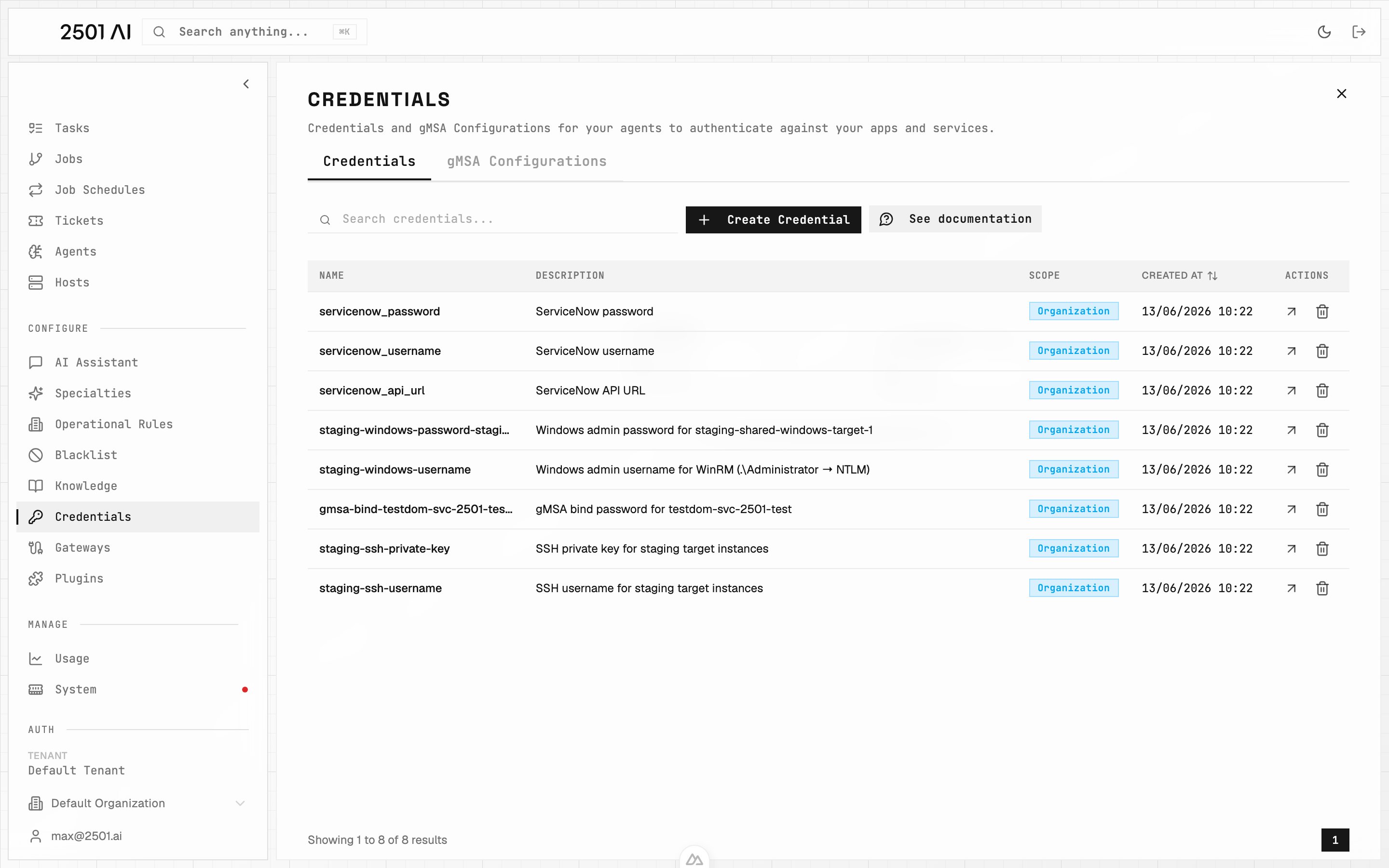
Credentials list: each row is a named secret with a scope (tenant or organization). Values are never displayed after creation.
Managing Credentials
Go to Command Center → Credentials and click New Credentials to create an entry.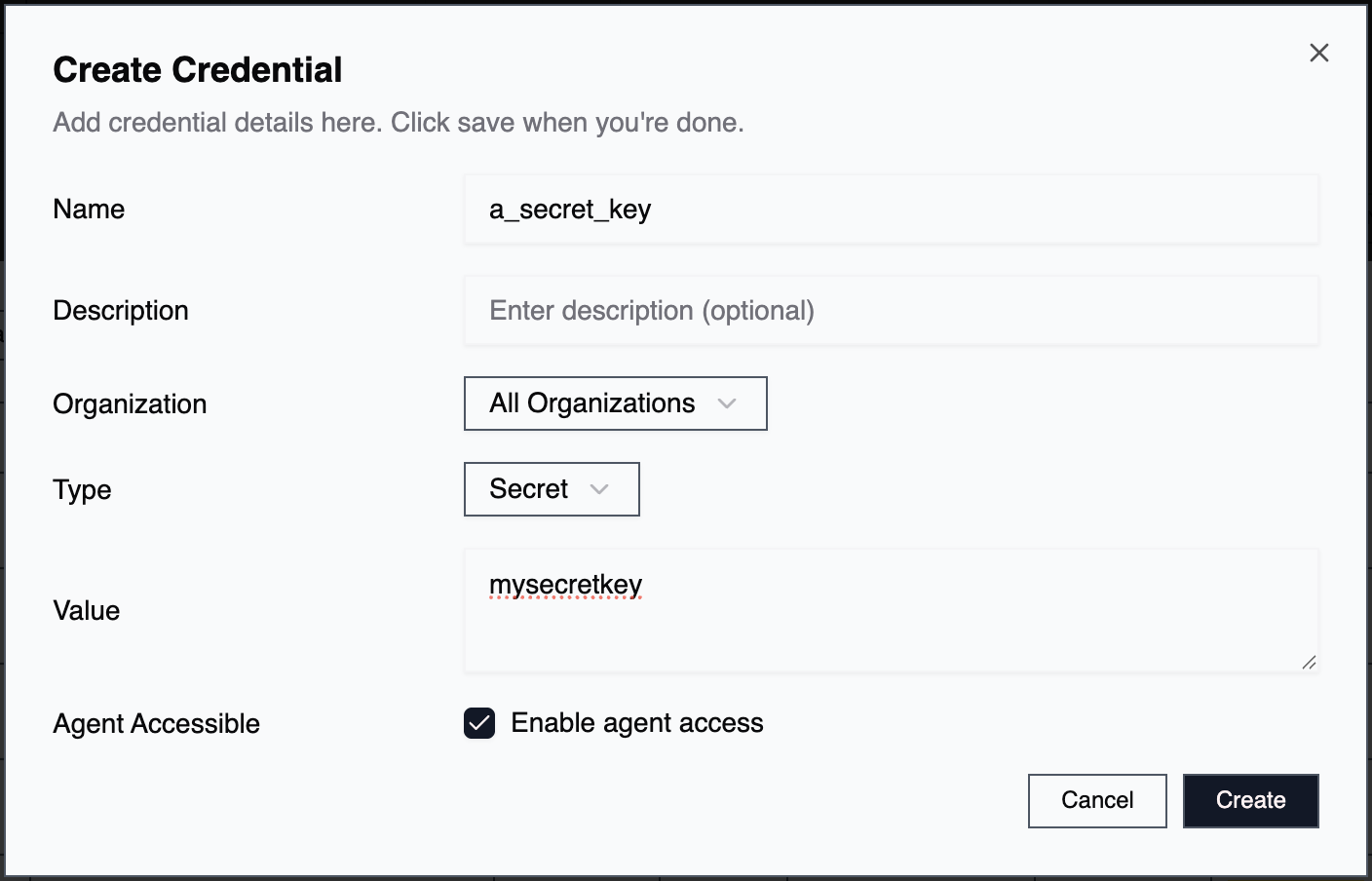
Name
A descriptive identifier for the credential. Use naming conventions that show its purpose and target system. Example:prod_db_ssh_root or aws_prod_api_key
Description
Additional context about what this credential is for. Example:Root SSH credentials for production Ubuntu database server
Scope
By default, credentials are scoped to the current organization, so only that org’s agents can use them. Switch the scope to Tenant to make a credential available to all organizations.Type
- Value: Store the credential directly in 2501’s encrypted storage
- Vault Path: Reference a secret stored in an external vault like HashiCorp Vault
Value
The actual credential data or vault path reference. All values are encrypted and only decrypted when needed. ⚠️ Important: Escape special characters properly to prevent authentication errors.Agent Accessible
Controls whether agents can use this credential during tasks. Enable for:- SSH configurations for remote execution
- API keys for CLI tools
- Database credentials for queries
- Any credential the agent needs to pass to commands
- Service credentials used only by 2501 infrastructure
- MCP server authentication tokens
- Backend service bearer tokens
Assigning Credentials to Agents
When creating or editing an agent, find the credentials section to assign what’s needed.
- Role: How the credential will be used (see below)
- Priority: Order of precedence when multiple credentials of the same role exist
- Required: Whether the agent can work without it
Credential Roles
Roles define how agents use credentials during execution. They cover remote access over SSH:- SSH Username: Remote system login name
- SSH Password: Password-based SSH authentication
- SSH Private Key: Private key for key-based authentication
- SSH Public Key: Public key (rarely needed)
Common Use Cases
SSH Remote Execution (key-based)Roles: SSH Username, SSH Private Key
Agent Accessible: Yes
Required: Yes SSH Remote Execution (password-based)
Roles: SSH Username, SSH Password
Agent Accessible: Yes
Required: Yes
Credential Priority
When multiple credentials with the same role are assigned to an agent, priority determines which gets tried first. Lower numbers = higher priority. Useful for:- Failover scenarios (try primary, fall back to secondary)
- Multi-environment access (different credentials for different systems)
- Credential rotation (keep old credentials briefly while transitioning)
Windows Authentication with gMSA
Windows (WinRM) hosts can authenticate using a gMSA (group Managed Service Account) over Kerberos instead of a static Windows username and password. This avoids storing a long-lived Windows admin password. Manage these under Command Center → Credentials → gMSA Configurations. Administrators can create, edit, and delete configurations. Before adding a gMSA configuration, create a credential holding the password of the Active Directory service account that 2501 binds as. The configuration references that credential and captures the AD connection details:- The gMSA account (its
sAMAccountName, ending in$) and the AD realm - The Domain Controller host and LDAPS port (default
636) - The LDAP search base and the bind DN of the service account
- Optional KDC endpoints, and for domain controllers that use a private certificate authority, a PEM CA certificate for the LDAPS connection