

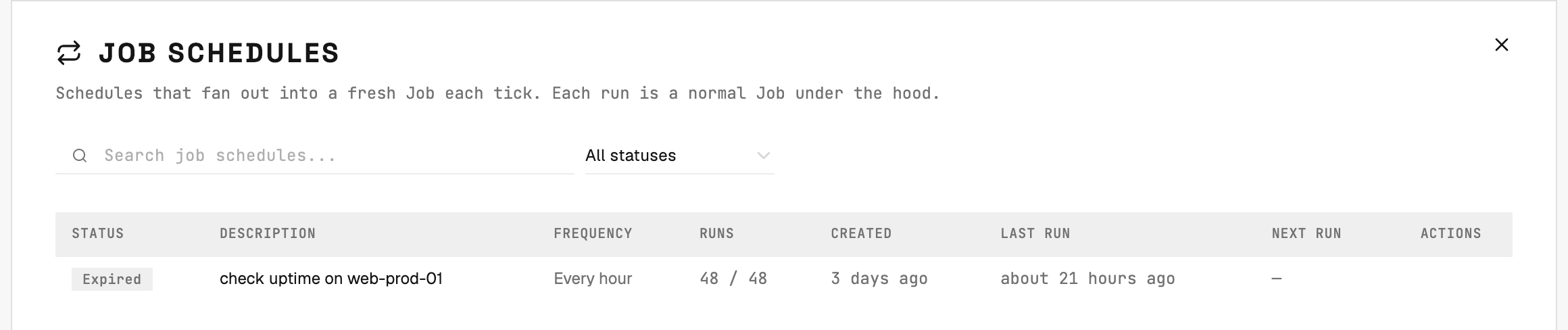
Job Schedules: each row is a cadence. Each tick fans out into a normal Job with all the usual orchestration and reporting.
Execution mode
By default, each agent of a run uses its own execution mode. A schedule can also force Plan or Auto on all the agents of its runs, as the New Job form can. Auto needs an Admin to allow@2501:auto for the
organization. Every run creates a job with the schedule’s mode.
A schedule detected from a ticket takes the mode of that ticket’s job. A later
command on the source ticket does not change an existing schedule’s mode.
A run with an agent in Plan can post a
plan that waits for approval. Approve
the plan of a run on its job page: a command in the source ticket goes to the
ticket’s own job, not to the run.
How a schedule is created
Schedules are registered automatically when an incoming ticket describes a recurring action. The gateway detects the cadence in the ticket text and creates the schedule instead of a one-off job. You can also create a schedule yourself: on the Jobs page, click New job, describe the work and select Schedule. Choose to run it once at a set time, or on a repeat - every few minutes or hours, daily, weekly, monthly, or with a cron expression - with an optional start, end and run limit. Times are in your tenant’s timezone, which the form shows. The same timing rules apply as for a schedule detected on a ticket. Writing “every Monday” in the description alone does not schedule anything; the job runs once, now. A single cadence can also name a set of days, such as “every weekday at 07:30”, “every Monday and Wednesday at 10:00”, or “every weekend at 11:00”. It registers as one schedule that runs on each of those days, not one schedule per day. The phrase still needs a recurring word like “every”: naming days alone (“on Monday and Wednesday at 10:00”) counts as one-off work, not a schedule.Language of a scheduled run
A run answers in the language of the job that registered its schedule. A schedule detected on a French ticket posts the notes of every run in French, even though the schedule’s own description is in English. A schedule created in New job has no such job, so each run detects its language from the description.One-time future work
A request such as “restart nginx tomorrow at 15:00” creates a one-time schedule. At that time, the schedule creates a new Job, which plans and creates the Tasks needed to perform the request. Work requested immediately can proceed separately. A completed one-time schedule has no next run. Cancelling it before its start time prevents that job from being created.What you see for each schedule
Managing a schedule
- Pause / stop a schedule from its detail page. Stopping it cancels future ticks but does not affect Jobs already in flight.
- Re-activate is not currently surfaced - to “restart” a schedule, comment on the source ticket and let the gateway re-register.
- Edit cadence is also driven from the source ticket; comment on the ticket to change the schedule and the gateway will reinterpret.
Supported timing and refusals
Schedules can include hour windows, weekday filters, and the Nth weekday of a month. The request must fit one recurring cron expression. Intervals below 5 minutes in production are refused. The ticket receives an explanation so you can choose a supported timing. The same applies to other timing the platform cannot represent. Scheduling requests are all-or-nothing: if any item is invalid or unsupported, none of the requested schedules are registered. The ticket receives one explanation that names every item of the request, so you can correct and resubmit the complete request. No part of a rejected scheduling request is installed on the host, and none of its items runs once as a task. Work you asked for immediately still runs, as its own task. For example, take the ticket “Check RAM every 30 seconds and check disk daily at 09:00. Also restart node_exporter now.” The explanation names both checks, no task runs either of them, and the job restarts node_exporter. This also holds when an agent is in Plan: the plan for the job proposes no cron job, systemd timer orat job for a refused cadence, because 2501 cannot list or cancel those. Any other change the ticket asks for now still appears in the plan.