

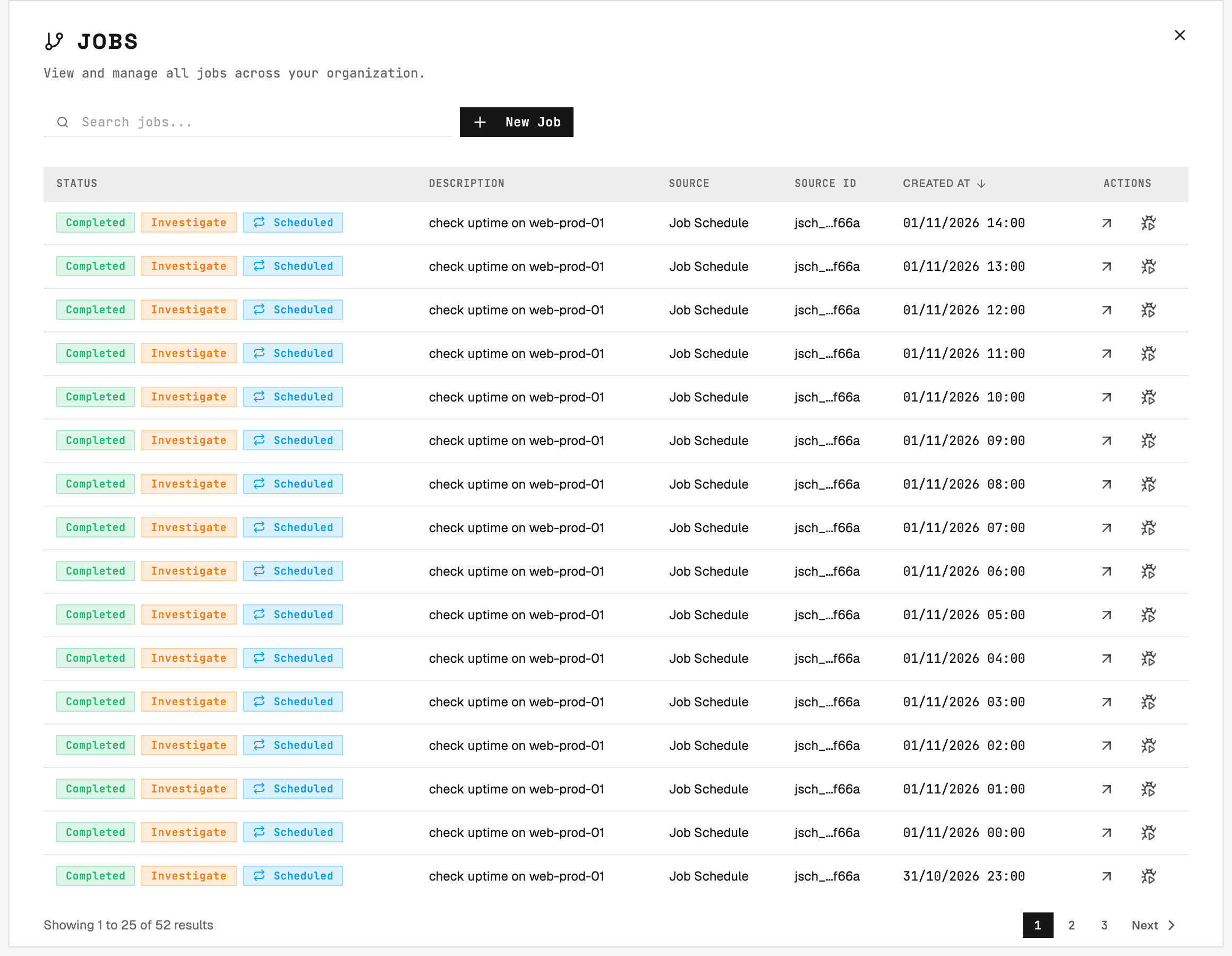
Jobs list: every job carries a status, its request, its source (the gateway and ticket number), and when it was created. Click a row to open the job.
Organization Scoping
Jobs are scoped to a specific organization. All tasks within a job belong to the same organization, and only agents within that organization can be assigned to the job’s tasks.Job Creation
Jobs are created by Gateways when integrated systems generate work requiring multi-agent coordination (e.g., one agent provisions infrastructure, another deploys applications), host fleet operations (e.g., rolling updates across multiple servers), or dependency chains (e.g., database migration must complete before application restart). You can also create a job yourself: on the Jobs page, click New job and describe what you want done. By default, each agent uses its own execution mode. Select Plan to force Plan on all of them, or Auto when an Admin allows it, instead of Each agent’s mode. 2501 plans the work, picks the hosts and agents, and runs it like any other job. A job created this way has no ticket, so its tasks, its plan and its result are shown on the job page, and once it finishes you create a new job rather than reopening it. Auditors cannot create jobs. Recurring schedules also create jobs: each scheduled run spawns a fresh job that follows the normal lifecycle. See Job Schedules for how schedules are registered, paused, and managed.Job Orchestration
When a gateway creates a job, it decomposes the task by splitting complex work into individual tasks. Each task is assigned to the appropriate agent based on specialty alignment, host accessibility and credentials, and agent availability and workload. Tasks execute according to dependencies, where sequential tasks wait for predecessors to complete while parallel tasks execute simultaneously where possible. Job status reflects aggregate task states.Commands a ticket dictates
A task agent receives its task brief, not the ticket. When the ticket dictates a command, such assystemctl reload nginx, 2501 copies it into the brief of the task that needs it, so the agent runs your command instead of inventing one.
- Exact text only. 2501 keeps a command only when it is an exact excerpt of the ticket description, a user comment or a readable attachment. The agent receives it unchanged.
- Same limits as any task. A copied command is an instruction, but the task’s execution mode and your operational rules still apply. In Plan mode, a command that changes the host becomes a read-only investigation.
- One extra model call. Each batch of tasks costs one more model call for the copy, also when the ticket has no command.
- When the copy fails. The tasks still run, with a notice that a command may be missing. A task that refers to a specific command it did not receive reports a blocker instead of inventing a substitute or reusing a command from task history. A command that fits several tasks equally well is left out, with the same notice.
Multiple Hosts, One Job
A job runs on several hosts at once. It runs its tasks in turns: every task that is ready to start runs together, one per host, and the next turn starts once they have all ended. A check that changes nothing runs on all its hosts in one turn. A change takes one of two forms:- A rollout. Agents of one specialty make the same change on two or more hosts, such as a patch. It goes out in batches: to 1 host first, then to at most twice the hosts on which it completed in its last batch, so a patch across 20 hosts takes 5 turns when every host completes. When it completed on no host, it can retry the hosts it tried and go to one new host, so a problem of one host does not stop it. When it failed on three hosts, it goes to no new host. Two rollouts in one ticket go out side by side, each in its own batches. After each batch, the job reads the failures before it starts the next one, and a broken change goes no further.
- A separate change. Each fix of one team in an incident, or a change on a single host, has no batches. Fixes of different teams run side by side, also when they share one operation name or one host. A fix starts when its host has no open task. It completes with its report, also when it leaves a step for a person.
engine_error, so it does not stop a rollout or the changes of an agent. The same holds for a task whose setup fails before its first step, such as when a credential store is unreachable.
A credential that is set up wrong has a limit of its own. This covers a credential that the credential store refuses or does not hold, a stored value that cannot be used, and an agent with no SSH credential. The task fails with the failure kind configuration_fault, and it counts toward neither the rollout limit nor the retry limit. After 4 such failures of one agent with no completed task between them, the agent gets no further task of any kind. The job does not stop, and the other agents continue. The job timeline shows Task stopped: a credential is set up wrong.
While the job runs, the gateway posts one ticket comment per turn, with the number of hosts done, failed and not started. See Agentic Flow for how turns continue within license and context limits.
A host that a batch or the turn limit holds back stays waiting until that change starts on it, even when a later turn does not mention it and even when a check or another agent’s change starts on the host first. A change on an agent that has no host, such as one on a Central, waits the same way, and the job progress lists it as Central <name>. Each agent has its own waiting entry on a Central, so one agent’s start does not end the work that waits for another. A held change stops waiting when it runs, also when a later turn runs the same fix under a new name. If the job ends first, the gateway counts that host or Central as not started, so the job does not report it as done. A new ticket comment can narrow the work, and the job then drops the waiting hosts it no longer covers.
When a host fails, times out, or is stopped, work on the other hosts continues. In the API, the failure_kind of a failed task gives the cause when 2501 knows it: host_unreachable when the host could not be reached, llm_failed when the model failed after its retries, engine_error when 2501 itself failed, such as on a database error or a setup error, and configuration_fault when a credential is set up wrong. A later task replaces a failure only when it does the same work. A change that reached some of its hosts makes the job partial, also when it failed on others, and the answer groups the failures by cause. Work whose steps need each other, such as an install and its activation, fails the job when one step fails.
When the tasks find a fault that only a person can fix, such as a cut cable or a line down at the carrier, the job ends partial, so the ticket is not resolved, and it goes to the escalation group when one is set.
A ticket that limits the work to an investigation or to advice, or that holds the fix back until a person approves, is delivered by the diagnosis and the advice. Such a job can end successful while the fault is still there.
A monitoring ticket often carries other alerts next to the problem that its title reports. An alert that has nothing to do with that problem is not part of the request, so the job can end successful when no task ran on that alert’s host. The answer names each alert that the job left out, so you see which alert still fires. Three cases stay part of the request:
- The same problem on another host.
- A second problem that the ticket asks to fix or to check.
- An alert on a host where a task ran: when a change there failed, the job does not end successful.
Execution Mode
Each task of a job has the execution mode of its agent: an agent in Auto makes changes without approval, and an agent in Plan only reads. A job can also force one mode on all its agents:
On the job page, the Mode button shows the current mode of the job. Admins and Users click it to change the mode of a job that has not ended. The job uses the new mode from its next turn. A job that moves to Plan while a task runs then posts a plan for the change that is left. When a job that waits for approval moves to Auto, its plan closes, and 2501 makes the changes without approval. The last change wins: a later comment without a mode command keeps the mode.
When a new turn has tasks to start, the job first checks the tenant’s task allowance. If the license expired or its allowance is exhausted, the job ends partial and states why. Tasks already admitted finish, even when that turn exceeds the remaining allowance. This also applies to approved plan steps.
A job also runs at most the number of tasks set in Max tasks per job in Settings > Tenant, 50 by default. Every task counts, including reads before a plan and steps of an approved plan. If the remaining steps exceed the available tasks, the plan stops at the limit and the job ends partial.
The default of 50 also applies to existing tenants and jobs when this setting is introduced. Tasks already admitted finish. A job at or above its limit stops partial when it next proposes more work. Reopening does not reset the count. An administrator can raise the tenant-wide limit to 1,000; larger rollouts need separate jobs.
A host is done only when all its changes and checks completed, with no requested operation waiting. When a job makes a change, the counts are given for each change, and the checks get their own count: a host where only a check ran is not done for the change. When a job makes two changes, such as a patch and then a certificate renewal, a host where the patch completed counts as done for the patch, and as not started for the renewal. When two agents each make a separate change of the same name on one host, a failed change stays failed until that same agent completes it: the other agent’s completed change does not make the host done. A completed change or unrelated check does not clear a failed check. A retry of the same check must complete.
Before a change task completes, an independent verification call reads its recorded tool results. It requires evidence that the change is in effect. A host that already has the requested result completes without a new change, so the first host of a rollout does not stop the other hosts. A command or script that fails means the change is not in effect, and the task ends with the error
[Change not in effect]. When the request also names a check that cannot pass for a reason the change does not govern, such as a port that the host closes by policy, that check no longer blocks completion once a functional check after the last change proves the outcome. The verifier names that check and its reason. A named check that fails because the change is wrong or incomplete still blocks it. For a service change, it also requires a functional service check after the change. A running process or successful restart alone is insufficient. The functional check is a read-only call that the host can run, such as a request to the service. When none can exercise the change without a write or a user’s action, a current read of the requested state is enough, and the reason names the check left to the requester. A check that only another host can run is not required, and a probe that cannot reach a service on another host is not a failed check. A local service that refuses a request after the change is one. When the only stronger proof is a write, a user’s action or a probe from another host, the agent reads back what it changed and reports the proof it could not run, instead of looking on other hosts. The planner adds no check task that asks for such proof.
For a service change, verification checks that the affected service uses the new file or library. An HTTP status code alone cannot prove this.
A shared library does not expand the task to unrelated services. A failed check does not authorize a restart. If an operational rule prevents activation, the task cannot report the change as complete. Changes without a service need evidence of the requested state. A command that prints nothing, such as rm -f, can be part of that evidence when it did not fail and another command the verifier cites has output. Missing or failed verification blocks the claim that the change is in effect. The verifier blocks one claim in each request: the task can repair the result and check again, and its next claim completes without verification. So a change that is not in effect can complete when the task claims it again, and it can then increase the next batch. A change of a batch that gives up ends as failed, and a separate change ends with its report.
The verifier interprets evidence with a model and can make mistakes. Tasks classified as checks run read-only, including in Auto.
Plans
After the turn in which a job first reads through an agent in Plan, it makes no more changes before your approval. It keeps reading, through any agent, until nothing is left to read. Each agent reads at most once, and two agents of one host read one turn after the other. When a change is still needed, it posts a plan with every change that is left, and waits with the status Waiting for approval. When no change is needed, it only answers, and ends as a success. A job with an agent in Plan also posts a plan when it finds no task to run first, for example when the ticket only asks for a change. That plan comes from the request alone. When such a job only answers, it ends with no action, and the ticket says why. When an operational rule forbids the change that the request needs, the job posts no plan, ends as partial, and the ticket names the rule and what it allows instead. 2501 gives this answer only when it has ruled out every other change that reaches the same result: a rule or the request forbids it, or a task result shows that its host lacks what it needs. A change that no task checked goes in the plan, and its step first checks what the host needs, such as free space in the volume group. When a rule allows a change only in a way that it names, such as an approved change request or a migration, the change stays ruled out unless the request or a task shows that way. A plan uses the request, task results, operational rules and the descriptions of the hosts that the job read or that the plan changes. It says what 2501 found, why it needs each change, and what it is not sure about. Each step is one change on one host through one agent. The steps are numbered in order, and a step that runs together with an earlier step says so, such as “together with step 1”. A change still goes to its hosts in batches, so its steps past the batch wait for a later turn. 2501 picks the agent of each step in the same order as for a task: first the routing rules of the gateway, then an agent that you name in a comment or on the job page, then the specialty that covers the change. Each step shows the name of its agent, so you can name one of several agents with the same specialty. 2501 runs each step as a new task, and never adds a change to a task that it already has. A host runs one task at a time, so two steps on the same host run one after the other. The plan also lists the changes that the job already made. 2501 posts each version of the plan in the ticket, and shows it on the job page. To answer a plan:- Approve it with
@2501:approve-planin the ticket, or Approve plan on the job page. Nothing else approves: “looks good, go ahead” is not an approval. - Ask for changes with a
@2501comment that says what to change, or Request changes on the job page. 2501 posts a new version. A question gets an answer, and the same version keeps waiting.
In both cases the step fails and the job plans again, so you can approve a plan that names the change.