

runner gateway exists for benchmarking so scenario runs do not pollute ServiceNow or require a development account; it is not used for real tickets.
A gateway is itself agentic. It uses an LLM (your tenant’s text LLM model) to read each incoming ticket, understand the problem, and decide which agents and hosts should handle it, and it uses your tenant’s multimodal model to read any attachments on the ticket. Both come from your tenant defaults in the model catalog, and you shape how the gateway behaves with two optional prompts - the inbound prompt (routing and scope) and the outbound prompt (what gets written back when a job finishes). Because routing is lighter work than executing a task, a smaller model is usually enough here.
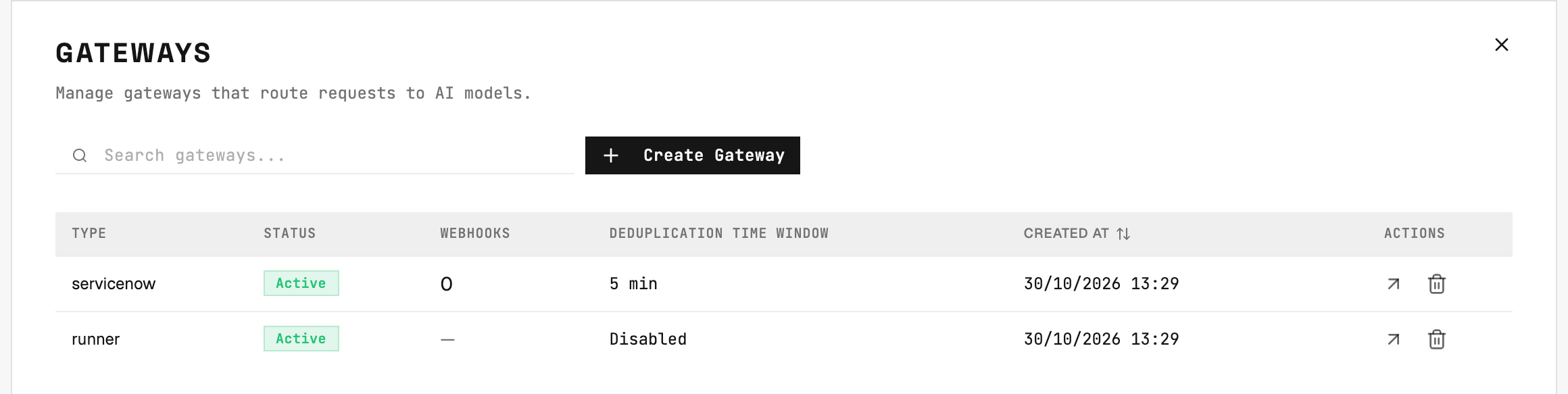
Gateways list: ServiceNow handles real tickets via webhook; runner receives benchmark tickets.
- Automatic: tickets are parsed as soon as they are created in the ticketing system
- Semi-Automatic: tickets are parsed only when @2501 is mentioned
- Host information in the ticket (e.g., “target_machine: UNIX_PROD_442”)
- Nature of the incident (e.g., “A service has timed out”)
- Available agents with explicit specialties (e.g., “AWS Manager”)
- Other ticket details that indicate where and how the incident should be resolved
Organization Scoping
Gateways are scoped to a specific organization. A gateway only routes tickets to agents within its organization and creates jobs within that organization’s context.Managing Gateways
Go to Command Center → Gateways to create, view, edit, activate/deactivate, and delete gateways. To create a gateway, click Create gateway, choose the type (ServiceNow or Runner), fill its connection, configure the inbound and outbound prompts and their override toggles, the deduplication window, and any metadata fields, then save. To pause a gateway without losing its configuration, open its detail page and toggle Active off - an inactive gateway stops processing tickets but keeps its settings. Delete removes a gateway entirely. Existing gateways also expose an editable Metadata field for non-standard configuration keys that are not surfaced as dedicated form inputs.Connection
A ServiceNow gateway connects with an Instance URL, a Username and a Password; an Ecritel gateway with an SI URL, an SI token, an E2M URL and an E2M token; an EasyVista gateway with an API URL, a Token or password and an optional Username: without a username the secret is a token, with one it is the password. Type the URLs on the gateway and pick a credential for each account or token: the password and tokens take a secret, the username a variable or a secret. A tenant-wide credential can be picked only with tenant-level access. The gateway connects only once every required field is set. A ServiceNow or Ecritel gateway left entirely empty at creation takes the credentials your organization holds under the namesservicenow_* or ecritel_*: while it is active, each cycle fills a URL and its account together once they all exist, until every required field is set or you change it yourself. A URL filled that way loses any user name and password it held, and becomes a plain field of the gateway that anyone who can read the gateway sees.
Through the API, a gateway create or update takes the same fields as connection - url, username_credential_id, secret_credential_id, ecritel_e2m_url and ecritel_e2m_token_credential_id - and every gateway read returns them, null when unset. On an update, a key left out keeps its value and null empties it. URLs are http or https, with no user name or password.
Type
Indicates what type of gateway it is, usually a service where IT tickets are created. The detail page shows it by name and you cannot change it. Example: ServiceNowActive Status
Turns the gateway on or off. Useful if you want to temporarily prevent agents from automatically picking up tickets or creating jobs when 2501 is mentioned in a ticket.Webhooks
Tickets are processed in near real-time via webhooks. Each gateway gets a unique webhook URL and secret that you configure once in your ticketing system (for example, a ServiceNow Business Rule). No standing access to your ticketing instance is required after setup. A polling reconciliation loop is retained as a safety net, running every ~2 minutes to catch any missed webhooks. The gateway detail page shows active webhooks (name, event type, and masked secret) and lets you delete individual webhooks. Create them through the API, see Webhooks. For setup instructions, see Webhooks.Models
Gateways do not have their own model settings. Routing uses your tenant’s Text LLM model (the LLM in charge of understanding the ticket and routing tasks to the appropriate agent(s)), and attachments are parsed with your tenant’s Multimodal model. Both are tenant defaults set in Settings > Tenant from the model catalog. You can allow a smaller weight for these defaults, as gateway routing requires less compute than the agents that actually perform tasks. A model between 70b and 300b performs well enough for most routing tasks.Gateway Prompts
A gateway is shaped by two independent prompts, each an optional override you toggle on. When a side’s override is off, the gateway uses its built-in default handling for that side (today’s behavior). You can enable one side without the other. In the header of the gateway page, a version menu labelled Inbound prompt and one labelled Outbound prompt let you view and restore earlier versions of each prompt.Inbound Prompt
The inbound prompt specifies how to route tickets to the appropriate agent. It extends the gateway’s system prompt to allow routing of specific ticket types that require special handling or particular agents. Best practice: include something likeIf there is no exact agent for the specified task on the current host - take the closest. But ensure exact matching for hosts. This emphasizes using the ticket’s information to identify the correct agent while providing a fallback when an exact match is not available.
The inbound prompt also acts as a scope gate. If it defines which kinds of requests the gateway should or should not handle, tickets whose request type falls outside that scope are skipped (see Routing and Scope).
Outbound Prompt
The outbound prompt governs what 2501 writes back to the ticket once a job finishes. With its override on, the agent maps the internal outcome to the external ticket: it sets the status (using your ticketing system’s real states and close codes - for ServiceNow, an incident resolves to “Resolved” with a close code, a change request moves to “Review”, and so on), optionally posts a comment (a public comment or an internal work note), and optionally escalates by reassigning the ticket to another assignment group. The gateway validates each choice against the legal states for that ticket type. With the override off, the existing default mapping applies unchanged - for example, a successful incident is resolved. See Completion Behavior.Routing and Scope
Before any task is generated, the gateway checks whether the ticket is in scope for this gateway, based on the request-type rules in your inbound prompt.- Out-of-scope tickets are skipped. A skipped ticket is marked with a distinct “Skipped” status, visible and filterable in Command Center (like a “Duplicate”), rather than being silently processed. Scope is about the type of request, not which machines exist, so a ticket that names a host you have not registered is not skipped for that reason alone.
- A skipped ticket goes through the outbound prompt like any finished job. With the outbound override off, or when the outbound prompt asks for nothing, 2501 adds an internal note with the reason (a work note in ServiceNow, an internal comment in EasyVista) and leaves the ticket’s status and assignment as they are. When the outbound prompt changes the ticket without a comment, for example to reassign it, or when its decision fails, 2501 adds the same note. So a skipped ticket always gets the internal note, unless the outbound prompt writes a comment of its own.
- A skipped job creates no task and does not look for an agent. Its timeline on the job page shows Ticket skipped by the gateway’s inbound prompt, not “No agent matched this request”. The reason says that the inbound prompt puts the ticket out of scope, and that you change the inbound prompt to have 2501 work tickets like it.
- Edits that someone else makes on a skipped ticket do not bring 2501 back. Only an
@2501mention re-engages it. - With the outbound override on, the outbound prompt decides what a skipped ticket gets: a note, a status, or a reassignment. Nothing is filled in from the default mapping, since the ticket was never worked.
- The inbound prompt may also ask to escalate a skipped ticket - that is, reassign it to another assignment group.
- Stopped jobs are written back too. When a job ends without a verdict - someone stopped it, or it failed before it could be judged - the ticket goes through the outbound prompt the same way, within a few minutes. With nothing decided - including when an outbound rule asks for nothing to be written - 2501 adds an internal note with the reason and hands the ticket to the escalation group, when one is configured. A rule that does write something is followed as written. A ticket somebody has already taken is left alone.
- Take-over happens only when work starts. A ticket’s status is flipped to in-progress only once a task is actually created. A ticket that is skipped keeps its status and owner; one that produces no match is handed back and, with an escalation group configured, reassigned to it.
- Strict host matching. The @2501 mention is treated as the bot being addressed, never as a host name, and a host whose name merely contains “2501” is not matched because of it. If a ticket names a target machine and no registered host matches that name, the gateway returns no match rather than substituting a plausible host.
- Genuine no-match. When a ticket is in scope but no task can be created, the ticket receives a public comment with the decision that explains why, without the analysis behind it, so the comment does not list the hosts or IP ranges that 2501 checked. The ticket is returned to the queue (for ServiceNow incidents, status is reset to open), then handed to the escalation group when one is configured, so a human picks it up. A ticket somebody has already taken is left alone.
Completion Behavior
When a job finishes, the gateway writes the outcome back to the ticket. By default it applies a built-in mapping - for example, a successful incident is resolved with a close code, and a change request moves to Review (see Change Requests). Enable the outbound prompt override to let the agent decide the write-back from your instructions instead: which status to set, whether to post a public comment or an internal work note, and whether to reassign the ticket to another assignment group. Because the gateway is the only writer to the ticket, the status, comment, and any reassignment are applied together as one update.Comment visibility
The requester can follow the work: the list of tasks, one comment after each turn of tasks - failures included - any plan that waits for approval, and the final outcome are posted as public comments. A note for an incident that is already resolved or closed goes to the work notes instead. Internal work notes are kept for hand-offs: an escalation, or a change that failed. Each comment states what it counts, for example “1 task” or “3 tasks”, and counts a host as done for a change only when that change completed there. Checks get their own line. The evidence is a short copy of the output as the host printed it, under “host - finding (exit code N)”. Plan steps are numbered 1, 2, 3 in the ticket and on the job page. With the outbound prompt on, the resolution note is written in the language of the job. A job that ends on a size limit tells the requester to split the request. Outcomes are stated in words, such as “partially completed”, never as codes.Change Requests
In addition to incidents, a ServiceNow gateway can execute change requests. Register a separate webhook with event typechange_request for the change_request table; a gateway that handles both incidents and changes uses two webhooks, one per table.
Eligibility. 2501 acts on a change request only once it reaches the Implement state and is Approved. Changes in any other state, or not yet approved, are ignored. There is no restriction on change type: standard, normal, emergency, and custom change models are all handled the same way once approved and in Implement. The same assignment-group and environment filters that apply to incidents also apply to changes.
Execution follows the plan. When 2501 picks up a change it adds a comment but does not move the change state (it is already in Implement). It treats the change’s Implementation Plan as the authoritative, pre-approved action list and executes it faithfully, without re-diagnosing, substituting alternative approaches, or expanding scope. The Backout Plan is used only to roll back if a step fails, and the Test Plan defines the verification steps run after implementation.
Completion.
- On full success, 2501 moves the change from Implement to Review with close code
successful, recording the technical actions performed in the close notes. - On partial success, it moves the change to Review with close code
successful_issues, with the actions in the close notes. - On failure (or if no action could be taken), it leaves the change in Implement and posts a work note describing the outcome. It does not assign a close code or move the change, so a human can review and retry within the change window.
Escalation Groups
When a ServiceNow ticket finishes in a state that needs human follow-up, 2501 can hand it off to a designated escalation group so it doesn’t sit orphaned. Escalation is opt-in per gateway. Setservicenow_escalation_group_id in the gateway metadata to the sys_user_group sys_id you want unresolved tickets reassigned to. Without it, the gateway never escalates.
With an escalation group configured, the resolution determines the handoff:
When the outbound prompt is on and its decision fails on a job that did not resolve the ticket - a failure, a partial run, or no action - 2501 falls back to this mapping, so the ticket still reaches the escalation group.
A partial change request moves to Review and is reassigned to the escalation group when one is configured. Its close code stays
successful_issues. Without an escalation group, it remains assigned to its current group.
To retry the remaining work, a human must make the change eligible again: Approved, in Implement, and within the gateway’s assignment-group and environment filters. A new @2501 comment can then request the remaining work. A comment alone does not move a change from Review to Implement.
Runner Gateway
A separate runner gateway exists for benchmarks. When a benchmark runs a scenario, the runner gateway creates its ticket inside 2501 and dispatches it as a job through the same pipeline as a real ticket, but it does not talk to any ticketing system. Use it so scenario runs never touch your ServiceNow instance and so you don’t need a ServiceNow developer account just to exercise agents end to end. Create one per organization in Gateways → Create gateway, type Runner; it needs no configuration. The runner gateway is not used for real tickets. It keeps the ticket state that 2501 writes - the status, close code, close notes and assignment group, as ServiceNow would - so a scenario can grade it with aticket_state rule.
EasyVista Gateway
An EasyVista gateway type connects 2501 to an EasyVista Service Manager instance - contact your Account Executive to enable it. 2501 polls the tickets of one group and opens a job for each new one, then writes its progress back as actions on the ticket: a successful job closes the ticket as solved, except on a ticket with an active job schedule, where it only comments, and a failed one is reassigned to the escalation group when you set one. Use a group dedicated to 2501, because the first poll takes every open ticket of the group changed in the last 7 days. 2501 reads the text of a ticket or an action from its description, and from its comment when the description is empty, as for tickets created through the API. EasyVista has no webhooks, so intake is by polling only. The gateway signs in with its connection. It needs the employee id of the EasyVista account 2501 uses, because that is how 2501 tells its own actions from a person’s. A resolved ticket cannot be reopened, so a follow-up comment reaches 2501 only while the ticket stays open.Ticket Deduplication
It is common for the same issue to generate multiple tickets. Several people may report the same problem independently, or a monitoring system may fire multiple alerts for the same incident. Without deduplication, each ticket would spawn its own job, wasting agent time on work that is already in progress. When a new incident arrives, 2501 uses an LLM (not an embedding or keyword search) to compare it against recent tickets and decide whether it describes the same problem on the same target. If a duplicate is found, no job is created: the duplicate ticket is linked to the original and automatically resolved when the original’s job completes. Deduplication applies to incidents only; change requests are always processed. In ServiceNow, a duplicate of an original whose job succeeded resolves with close code “Solution provided”. When the original’s job does not succeed, its open duplicates still resolve, with close code “No resolution provided” and close notes headed “Original Issue Not Resolved” followed by the original job’s summary, so check that your instance offers this close code. If it does not, ServiceNow rejects the write and the duplicate stays open with a work note. A duplicate a person already resolved or closed keeps its resolution: 2501 adds a work note instead. Two tickets are considered duplicates when they concern the same issue on the same target (e.g., two disk-space alerts for/var/log on the same host) or share a provable root cause (e.g., two services failing due to the same dependency). Same host but different resources (e.g., /var/log vs /tmp) are not duplicates.
If a duplicate ticket contains new details, those details are not merged into the running job and no follow-up job is created: the original job runs on the original ticket’s content. To act on the new details, comment @2501 unlink-ticket on the duplicate. This detaches it from the original and allows a new job to be created for it.
Configuration
Set Dedup Window (min) on the gateway page, ordedup_window_minutes in the gateway metadata, to control how far back the engine looks when comparing tickets. It defaults to 30 minutes and applies to both still-open tickets and recently completed ones considered for comparison. To disable deduplication, tick Disabled next to the field, or set the value to -1. The gateways list then shows the window as disabled.
Working with Active Jobs
After a gateway creates a job from a ticket, you can interact with it by commenting @2501 in the ticket. The system responds differently based on the job’s current state:
Key concept: The comment always acts on the same job. While the job is running it restarts with the new requirements; once the job is finished (completed or failed), the comment reopens it and re-runs it, with the earlier tasks kept as context.
Reopening Finished Jobs
When to use: After a job completes or fails, you need additional work that builds on what was done. What happens:- Same job reopened - Your @2501 comment reopens the existing job and resets it to pending so it runs again
- Resolution cleared - The previous resolution is cleared, and the work is planned again from the ticket plus your new comment
- Earlier tasks kept as context - Tasks from earlier runs remain in the database and are visible to the new run, so completed work is not redone
- Re-runs with context - Agents start the new work but can reference the earlier actions and outcomes
Updating Active Jobs
When to use: A job is currently running and you need to add requirements or change direction mid-execution. What happens:- Incomplete tasks cancelled - Any tasks that have not finished are stopped
- Completed tasks remain - Already-finished work stays as context and is not redone
- Work planned again - The system plans the next tasks again, with your @2501 comment
- Job resumes - Agents continue with the updated requirements, building on completed work
- Investigation reveals additional areas to check
- Requirements expanded during execution
- Different approach needed mid-task
- Priority shifted to a different aspect of the problem