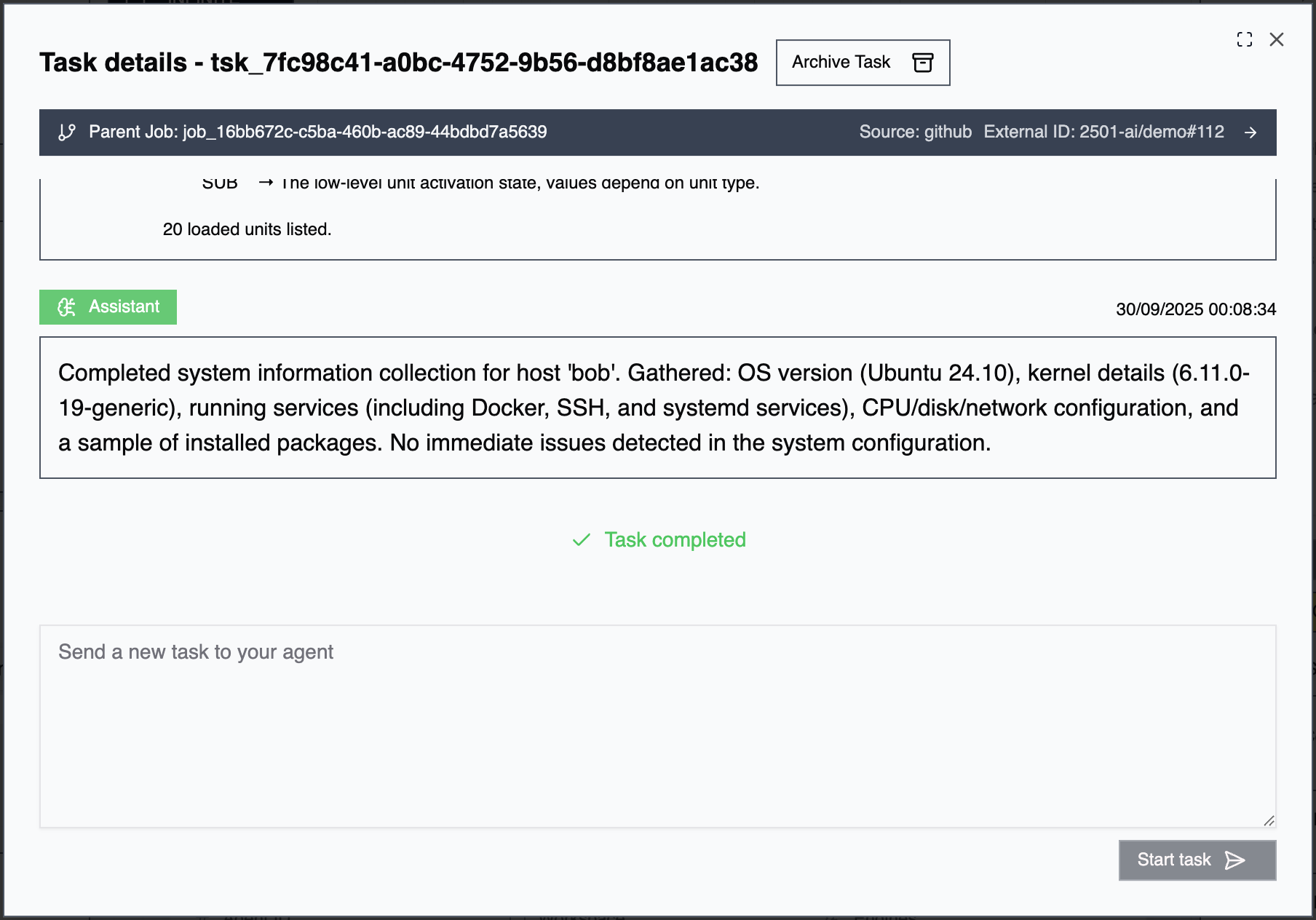

What is a Task?
A task is a discrete assignment given to an agent, ranging from simple operations (“check disk space on prod-web-01”) to complex multi-step workflows (“deploy the latest application version and verify health checks”). Tasks represent the primary interface for directing agent behavior.Creating Tasks
Command Center UI: Navigate to your agent, create a new task in the task box, and monitor execution with structured, real-time updates. Review comprehensive execution logs and decision trails. CLI: Submit tasks directly from the command line for quick operations and scripting. Monitor task progress via CLI output. Ideal for interactive or automated workflows. Gateways: If gateways are enabled, tasks and jobs can be created from GitHub (pull requests, issues, deployment triggers), or ticketing systems (ServiceNow, Jira). Gateway-created tasks may be assigned directly to specific agents or routed as jobs for multi-agent coordination. You can interact with gateway jobs by commenting @2501 in the ticket—see Working with Active Jobs for details.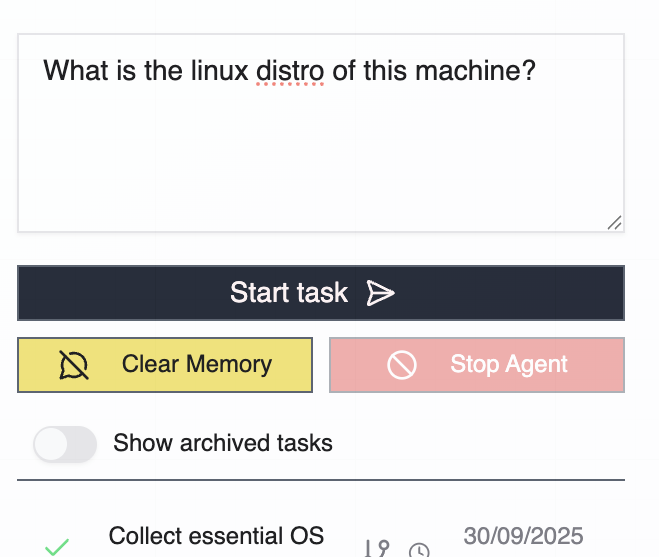
Task Lifecycle
User Assigned: The task has been created and is awaiting agent pickup. With manual trigger, the task waits for explicit CLI execution. With automatic pickup, the agent continuously listens and processes tasks as they arrive. Planning Phase: The agent’s secondary engine analyzes the task, breaks down requirements into actionable steps, gathers necessary context from the target system, identifies required credentials and tools, and exposes the execution plan for review. This phase provides visibility into the agent’s intended approach before commands are executed. In Progress: The agent actively executes the task by running commands on target hosts, reading and modifying files, interacting with services and APIs, adapting based on outputs and errors, and logging all actions and decisions. Completion States: Completed: Task finished successfully. Objective achieved, all planned steps executed, results validated, and context retained for follow-up tasks. Failed: Task could not be completed due to errors during execution, operational constraints violations, unavailable resources, or agent escalation for human intervention.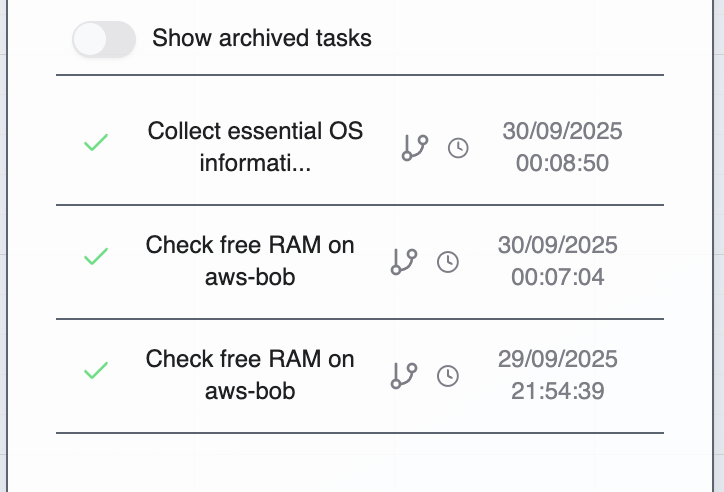
Task Monitoring
Command Center UI: Comprehensive visibility with real-time execution progress, structured command logs with timestamps, agent reasoning and decision points, output from all executed commands, error messages and diagnostics, and execution timeline and duration. CLI: Streamlined monitoring with task status updates, command execution output, progress indicators, and final completion status.