

Documentation Index
Fetch the complete documentation index at: https://docs.2501.ai/llms.txt
Use this file to discover all available pages before exploring further.
Plugins and MCP are ways to allow your agents to access various tools in a LLM-friendly way via function calling rather than some API endpoints or complex CLI commands.
Adding a new Plugin
In order to add a new plugin to 2501, please first contact us. We provide custom implementation for each customer, in order to have it working seamlessly with our agents.
Plugins can be publicly available MCPs that are queried on a distant endpoint with or without authentication, and also in-house made MCPs.
Managing Plugins
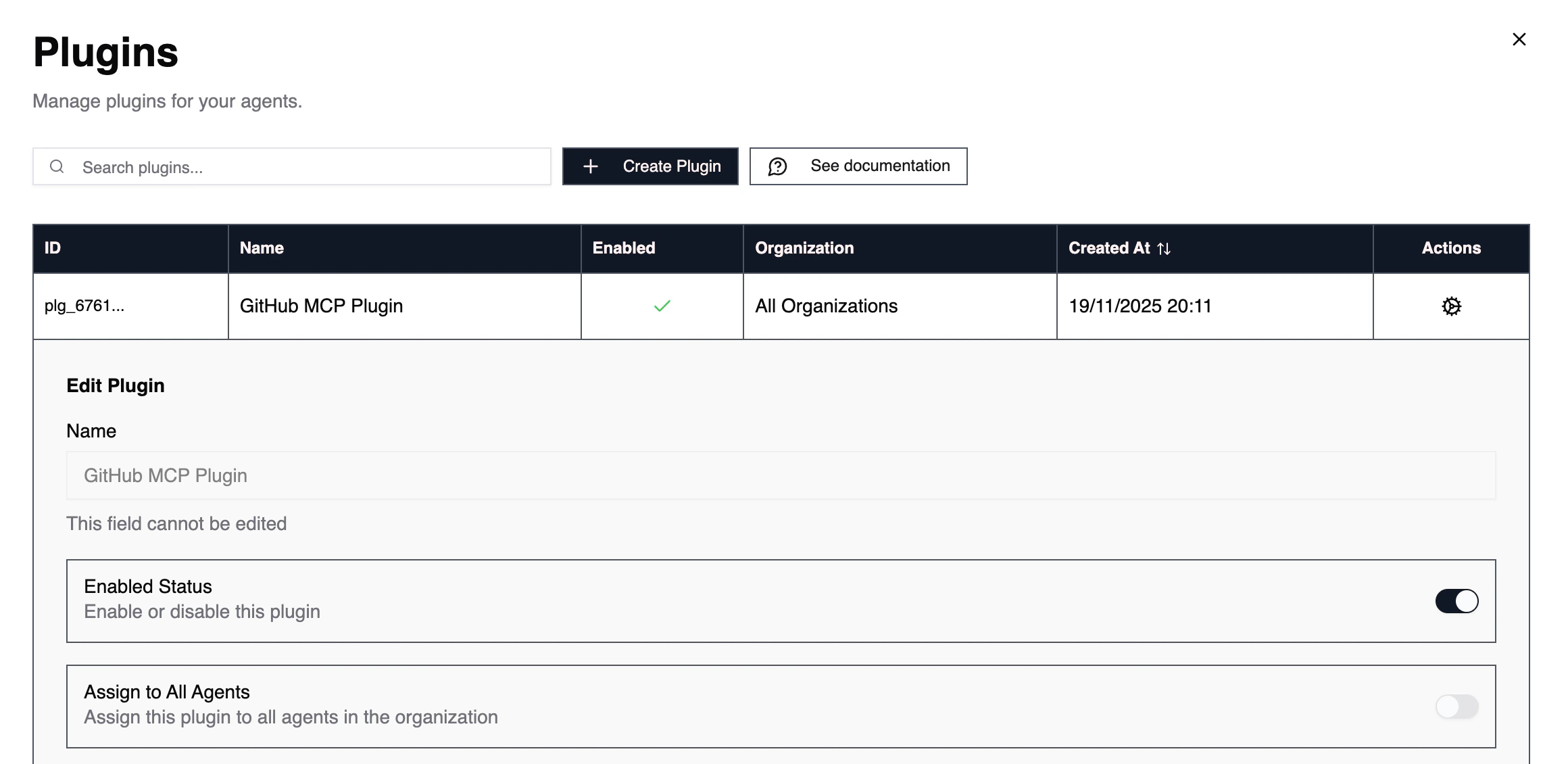
Go to Command Center → Plugins and click the cog icon of the plugin you want to manage.
Organization
By default, plugins are available to all organizations. Select a specific organization to restrict the plugin to only that org’s agents.
Enabled Status
Allow to quickly enable or disable a plugin. Useful if you realize some MCP functions do not behave in the way you expected. If a plugin is disabled, the agent can’t call any of its functions, even if the plugins are associated to an agent.
Assign to all Agents
When you add a new plugin, you may want all agents to have access to this plugin/MCP’s functions For example, a plugin could allow any agent to execute commands to push to a remote repository and create a pull request.
Plugins per Agent
You can have granular control over which agent has access to a certain range of plugins.
If order to do so, either select an agent on the graph or navigate to Agents, and select the agent you want to manage.
From here, you can enable or disable one or multiple plugins for this agent.
Considerations
Plugins and MCP functions are loaded in agent’s context, which can impact an agent performance overtime (especially smaller models), so don’t forget to clear your agent memory every once in a while to avoid hallucination, especially with plugins exceeding a few hundreds commands.