

Managing users
In your Command Center, Administrator users will be able to see a “Users” page on the sidebar. From this page, you are able to create, update, or modify users able to access your 2501 interface.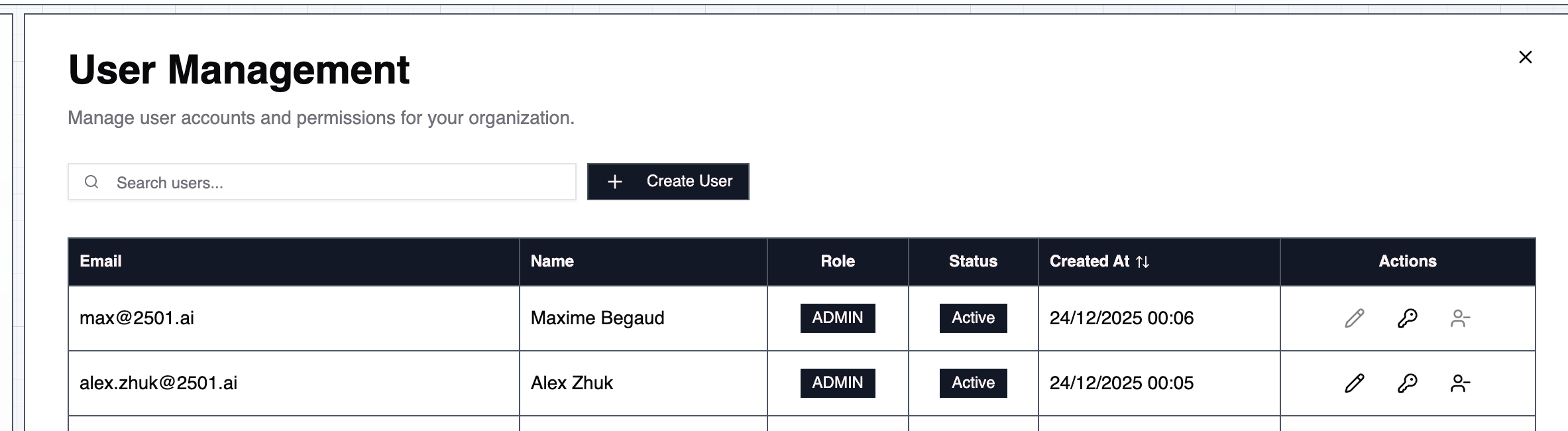
Roles
2501 supports three roles: Administrator, User, and Auditor. Each role has different levels of access to resources and operations.Administrator
The administrator user has access to all pages of the Command Center and can modify every resource 2501 manages. Administrators can create new users with the button “Create User” and assign them a role. To revoke the access of a user to Command Center, you can simply revoke the user from the table, which will soft delete its account. You may also want to reset a user’s password (including administrators), by clicking the “Reset Password” button. Note on passwords: it must contain at least 8 characters, letters and numbers, as well as at least 1 uppercase and lowercase character. Permissions:- Full read and write access to all resources across all organizations
- Can create, modify, and delete users
- Can manage organizations and tenant settings
User
Regular users can read and write resources within their assigned organizations, but have read-only access to shared (tenant-wide) resources such as specialties, operational rules, credentials, and blacklists that are not scoped to a specific organization. Regular users do not have access to the “Users” page and cannot manage other users or organizations. Permissions:- Read and write access to org-scoped resources (agents, hosts, tasks, jobs, etc.) in assigned organizations
- Read-only access to shared resources (specialties, operational rules, credentials, blacklists with no organization scope)
- Read-only access to organization and tenant information
- No access to user management
Auditor
Auditors have read-only access across all resources they can see. They share the same visibility as the User role but cannot create, modify, or delete any resource. Permissions:- Read-only access to org-scoped resources in assigned organizations
- Read-only access to shared resources
- Read-only access to organization and tenant information
- No write permissions anywhere
- No access to user management
Organization Access
Regardless of their role, any user can be granted access at two levels:- Organization-level access: The user can only see and interact with resources in their explicitly assigned organizations.
- Tenant-level access: The user can see and interact with resources across all organizations in the tenant, including any organizations created in the future.