

Rules are matched using tags. The same tag vocabulary that classifies your machines drives this matching, so it helps to tag hosts well. See Hosts for how host tags work.
How matching works
Each rule carries tags that decide which tasks it applies to. When a task runs, 2501 compares the rule’s tags against two things: the target host’s tags, and tags inferred from the task description. Tags fall into two roles:- Scope tags (Technologies, OS, Type, Shell, and application tags) describe which hosts a rule covers.
- Procedure tags describe which action a rule covers (for example restart, deploy, backup).
Scope: which hosts a rule covers
A rule’s scope tags must all be satisfied by the target host’s tags together with tags inferred from the task. Scope tags are restrictive: adding more of them narrows a rule to fewer hosts, and never widens its reach.- A rule with no scope tags applies broadly across the organization.
- A rule tagged
os:linuxapplies only to Linux hosts. - A rule tagged
os:linuxandtech:nginxapplies only to Linux hosts that run nginx.
Procedure: which action a rule covers
A rule’s Procedure tags are matched against the action 2501 infers from the task description.- A rule with no procedure tag is treated as an always-on guardrail. It applies whenever its scope matches, regardless of the action.
- A rule with one or more procedure tags applies when the task’s action matches any of them. A rule tagged with both
restartanddeploynow matches restart tasks and deploy tasks (earlier releases only matched one).
Rules surface up front
For remediation tasks, the organization’s relevant rules and procedures are surfaced at the start of the task, ranked by relevance to the task description. The agent has the applicable guardrails in hand from the beginning rather than only when its intent happens to match exactly.Tag axes
Tags come from a controlled vocabulary organized by axis. You pick values from the in-product picker when creating or editing a rule; free-text values are rejected. The picker always shows the complete, current list for each axis.
The OS, Shell, Type, and Technologies axes are scope tags. Procedures is the action axis.
Application tags
Application tags are the one exception to the controlled vocabulary. They take the formapp:<name> (for example app:billing-api), are per-organization, and scope a rule to a specific business application so it only applies to the hosts that run a particular internal app.
New tags in 0.7
This release adds new values to the Type and Technologies axes:- New Type tags:
type:hypervisor,type:control-plane,type:generic-storage,type:iot,type:vault - New Technology tags:
tech:aws,tech:gcp,tech:azure,tech:proxmox,tech:podman,tech:rabbitmq,tech:hashicorp-vault
The Vault technology tag was renamed from
tech:vault to tech:hashicorp-vault. Existing hosts and rules that used the old value are migrated automatically and keep matching, so you do not need to retag anything.Managing Operational Rules
Go to Command Center → Operational Rules and click Create Rule to add a new entry. Open a rule from the list to edit it, or use the delete action on its row to remove it.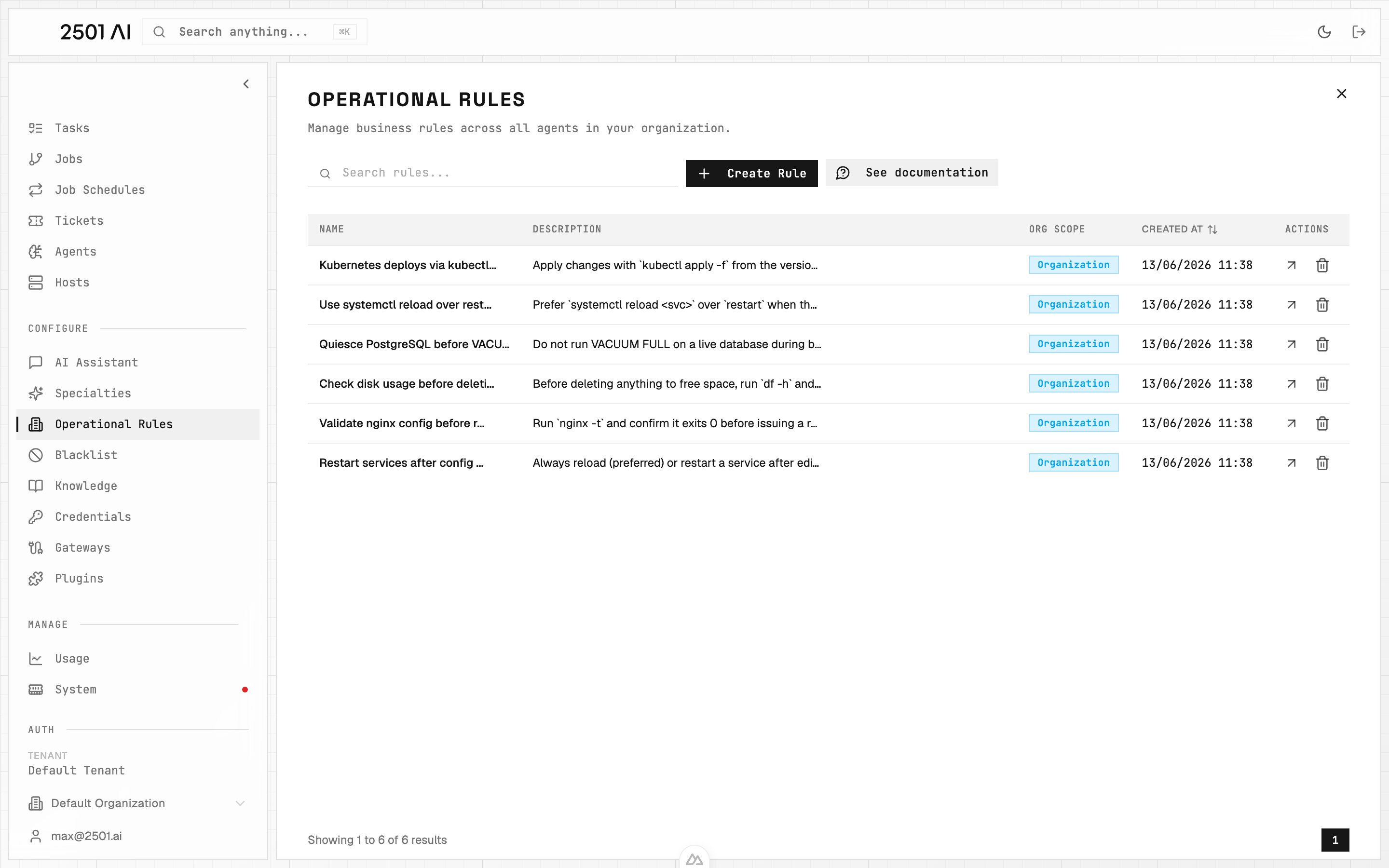
Operational Rules list: name, description, scope, and a quick edit/delete row action.
Name
A clear identifier for the rule. Example:Restart services after config changes
Description
The directive itself, the guidance an agent should follow when the rule applies. Write rules that are concise, specific, and focused on a single operational concern. Example:Always restart processes after updating their configuration files