

- Automatic: tickets are parsed as soon as they’re created in the ticketing system
- Semi-Automatic: tickets are parsed only when @2501 is mentioned
- Host information in the ticket (e.g., “target_machine: UNIX_PROD_442”)
- Nature of the incident (e.g., “A service has timed out”)
- Available agents with explicit specialties (e.g., “AWS Manager”)
- Other ticket details that indicate where/how the incident should be resolved
Managing Gateways
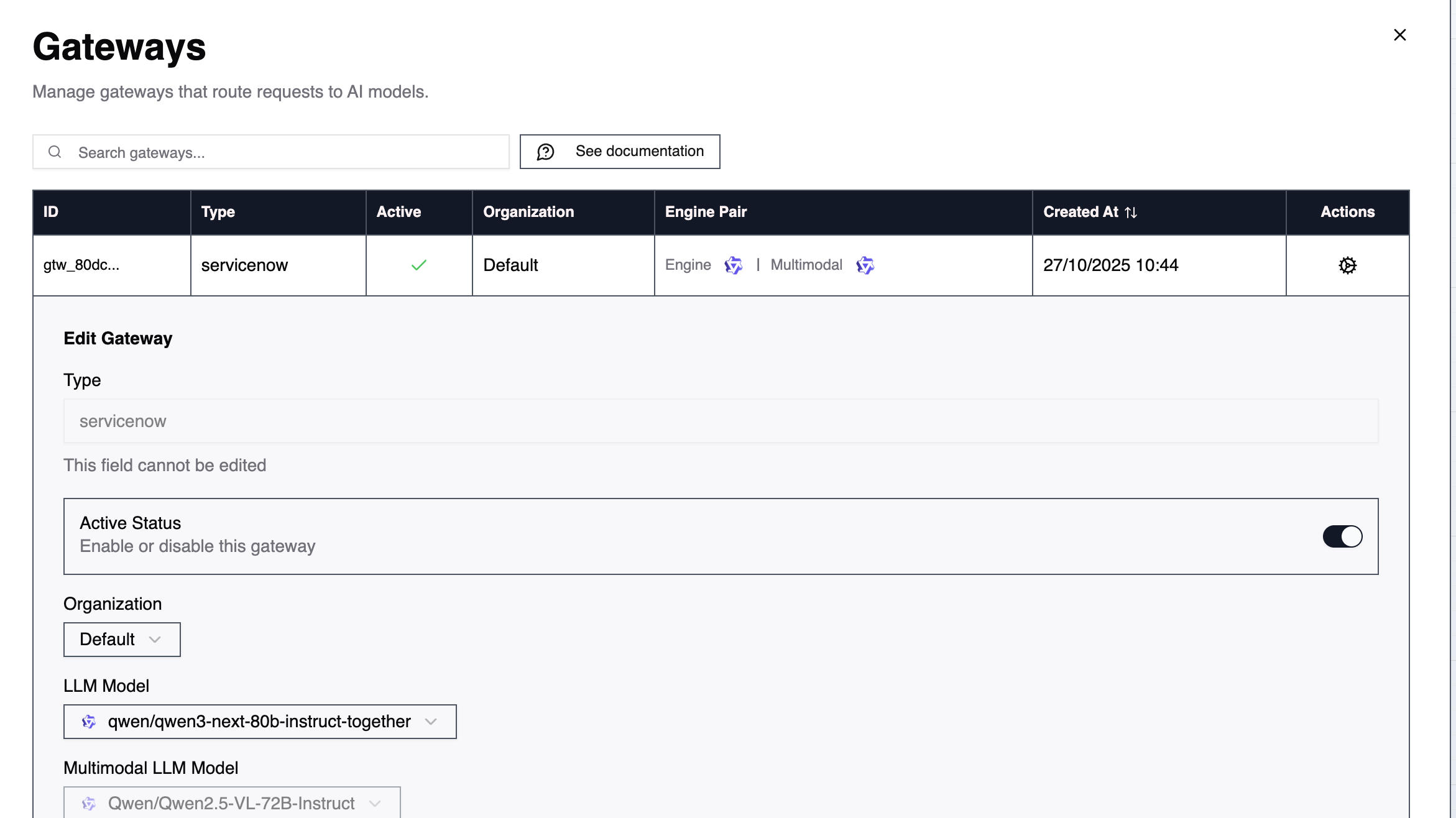
Go to Command Center → Gateways and click the cog icon of the gateway you want to manage.Type
Indicates what type of gateway it is, usually a service where IT Tickets are created. Example:servicenow
Active Status
To turn on or off the gateway. Useful if you want to temporarely prevent agents from automatically picking up tickets or create jobs when 2501 is mentioned in the ticket.LLM Models
You will find two options:- LLM Model: representing the LLM in charge of understanding the ticket and routing tasks to the appropriate agent(s)
- Multimodal LLM Model: the agent that will parse the attachments of your tickets
Routing Prompt
This prompt specifies how to route tickets to the appropriate agent. It extends the gateway’s system prompt to allow routing of specific ticket types that require special handling or particular agents. Best practice: include something likeIf there is no exact agent for the specified task on the current host - take the closest. But ensure exact matching for hosts. This emphasizes using the ticket’s information to identify the correct agent while providing a fallback when an exact match isn’t available.
Working with Active Jobs
After a gateway creates a job from a ticket, you can interact with it by commenting @2501 in the ticket. The system responds differently based on the job’s current state:| Job Status | @2501 Comment Action | Use Case |
|---|---|---|
| IN PROGRESS | Restarts job with new instructions | Modify ongoing Job |
| COMPLETED | Creates new follow-up job | Additional Job needed |
| FAILED | Creates new follow-up job | Retry or alternative approach |
Follow-Up Jobs
When to use: After a job completes or fails, you need additional Job that builds on what was done. What happens:- New job created - Your @2501 comment becomes the instructions for a new job
- References previous job - The new job has access to what happened in the original job for context
- Plan shows history - The execution plan includes a “Previous Job” section so agents understand the background
- Fresh start with context - Agents start new Job but can reference previous actions and outcomes
Updating Active Jobs
When to use: A job is currently running and you need to add requirements or change direction mid-execution. What happens:- Incomplete tasks cancelled - Any tasks that haven’t finished are stopped
- Completed tasks remain - Already-finished Job stays as context and isn’t redone
- New plan generated - The system creates a fresh execution plan incorporating your @2501 comment
- Job resumes - Agents continue with the updated requirements, building on completed Job
- Investigation reveals additional areas to check
- Requirements expanded during execution
- Different approach needed mid-task
- Priority shifted to different aspect of problem
Quick Decision Guide
Not sure which flow applies? Use this table:| Job Status | @2501 Comment Action | What Happens |
|---|---|---|
| IN PROGRESS | Restarts with new instructions | Cancels incomplete tasks, keeps completed Job, new plan |
| COMPLETED | Creates follow-up job | New job with reference to previous Job |
| FAILED | Creates follow-up job | New job with reference to failure context |